GNU MCU Eclipse OpenOCD
ID: RK-KF-YF-91
Release Version: V1.0.0
Date: 2020-04-21
Security Level: □Top-Secret □Secret □Internal ■Public
DISCLAIMER
This document is provided "as is". Rockchip Electronics Co., Ltd. ("the Company") makes no express or implied representations or warranties regarding the accuracy, reliability, completeness, merchantability, fitness for a particular purpose, or non-infringement of any statements, information, or content in this document. This document is for reference as a usage guide only.
Due to product version upgrades or other reasons, this document may be updated or modified from time to time without any notice.
Trademark Statement
"Rockchip", "Rockchip", and "Rockchip" are registered trademarks of the Company and belong to the Company.
All other registered trademarks or trademarks mentioned in this document are owned by their respective owners.
Copyright © 2020 Rockchip Electronics Co., Ltd.
Beyond the scope of fair use, without the written permission of the Company, no individual or entity may excerpt, copy, or distribute any part or all of the content of this document in any form.
Rockchip Electronics Co., Ltd.
Address: No. 18, Area A, Software Park, Tongpan Road, Fuzhou, Fujian Province
Website: www.rock-chips.com
Customer Service Tel: +86-4007-700-590
Customer Service Fax: +86-591-83951833
Customer Service Email: fae@rock-chips.com
Preface
Overview
This document mainly introduces the debugging features of GNU MCU Eclipse OpenOCD.
Product Versions
| Chip Name | Kernel Version |
|---|---|
| RK3399 | |
| RK3288 | |
| RK3368 | |
| RK3326 | |
| PX30 | |
| RK3308 | |
| RV1108 | |
| RV1126 | |
| RK2108 | |
| RK2206 | |
| RISCV |
Intended Audience
This document (guide) is mainly applicable to the following engineers:
Technical Support Engineers
Software Development Engineers
Revision History
| Version | Author | Modification Date | Description |
|---|---|---|---|
| V1.0.0 | Hong Huibin | 2020-04-21 | Initial version |
| V1.1.0 | Hong Huibin | 2020-06-18 | Mainly modified chapter 2 OS environment, added chapter 4, changed company name |
Table of Contents
[TOC]
Introduction
Debug structure: Eclipse CDT + GNU MCU Eclipse OpenOCD + Eclipse + GDB + OpenOCD + ftdi/jlink + SoC
- Eclipse CDT (C/C++ Development Tooling)
- GNU MCU Eclipse OpenOCD is an open-source plugin that mainly handles the interaction between CDT, GDB, and OpenOCD
- Eclipse is a powerful tool that can integrate various plugins; ARM DS-5 is also based on it
- GDB GNU Debugger
- OpenOCD is an open-source debugging software that supports various JTAG/SWD adapters and architectures such as ARM and RISC-V
- ftdi uses the FT2232H chip, a USB to JTAG/SWD converter, used as a JTAG/SWD adapter with high speed and stability
OS Environment
Ubuntu 64-bit
Eclipse software package gnu_mcu_openocd_eclipse.tar.gz
Extract gnu_mcu_openocd_eclipse.tar.gz:
tar -xzvf gnu_mcu_openocd_eclipse.tar.gz
Enter the main directory:
- eclipse Run this file to open the Eclipse software
- RK directory:
- eclipse-workspace Working directory; the first time you open Eclipse, set the workspace to this folder
- example Connection examples
- OpenOCD OpenOCD chip configuration files
- SVD (CMSIS System View Description format) used to view chip registers
- tools Open-source related tools, such as GDB
- doc Usage documentation
Installing Software
- Running Eclipse requires JRE.
sudo add-apt-repository ppa:openjdk-r/ppa
sudo apt-get update
sudo apt-get install openjdk-8-jre  Version 8 is not strictly required
- Running OpenOCD requires libusb.
sudo apt-get install libusb-1.0-0-dev
sudo apt-get install libftdi-dev
- Install the ARM GCC toolchain. If you already have arm gdb tools locally or in your toolchain package, skip this step.
sudo add-apt-repository ppa:team-gcc-arm-embedded/ppa
sudo apt-get update
sudo apt-get install gcc-arm-embedded
Note: Tested on Ubuntu 16.04 and Ubuntu 18.04.
Windows
Eclipse software package gnu_mcu_openocd_eclipse.zip
Extract and enter the main directory:
- Eclipse_for_MCU_OpenOCD_v1.0.exe Run this file to open the Eclipse software
- RK directory:
- eclipse-workspace Working directory; the first time you open Eclipse, set the workspace to this folder
- example Connection examples
- OpenOCD OpenOCD chip configuration files
- SVD (CMSIS System View Description format) used to view chip registers
- tools Open-source related tools, such as GDB, JDK
- doc Usage documentation
- FTDI Software for modifying FT232H configuration information
Running Eclipse requires JRE
RK\tools\jdk_8.0.1310.11_64.exe
Enable Windows telnet
The method to enable telnet varies by Windows version; please search online.
Telnet is used to enter the OpenOCD command line mode.
Debug Features
The UI is essentially the same on both Ubuntu and Windows. This guide uses Ubuntu as the primary example.
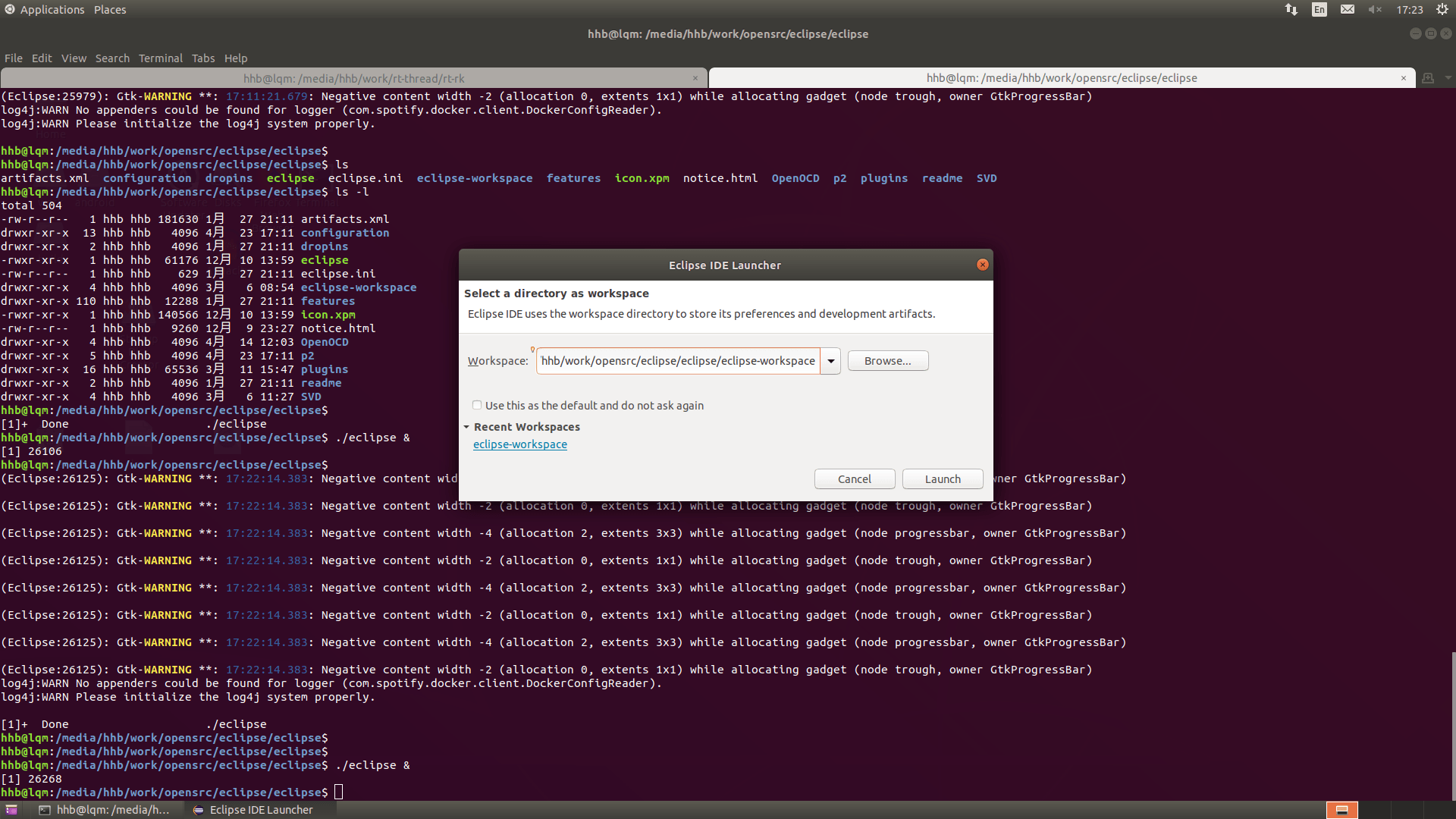
Starting Eclipse
./eclipse &
Set the workspace to eclipse-workspace under the eclipse directory.
Enter the main interface.
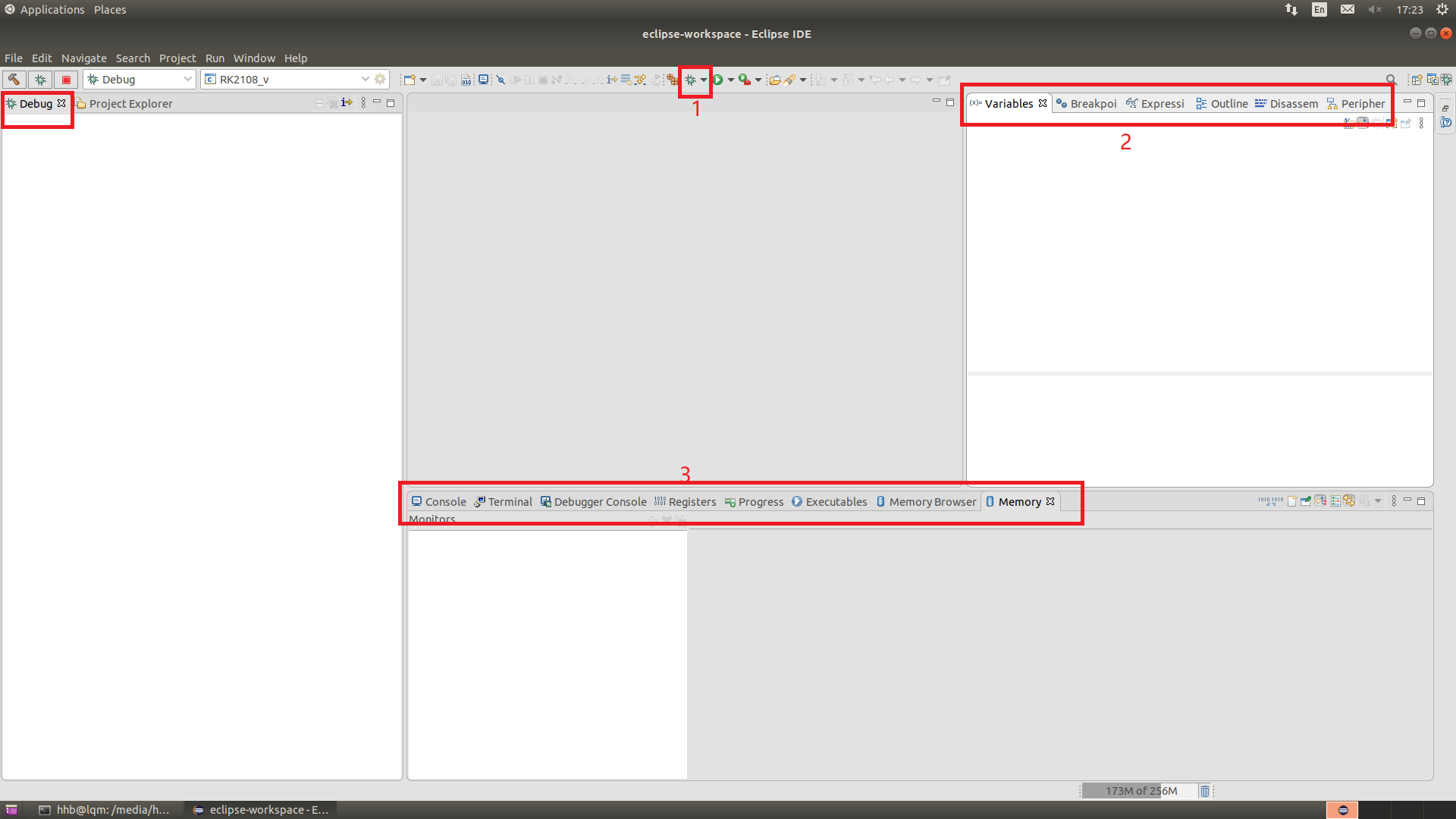
GNU MCU Eclipse OpenOCD
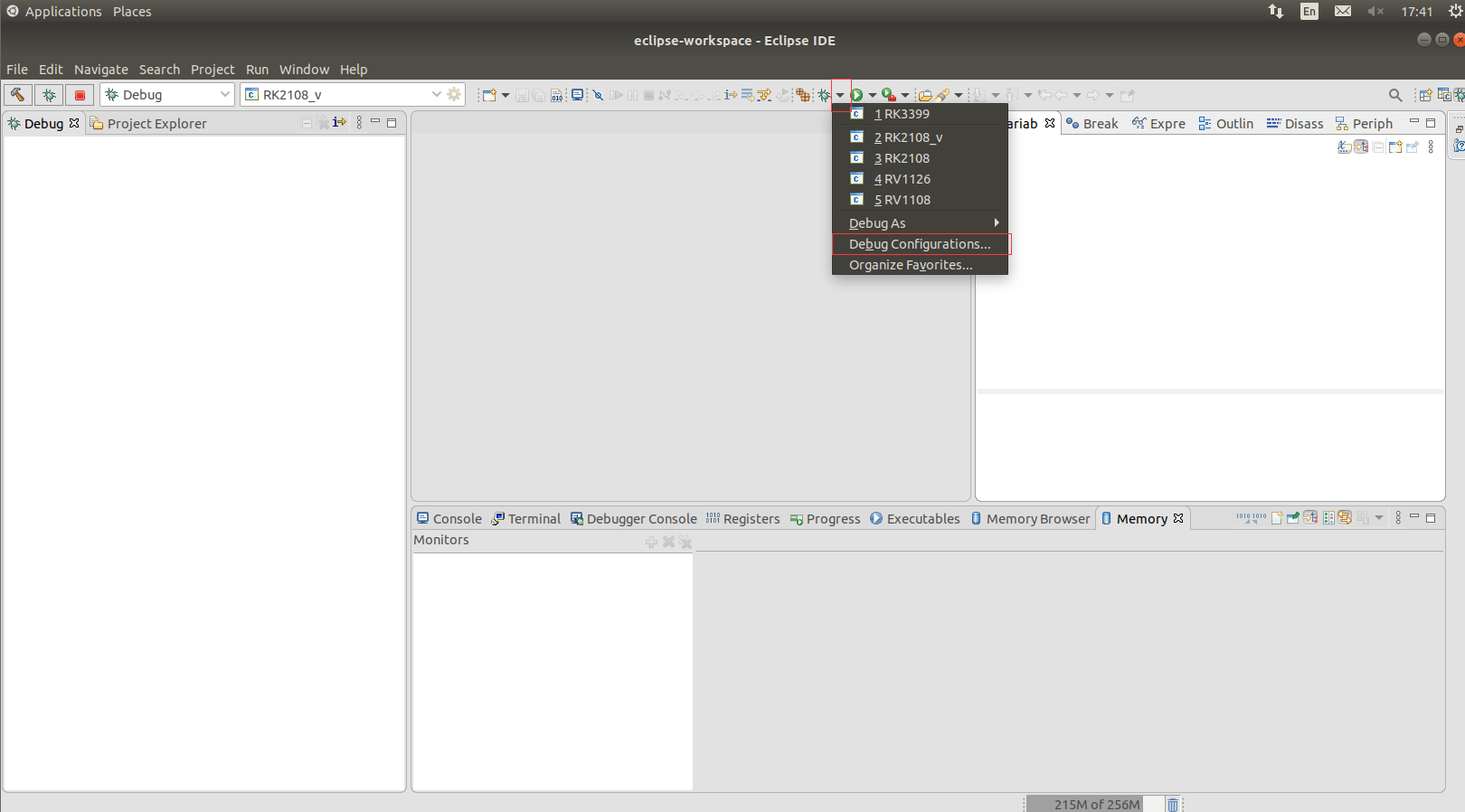
- Click the triangle button next to the green ladybug icon, then click Debug Configurations.
- Area 1 in the image below shows the debug configuration name for each chip. Area 2 shows the function configuration for each chip.
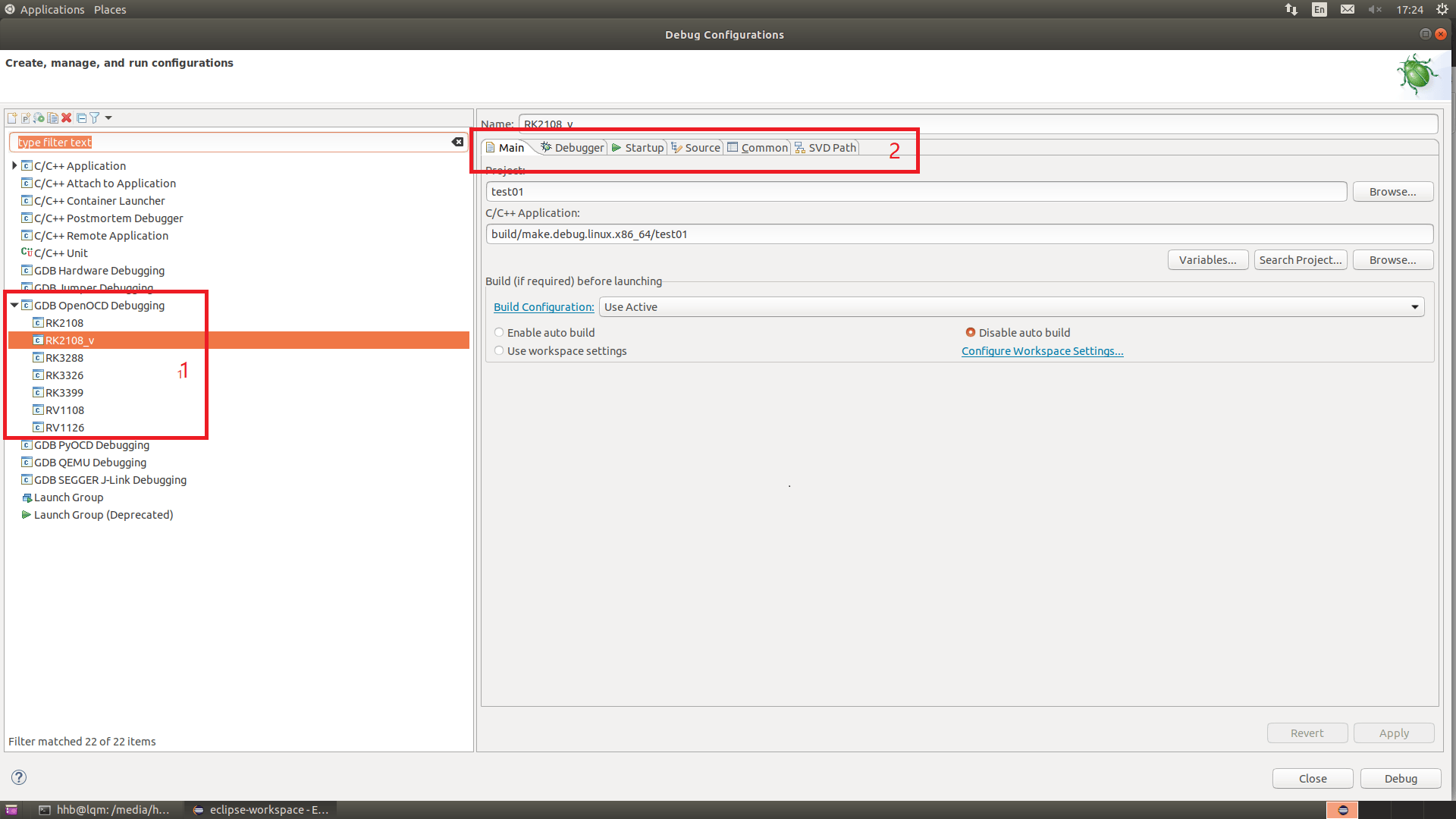
- Main menu
Default.
- Debugger menu
Path 1 changes with the extraction path of eclipse.tar.gz, but path 2 only accepts absolute paths (environment variables or relative paths cannot be used). Therefore, copy the path from 1 to overwrite path 2. Item 3 specifies the GDB path. Note: for ARM32, use a 32-bit GDB; for ARM64, use a 64-bit GDB.
Item 1 Configures the OpenOCD path. No modification needed.
Item 2 is the OpenOCD configuration command, as follows:
-r rk3399
Select the chip, e.g., rk3288, px30, rv1126, etc. Check the RK/tcl/target/ directory for a file with the same name to verify chip support.
-c "adapter speed 15000"
Set the speed in KHz. If unstable, reduce this value.
-c "target smp cpu0 cpu1 cpu2 cpu3 cpu4 cpu5"
Select the CPUs to connect. Note that cpu0 is mandatory; other cores can be added or removed.
-c "cpu0 configure -rtos hwthread"
Add this command together with the previous command to support multi-core debugging. Otherwise, only cpu0 is connected.
Note: For single-core MCU chips, the two multi-core commands above are not needed.
Item 3 Configures the GDB path. No modification needed.
Item 4 GDB commands. Generally no modification needed.
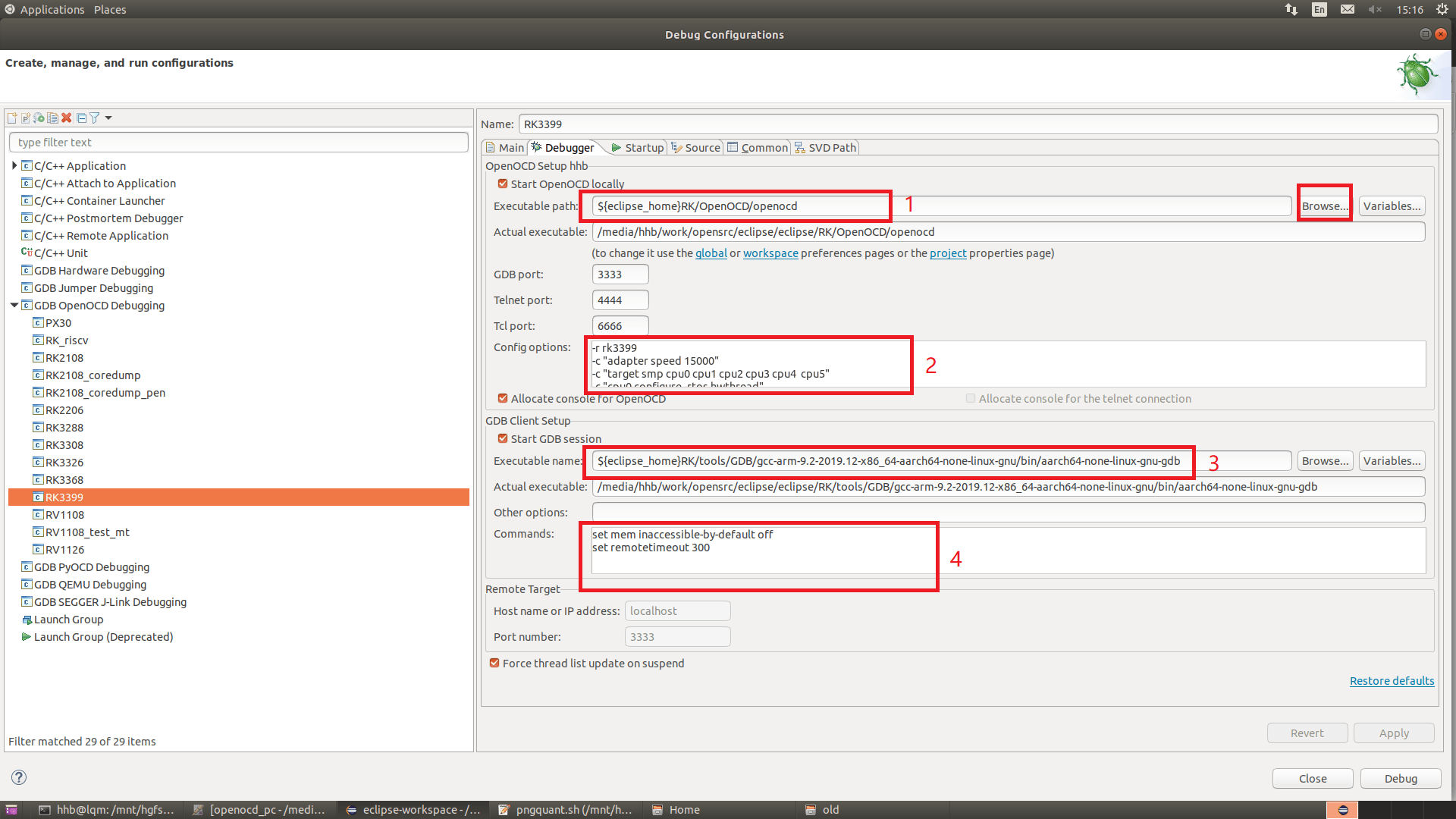
Note: Only the Debugger menu needs to be configured to connect to the device. The following menu descriptions are optional feature configurations.
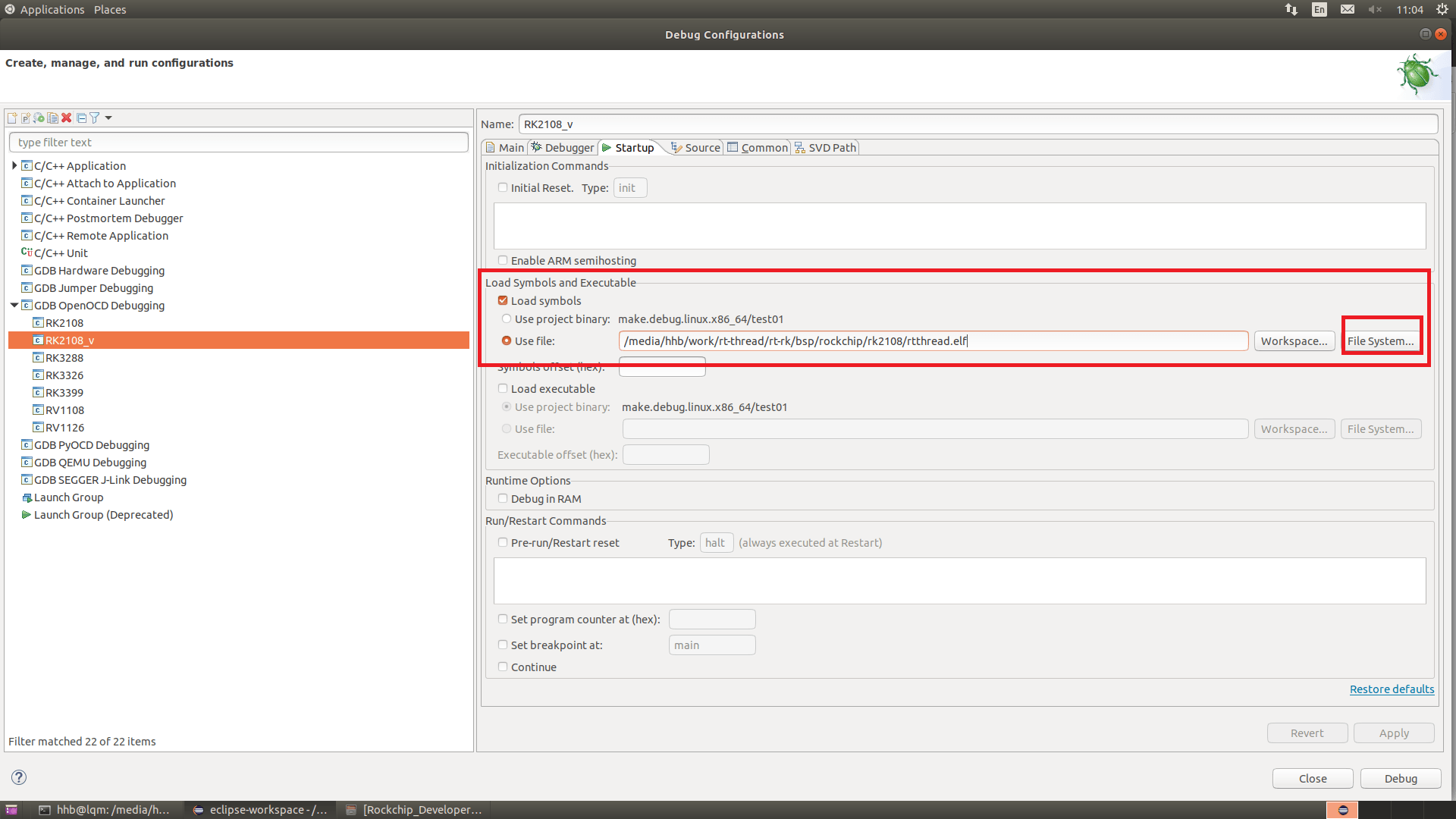
- Startup menu Startup contains various configurations. This section mainly covers loading the symbol table. Click the File System button in the red box to select the corresponding elf, vmlinux, etc.
- Source menu
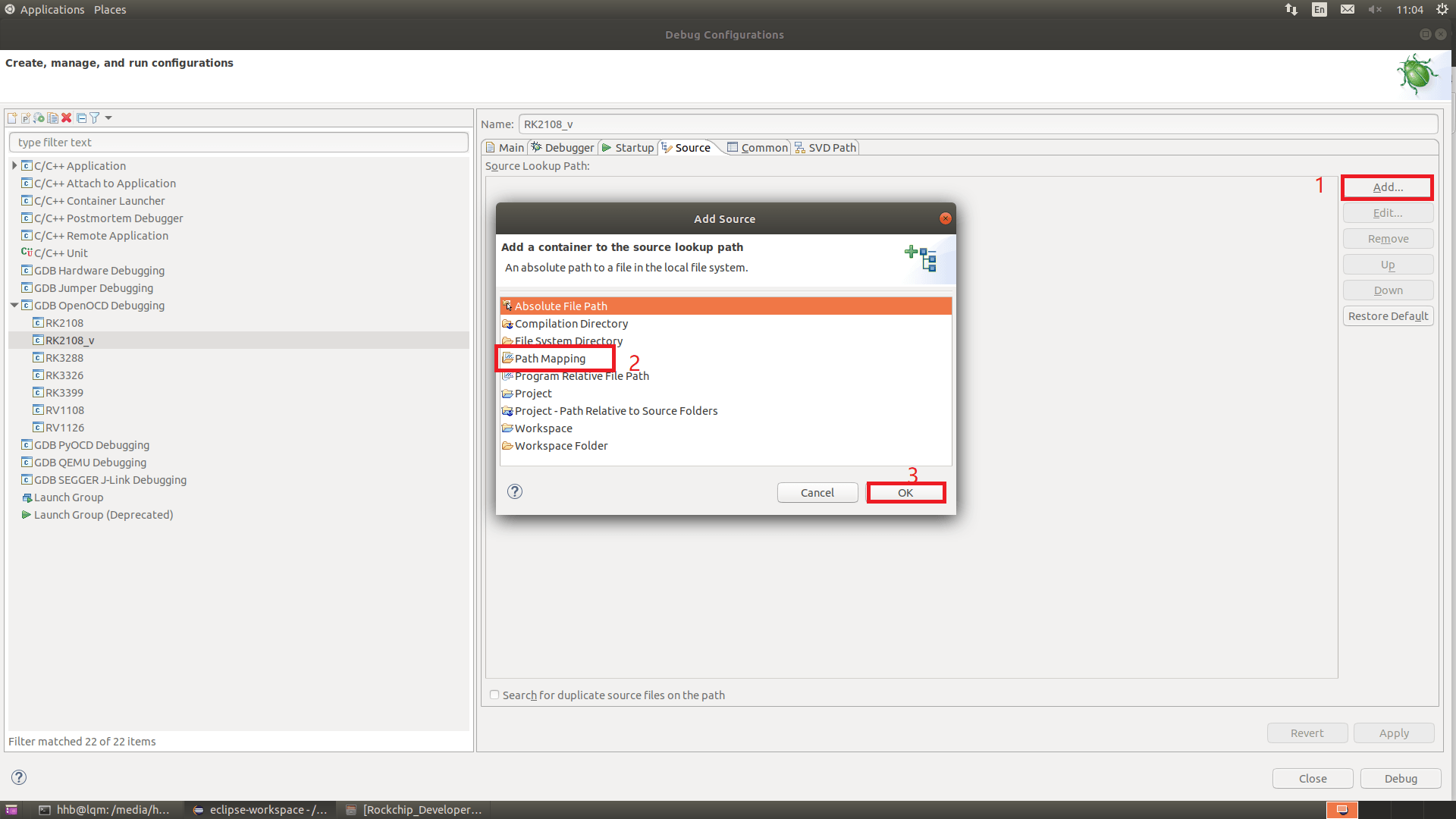
This section mainly covers adding source code paths. If the local code path matches the code path in the elf file, no configuration is needed.
- Path mapping Follow steps 1, 2, 3 in order as shown below.
Select the code path from the symbol table. This needs to be entered manually.
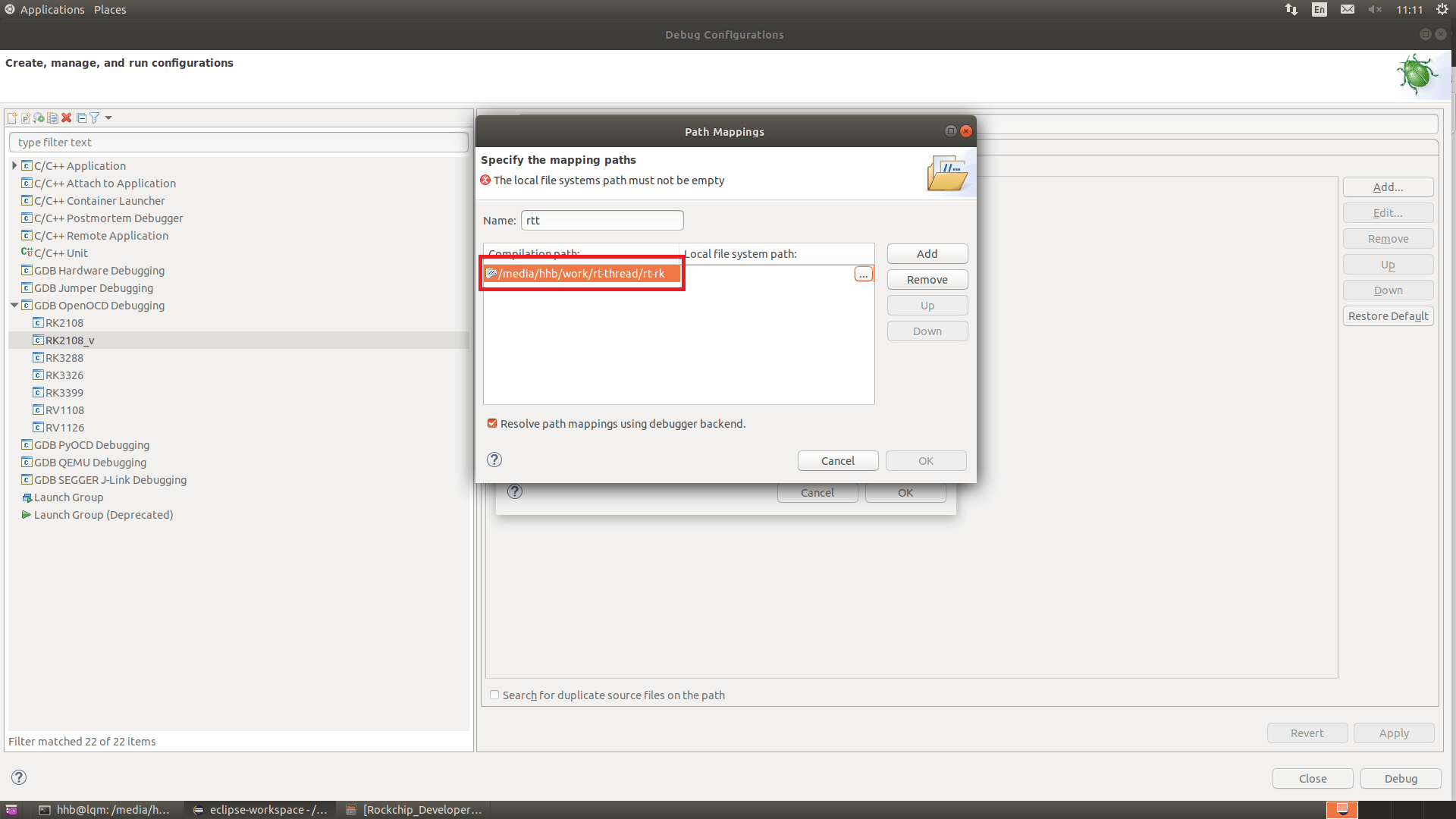
Select the local code path. There is a small button on the far right of the dialog (shown above); click it to select the local path.
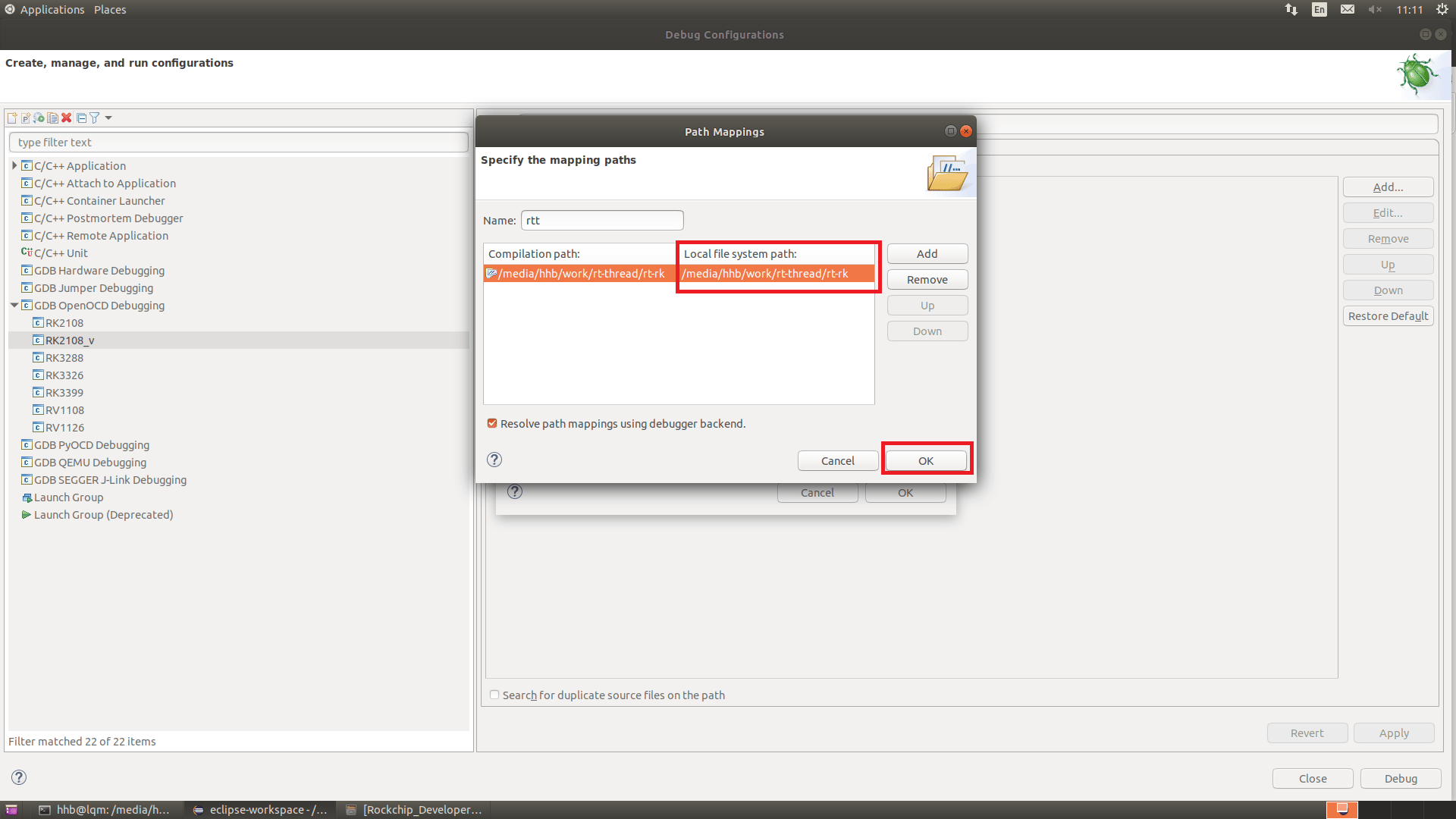
-
Configure local code path
Follow steps 1, 2, 3 in order as shown below.
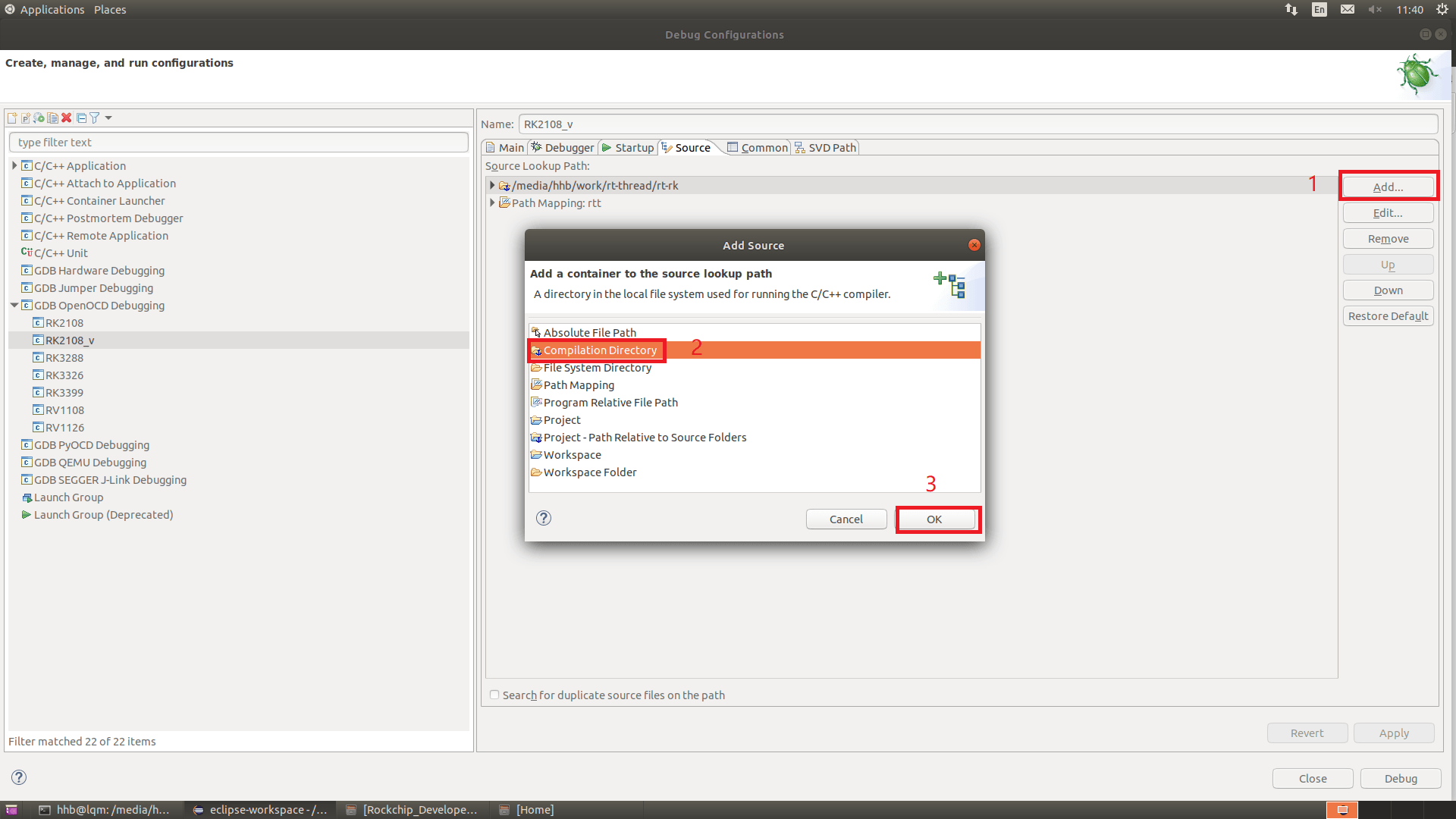
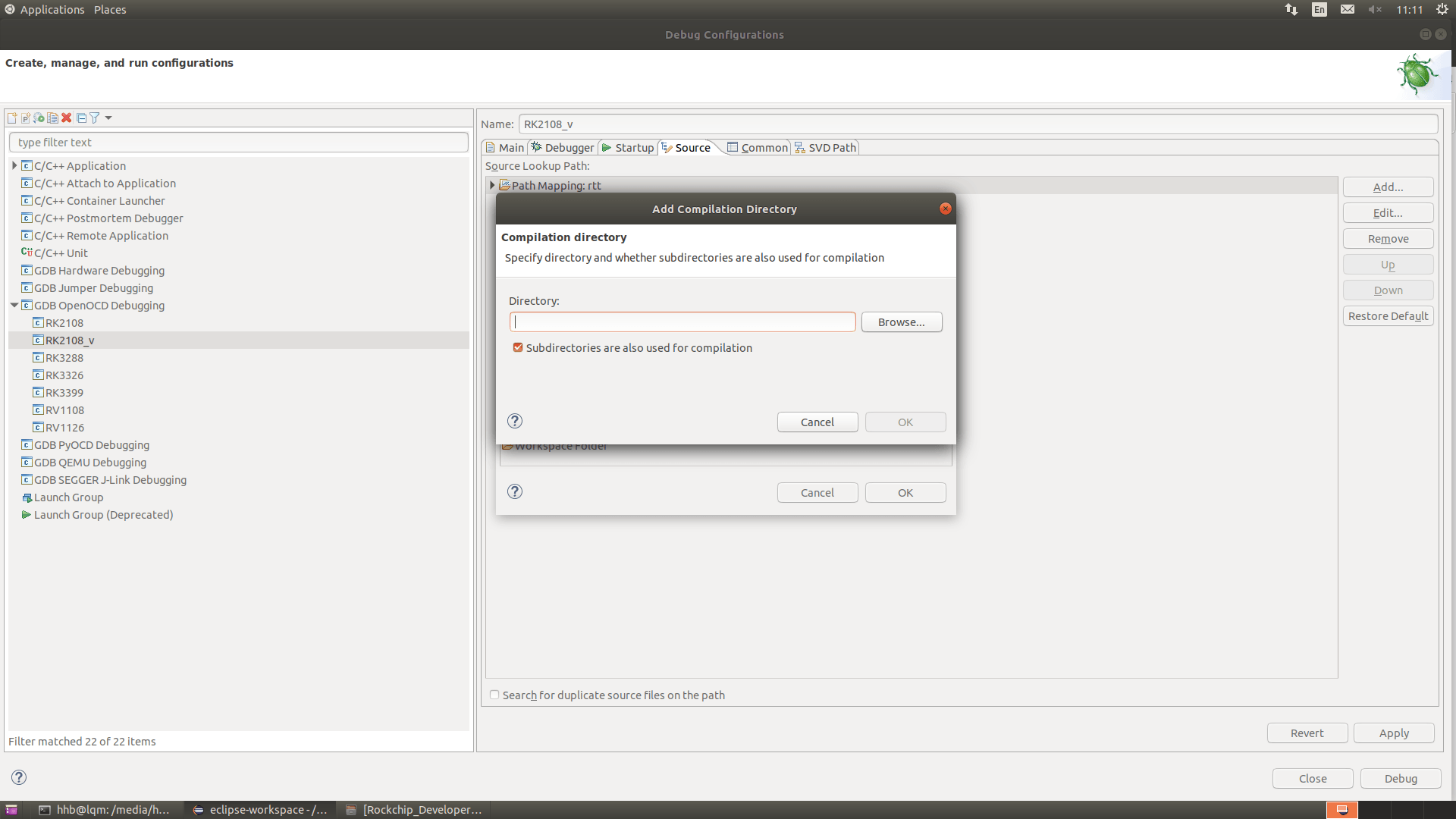
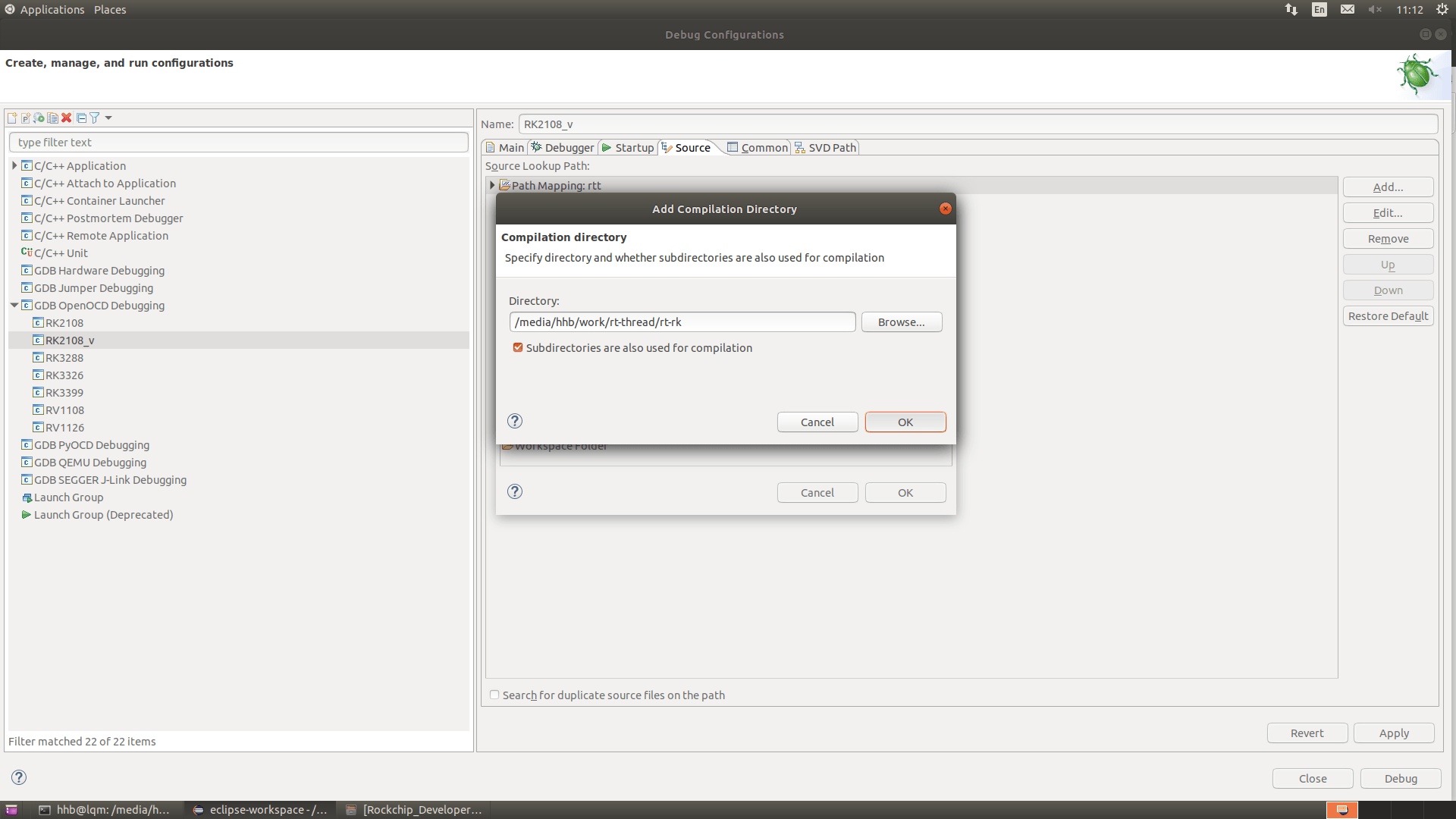
-
SVD Path menu
Configure the SVD file for viewing core registers or peripheral registers during debugging.
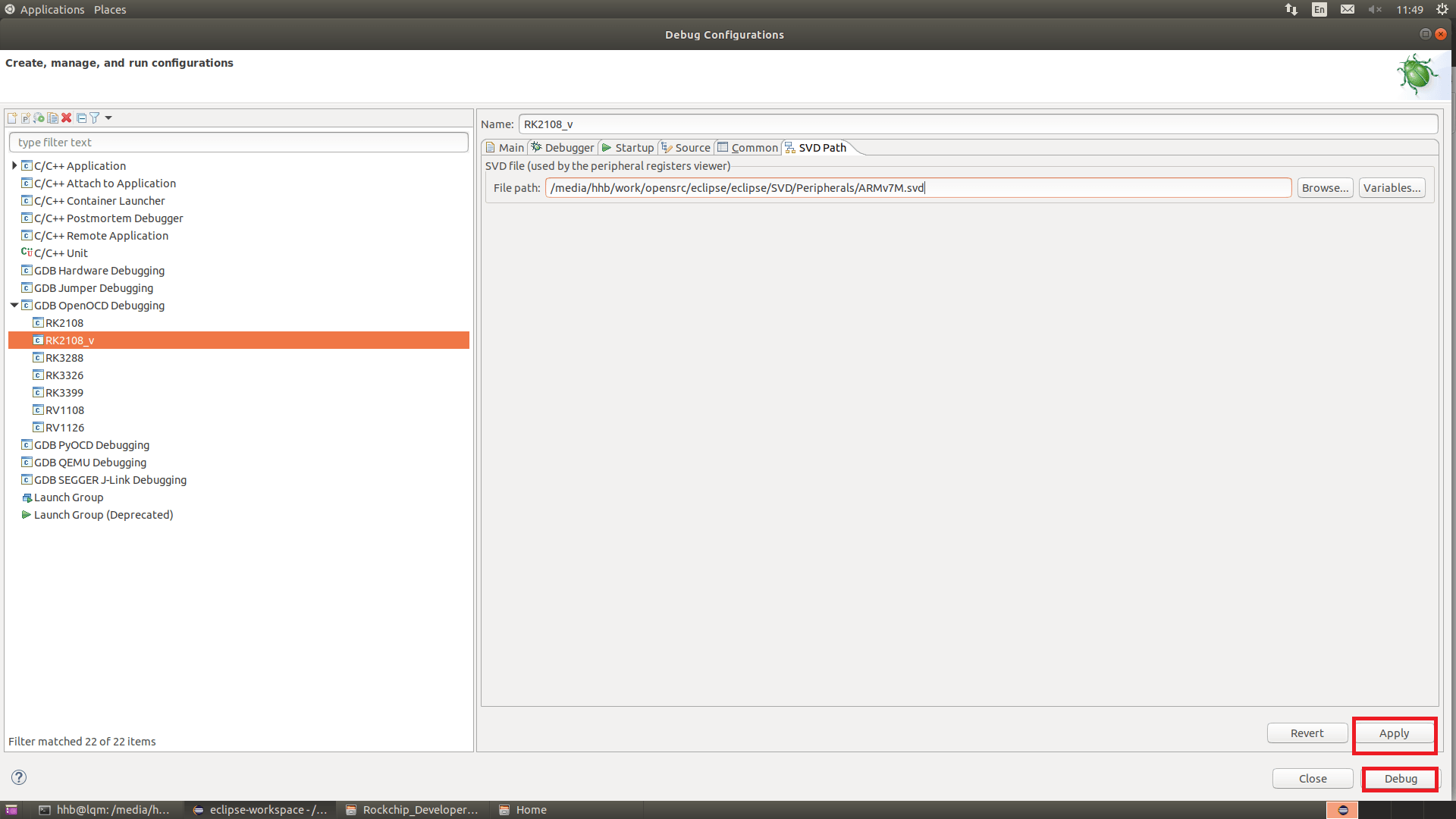
- Final step: click Apply (bottom right) to save the configuration, then click Debug to start debugging.
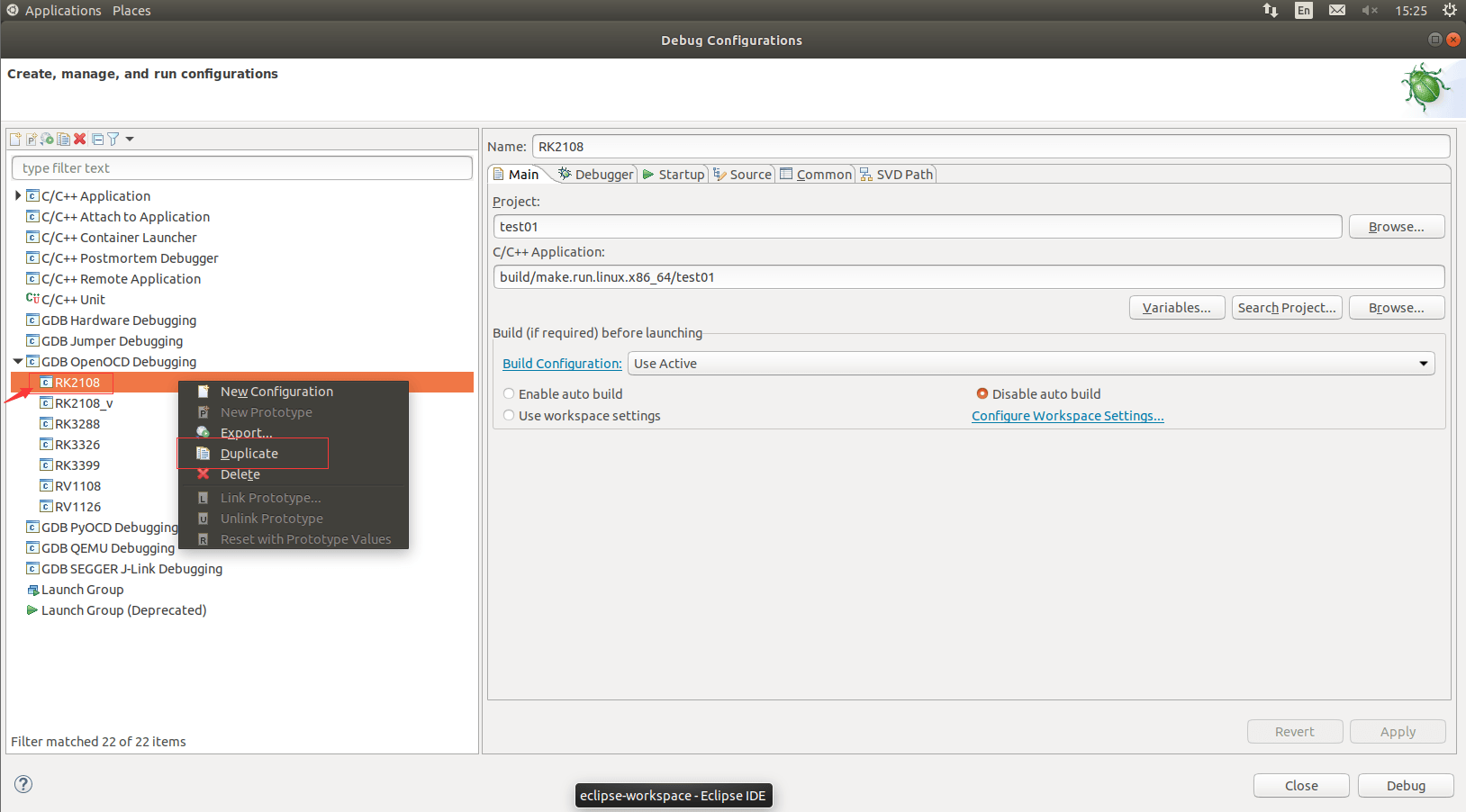
Note: To add a chip, right-click the configuration name on the left, click Duplicate, copy the chip configuration, and modify it.
Eclipse CDT (C/C++ Development Tooling)
The above shows the CDT debug interface:
Area 1: Click the small bug icon on the right to select the chip to debug, then connect to the chip and enter debug mode.
Area 2:
- Variables Local variables of the function.
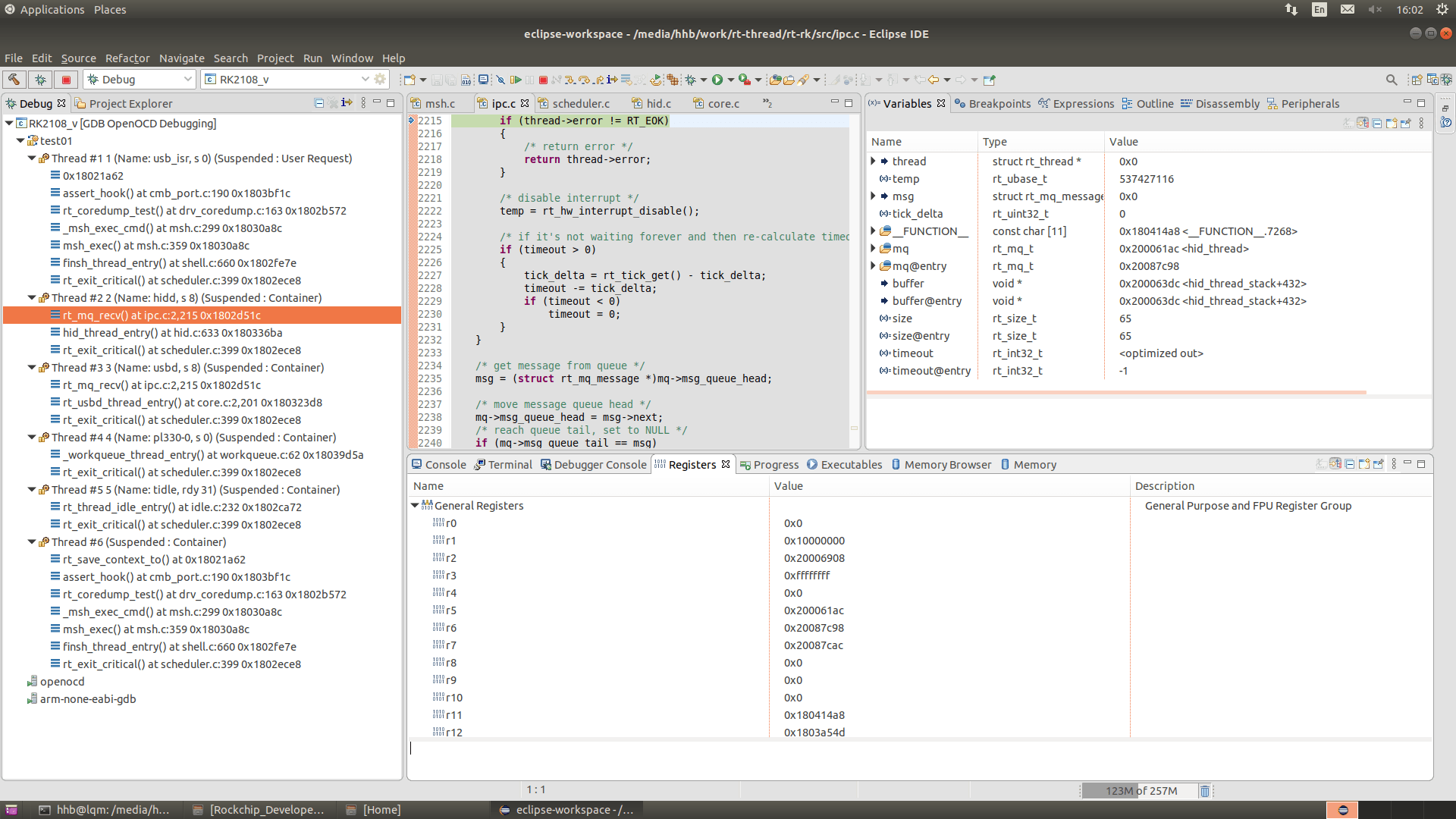
- Breakpoints Set breakpoints.
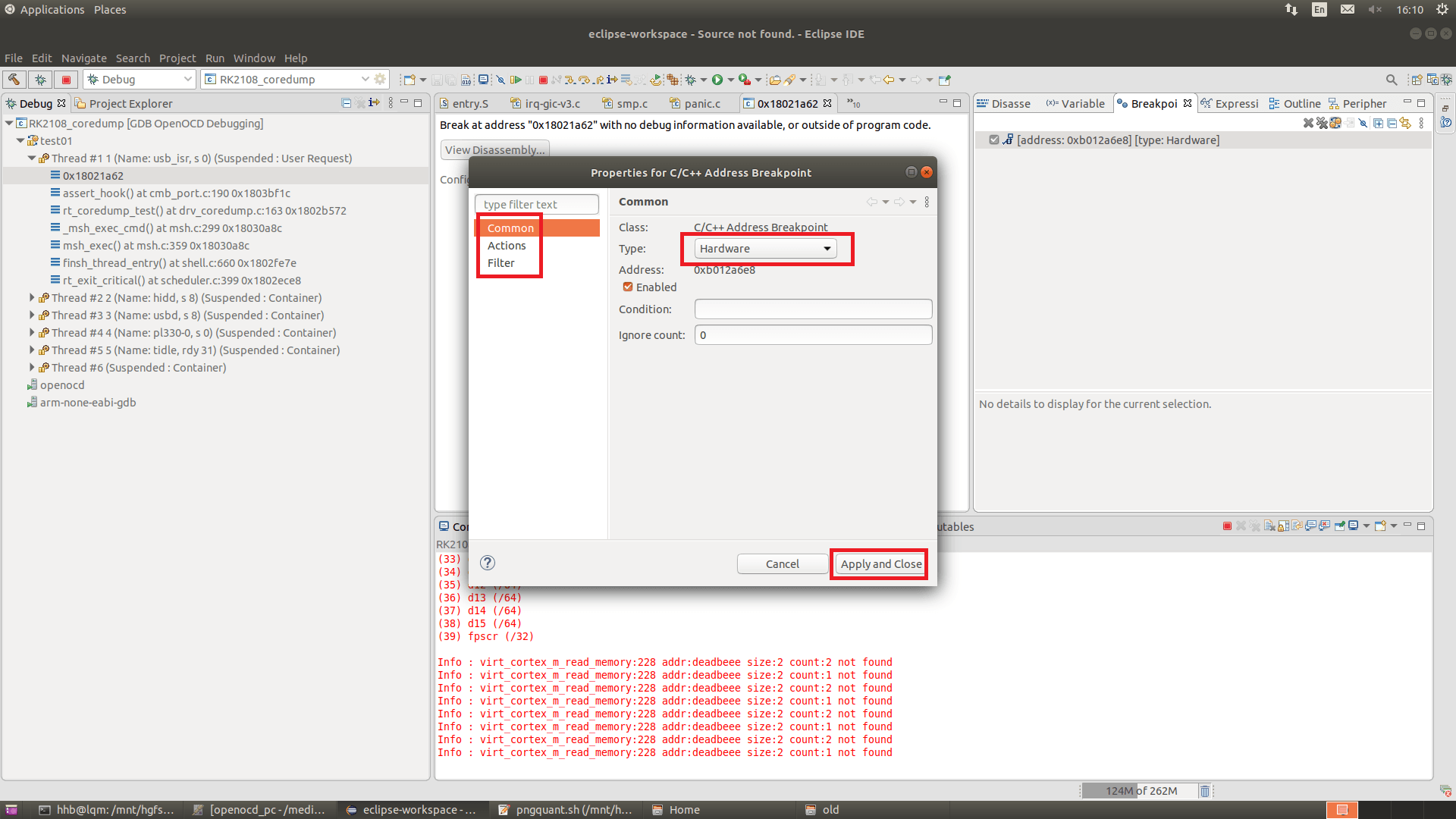
Note: Breakpoints must be set to Hardware type.
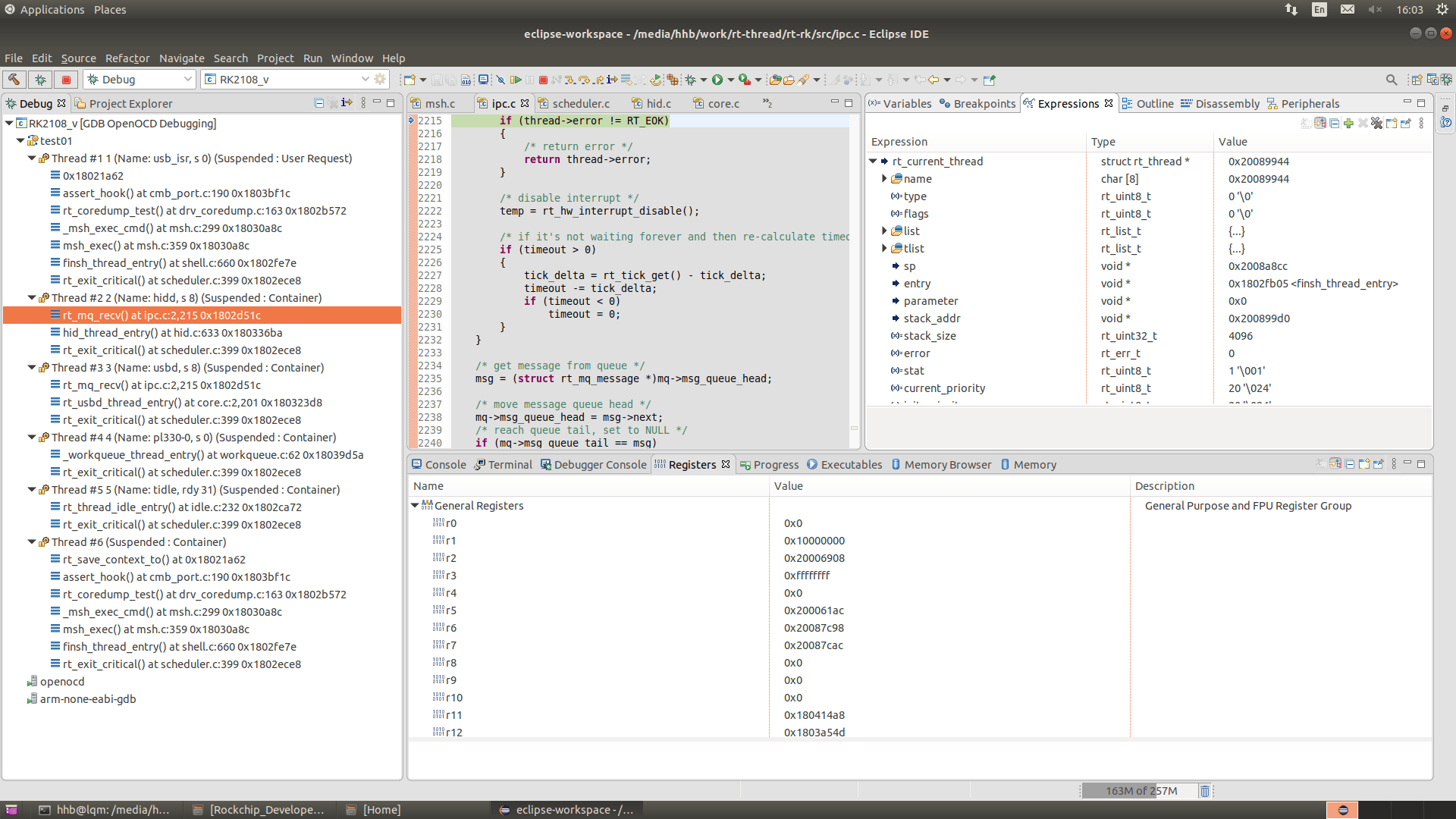
- Expressions Mainly for viewing global variables.
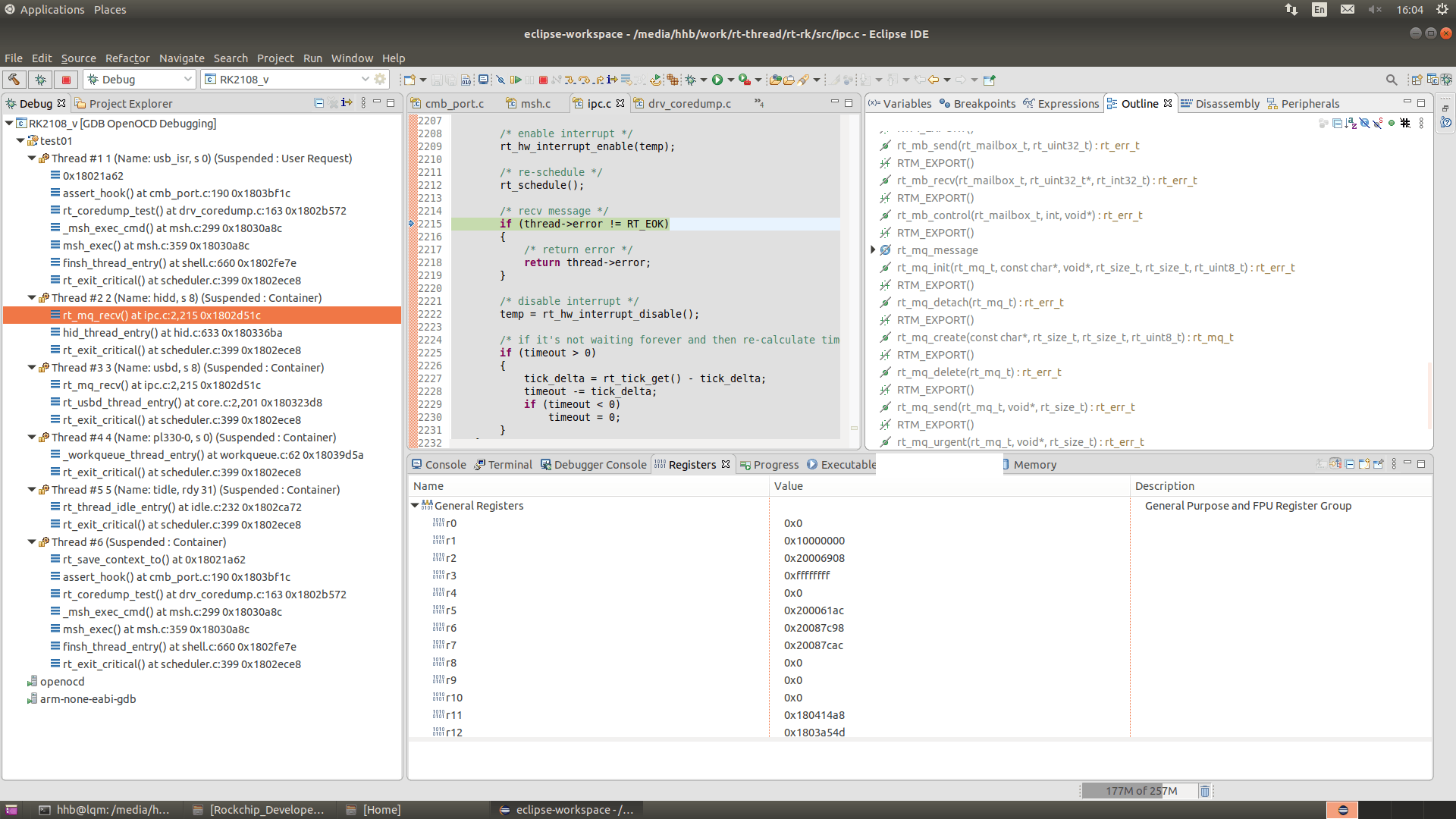
- Outline Displays function names, macro definitions, etc., from the opened source code.
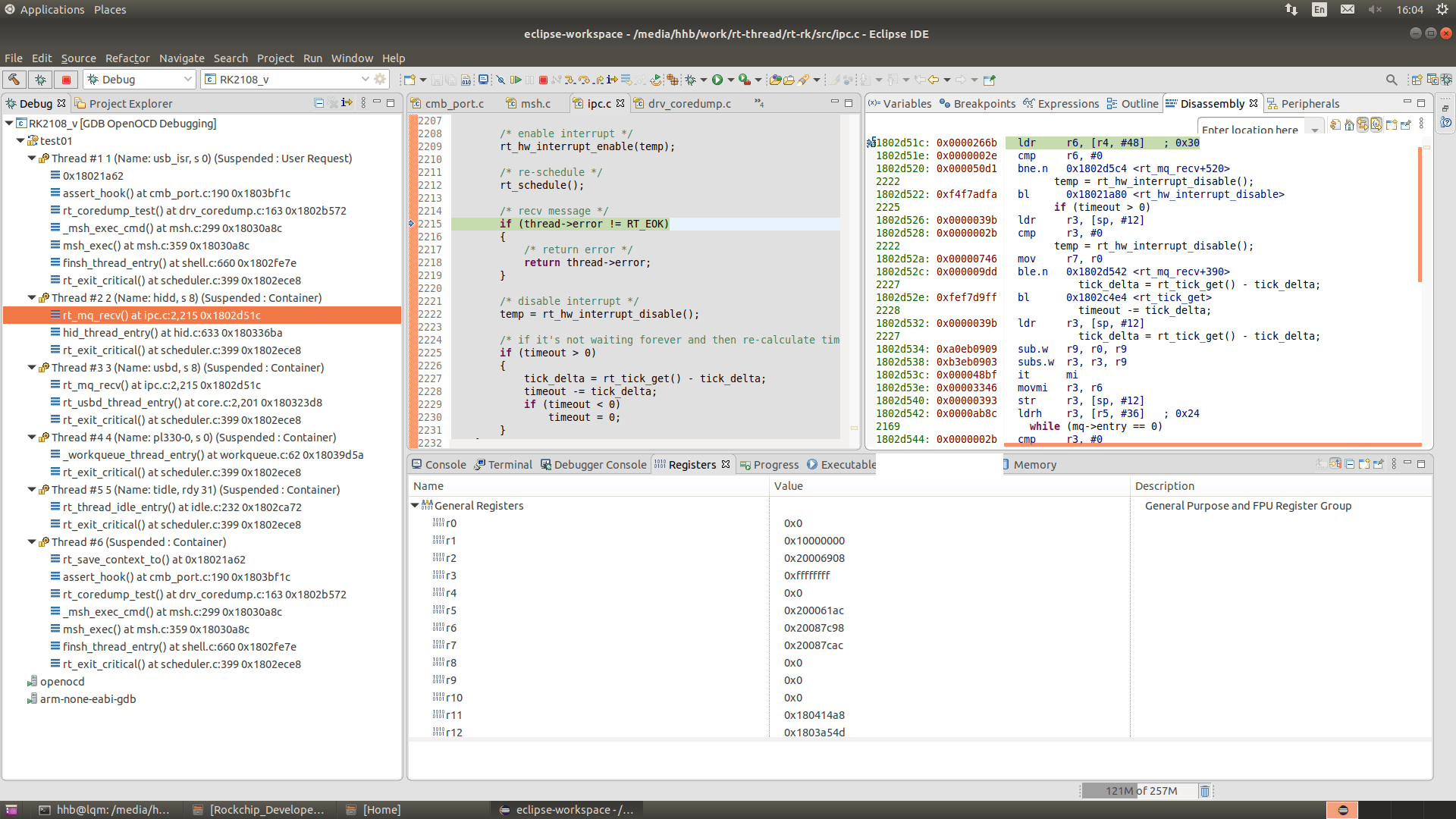
- Disassembly Disassembly view.
Area 3:
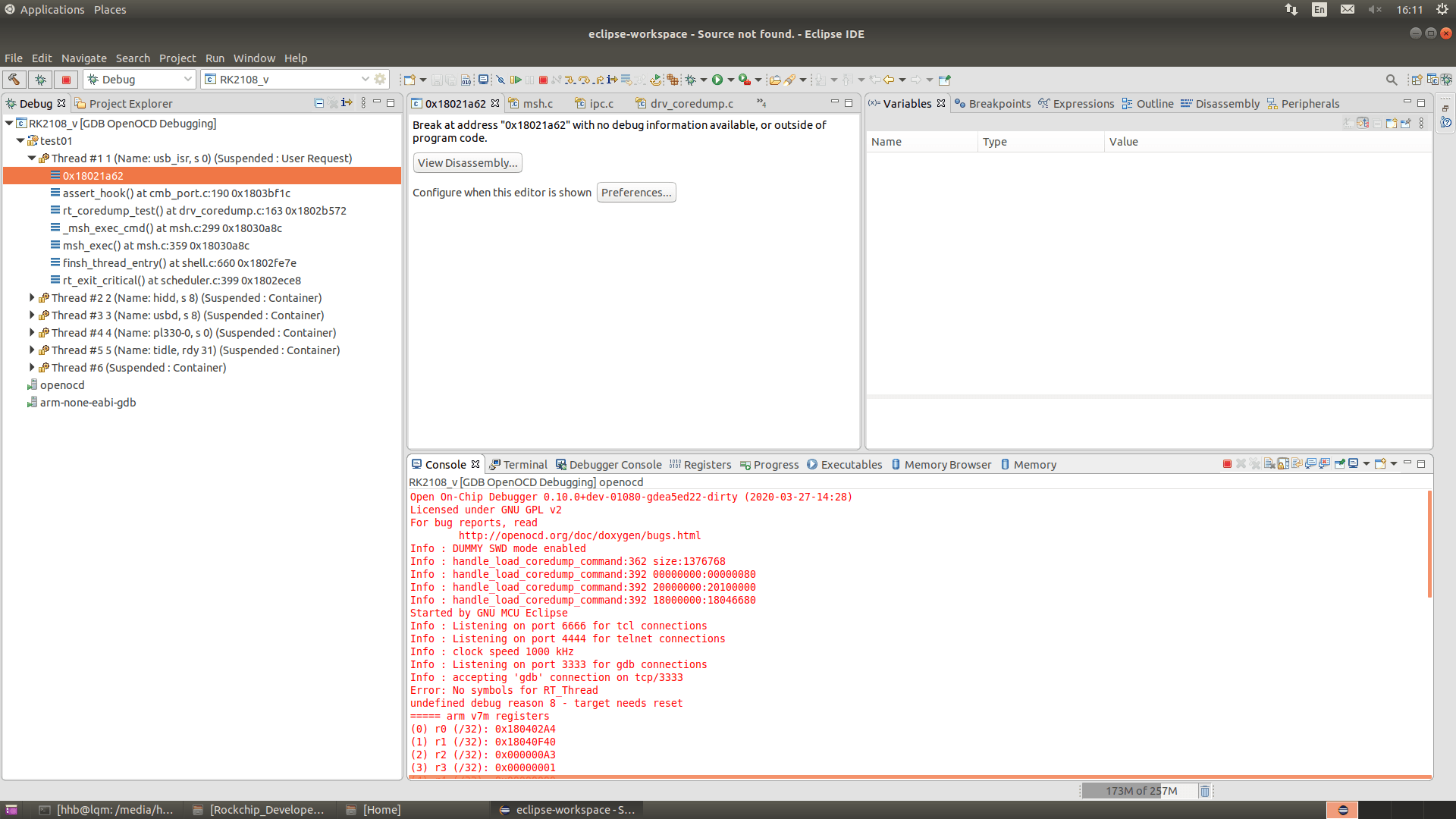
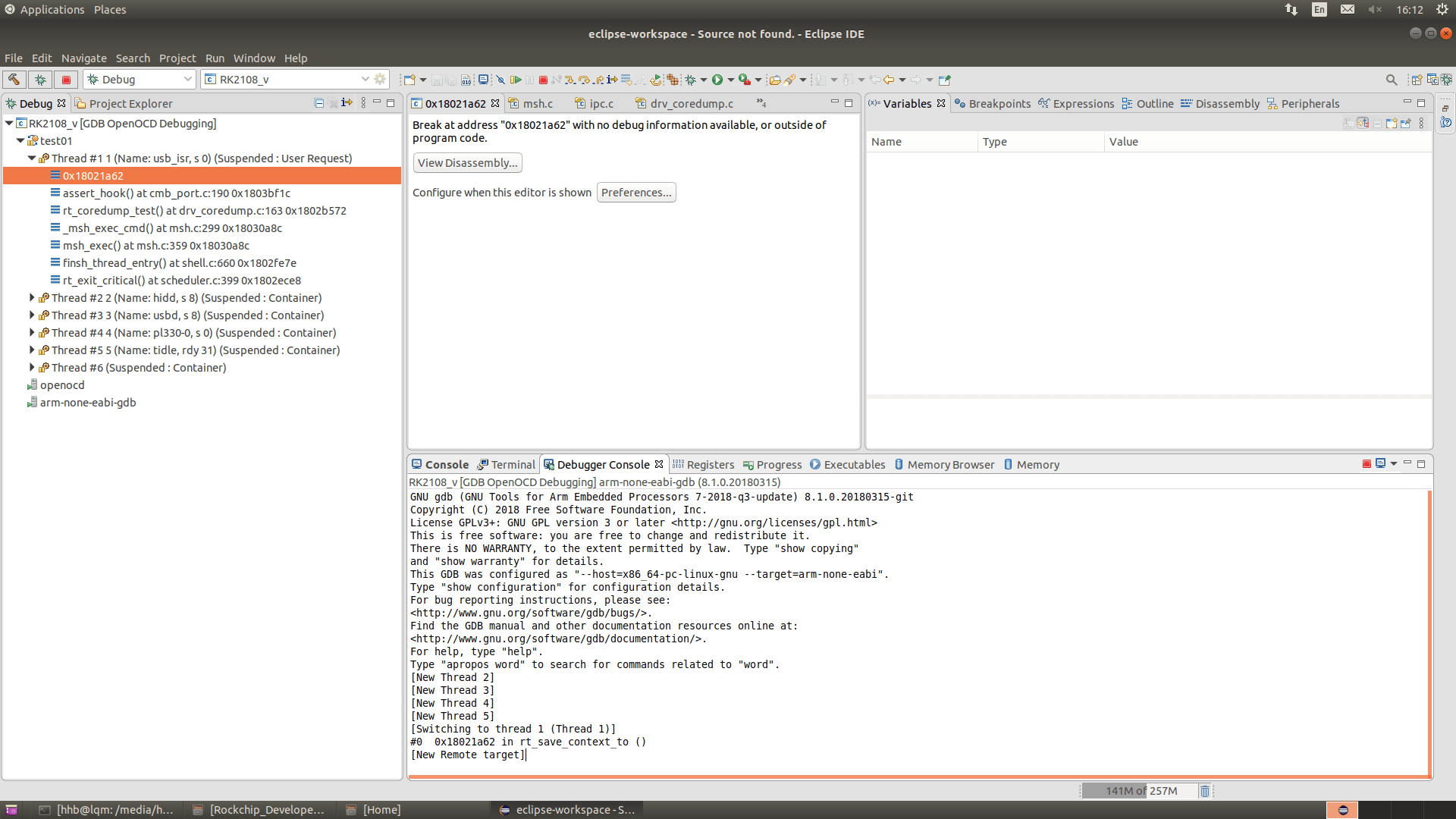
- Console Outputs OpenOCD runtime logs, used to check if the OpenOCD connection is normal.
- Debugger Console GDB command line.
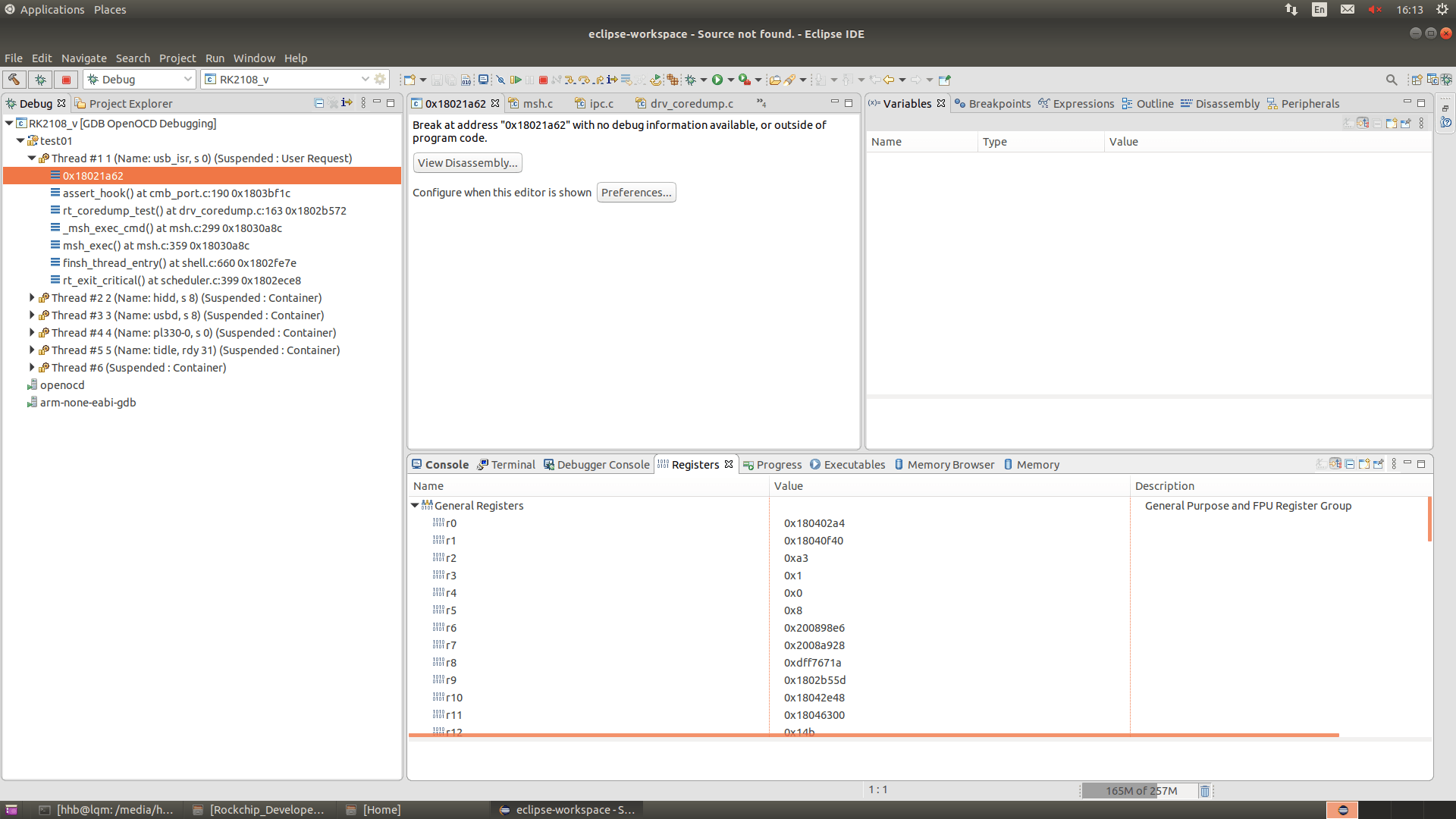
- Registers CPU registers.
- Memory Browser View memory.
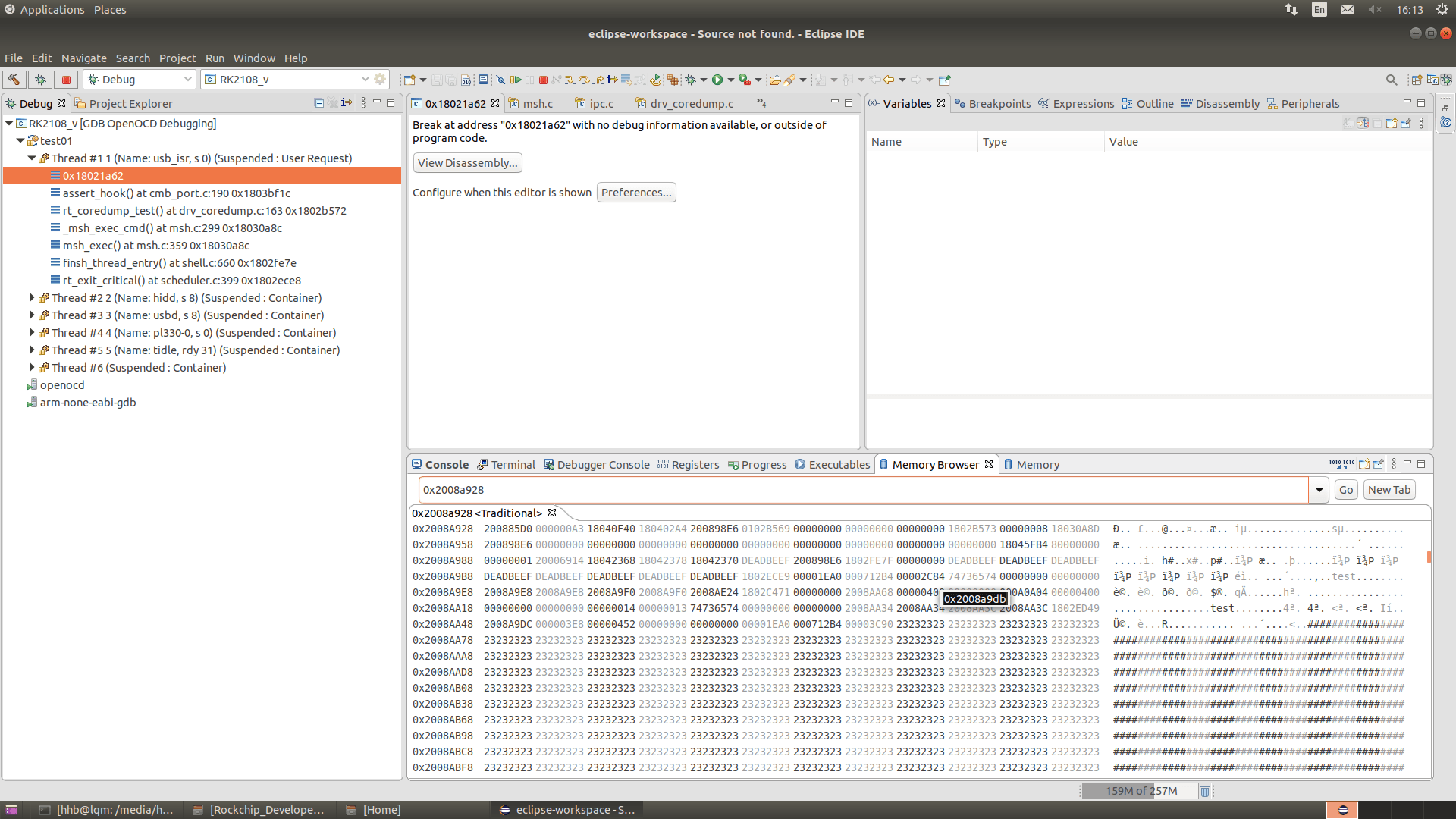
Note: When viewing memory here, for SoCs with MMU, this shows virtual addresses; for those without MMU, it shows physical addresses.
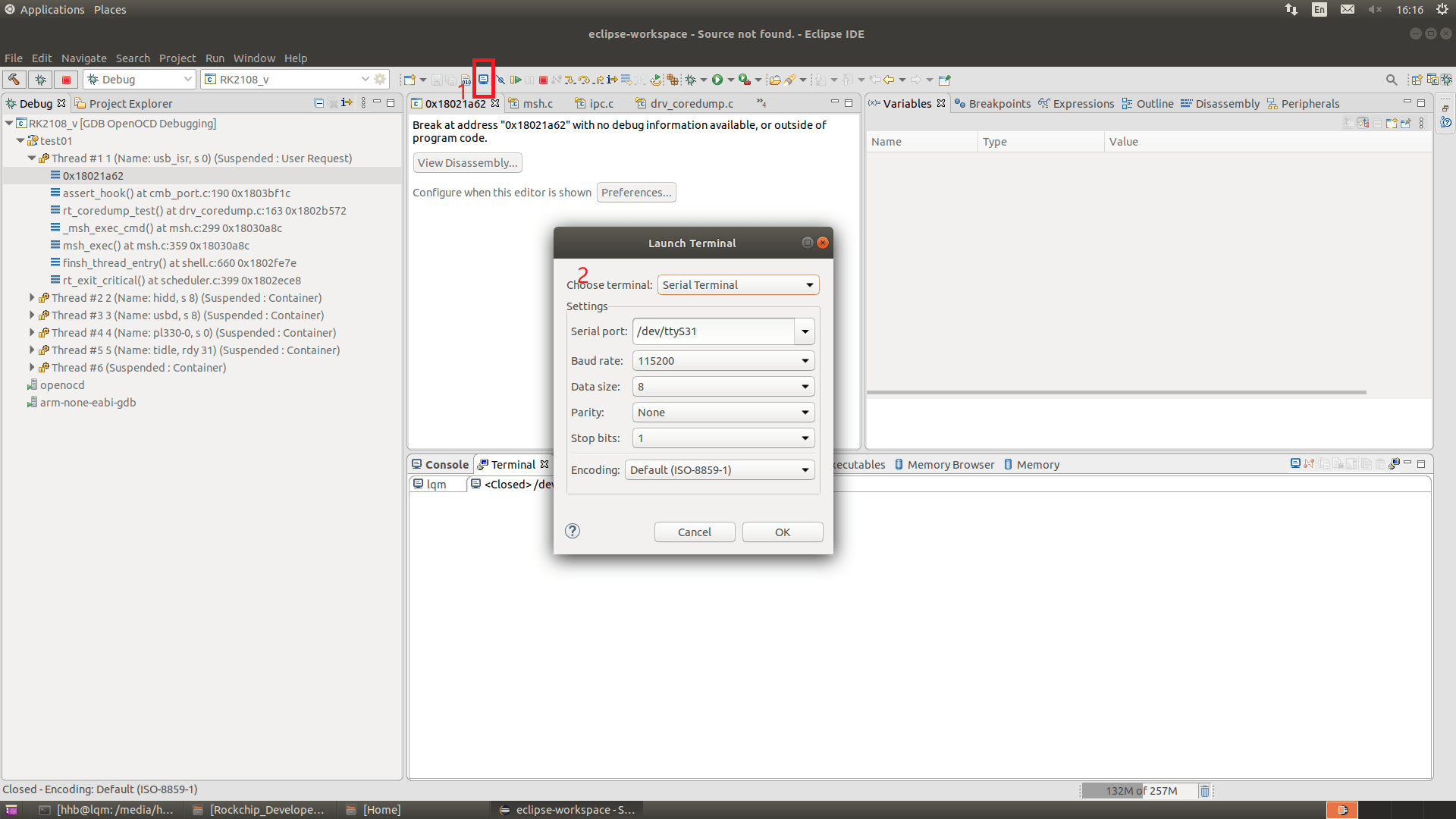
- Serial terminal
Click button 1 to open dialog 2.
- Command line terminal
Follow the steps below to open a local command line terminal:
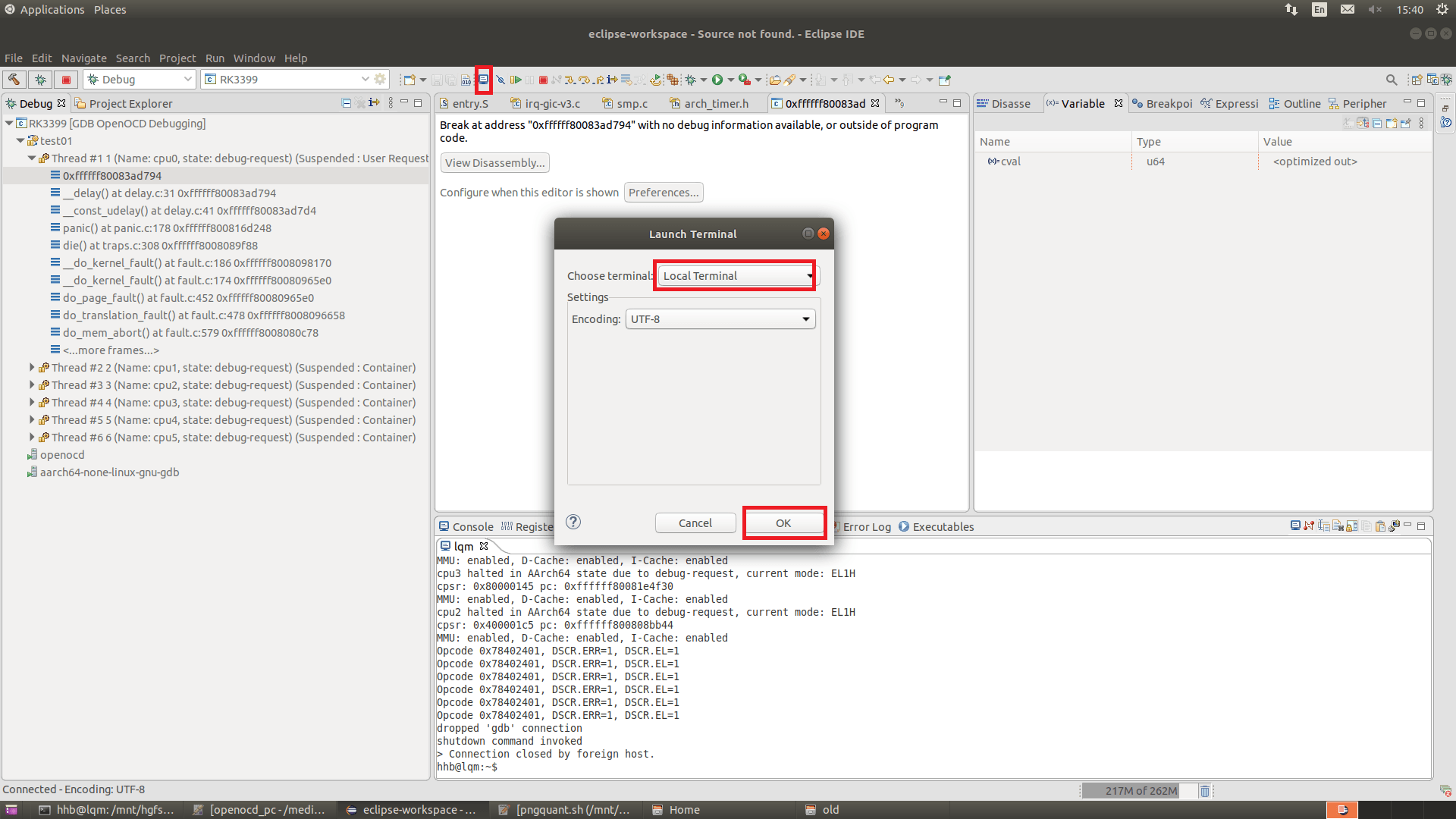
In the command line terminal, enter telnet localhost 4444 to enter the OpenOCD command line debug mode. Execute the 'l' command to view detected targets.
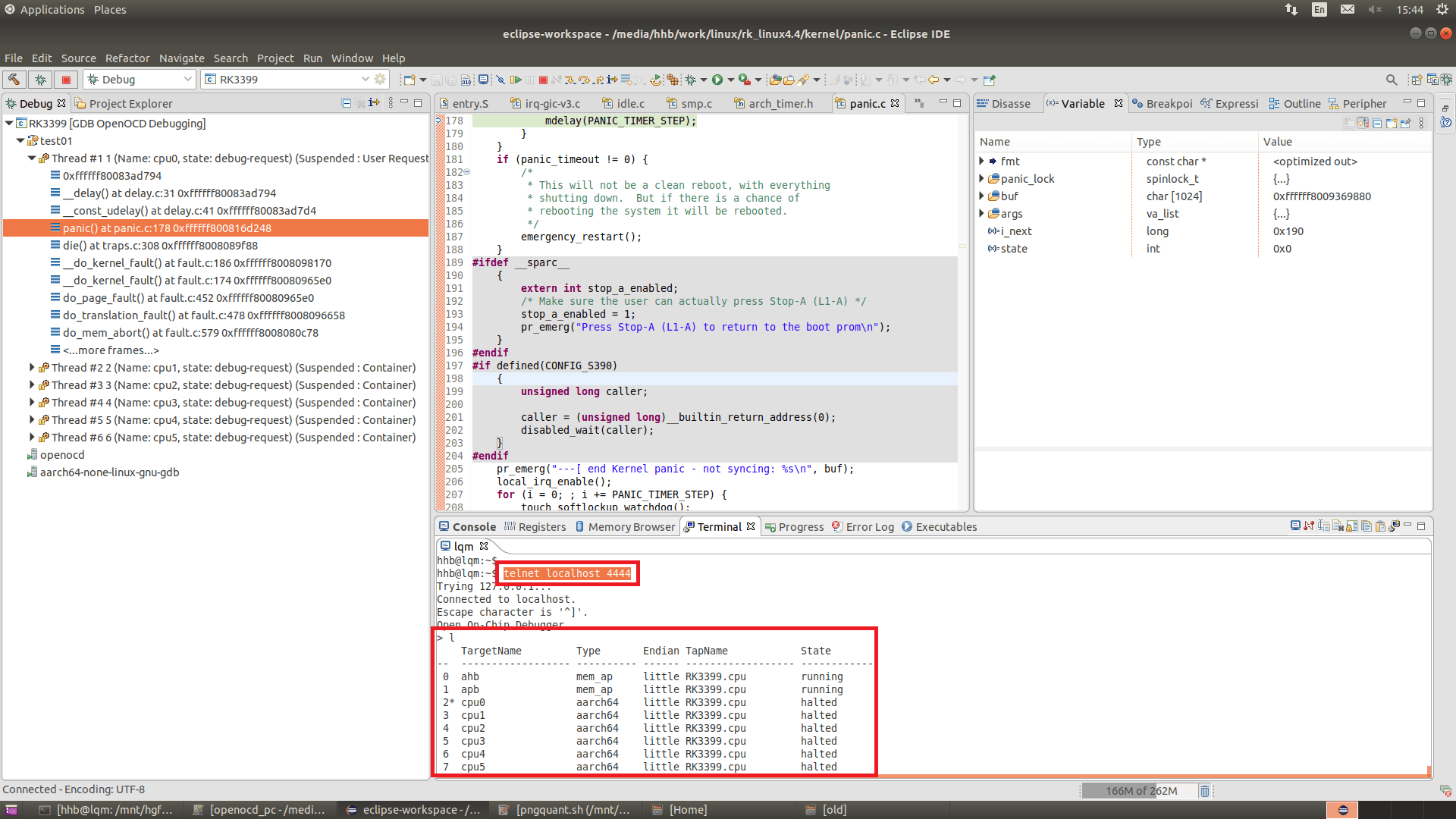
Note: Some features not supported by the UI can be operated via the command line, such as accessing physical addresses on SoCs with MMU.
Common physical address access commands:
Read:
mdw phys physical_address data_count (unit is 4 bytes)
Write:
mww phys physical_address value data_count (unit is 4 bytes)

The read/write commands above are based on a specific CPU or bus. For example, if the CPU is stuck and cannot access peripheral registers via the CPU, switch targets by executing "l apb", then execute the read/write commands.
Summary: Each window described above has many function buttons at the top. Interested readers can explore them on their own; this guide will not provide detailed explanations.
OpenOCD Usage
Refer to: OpenOCD User's Guide:
http://openocd.org/doc/html/General-Commands.html#General-Commands
Refer to: "Rockchip_Developer_Guide_OpenOCD_CN.md".
FPGA Chip Verification
Command line operation is recommended.
- Open a terminal and run
openocd -r fpga_cortex_a7(if fpga_cortex_a7.cfg is not found, use rv1108). - Open another terminal and run
telnet localhost 4444. - In the telnet command line, run
script fpga_init.cfg(mainly for initializing the serial port, configuring CPU registers, downloading firmware, etc.).
> script fpga_init.cfg
init cortex-a fpga
uart baudrte 115200
load image
config cpu registers
fpga_init.cfg can contain the following content; modify it as needed:
echo "init cortex-a fpga"
# Increase JTAG/SWD speed to improve firmware loading speed, unit KHz
adapter speed 30000
# Stop the CPU
halt
# Initialize serial port
echo "uart baudrte 115200"
mww phys 0x20084000 0x0
mww phys 0x20084004 0x00100000
mww phys 0x20068088 0x07
mww phys 0x20068010 0x10
mww phys 0x2006800c 0x83
mww phys 0x20068000 0x0d
mww phys 0x20068004 0x0
mww phys 0x2006800c 0x3
mww phys 0x20068010 0x0
mww phys 0x20068000 0x31
mww phys 0x20068000 0x32
mww phys 0x20068000 0x33
# Download firmware; firmware path must use forward slashes, not backslashes
echo "load image"
load_image "D:/DS5_workspace/audis_for_HSIC/boot.img" 0x61FFFFF8 bin
load_image "D:/DS5_workspace/audis_for_HSIC/kernel.img" 0x60FFFFF8 bin
# Configure CPU registers
echo "config cpu registers"
reg pc 0x61000000
reg r0 0x0
reg r1 0xbfa
reg r2 0x60000800
mww phys 0x60000800 0x00000000
reg cpsr 0x600001D3
# Resume CPU execution
resume
Note: Refer to section 3.4 for usage of the commands above.