DS5 External Debug Connection Guide
ID: RK-SM-YF-044
Release Version: V2.1.0
Date: 2020-02-26
Security Level: □Top-Secret □Secret □Internal ■Public
DISCLAIMER
This document is provided "as is". Fuzhou Rockchip Electronics Co., Ltd. ("the Company") makes no express or implied representations or warranties regarding the accuracy, reliability, completeness, merchantability, fitness for a particular purpose, or non-infringement of any statements, information, or content in this document. This document is for reference as a usage guide only.
Due to product version upgrades or other reasons, this document may be updated or modified from time to time without any notice.
Trademark Statement
"Rockchip", "Rockchip", and "Rockchip" are registered trademarks of the Company and belong to the Company.
All other registered trademarks or trademarks mentioned in this document are owned by their respective owners.
Copyright © 2019 Fuzhou Rockchip Electronics Co., Ltd.
Without the Company's written permission, no individual or entity may extract or copy part or all of the content of this document, or distribute it in any form, beyond the scope of fair use.
Fuzhou Rockchip Electronics Co., Ltd.
Address: No. 18, Area A, Software Park, Tongpan Road, Fuzhou, Fujian Province
Website: www.rock-chips.com
Customer Service Phone: +86-4007-700-590
Customer Service Fax: +86-591-83951833
Customer Service Email: fae@rock-chips.com
Preface
Overview
This document mainly introduces DS-5 JTAG/SWD connection and usage.
Product Versions
| Chip Name | Kernel Version |
|---|---|
| All chips | No restriction |
Intended Audience
This document (guide) is mainly applicable to the following engineers:
Technical Support Engineers Software Development Engineers
Revision History
| Date | Version | Author | Revision Description |
|---|---|---|---|
| 2017-12-21 | V1.0.0 | Hong Huibin | Initial release |
| 2018-12-03 | V2.0.0 | Hong Huibin | Added more content |
| 2020-02-26 | V2.1.0 | Hong Huibin | Supplemented document header and some chapter content |
[TOC]
JTAG/SWD Hardware Interface
System Debug Architecture, Supports JTAG/SWD and TRACE_DATA Two Output Interfaces
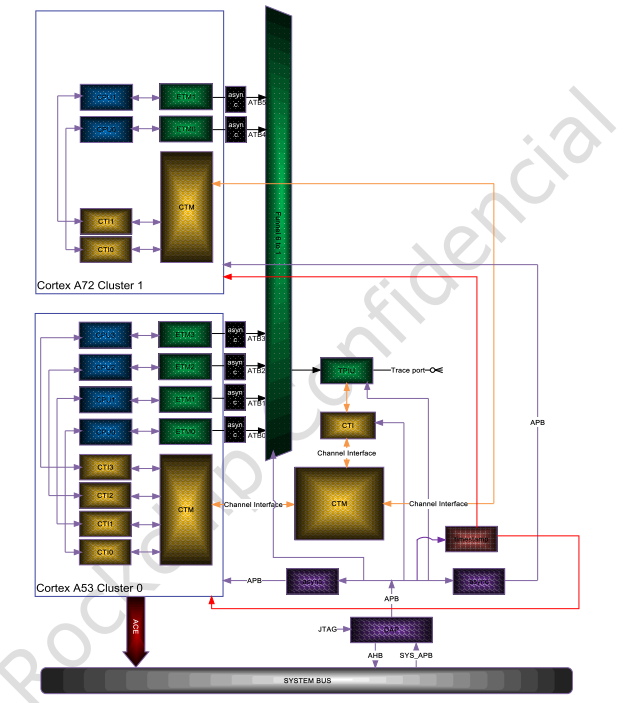
JTAG/SWD are Further Divided into Two Interfaces: 5-wire JTAG and 2-wire SWD
The JTAG interface includes TDO, TDI, TRST_N, TMS, TCK. The SWD interface includes TMS and TCK two wires. As shown in Figure 1.2.1, Debug pins are multiplexed with SDMMC. In hardware design, these pins can be directly connected to a JTAG/SWD connector, or connected via a TF card adapter board. These two interfaces are automatically identified and controlled by chip hardware without software intervention. That is, debugging software such as DS-5 can identify both JTAG and SWD interfaces if TDO/TDI/TRST_N/TMS/TCK are all connected. If only TMS and TCK are connected, it can only be configured as an SWD interface. This article mainly introduces the SWD interface.
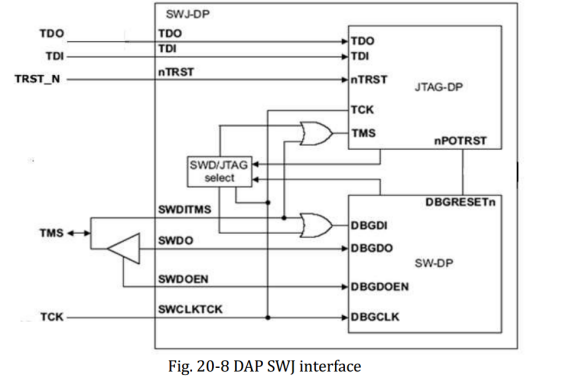
(Figure 1.2.1)
Figure 1.2.2 shows the JTAG interface of a DS-5 debugger. Generally, DS-5 Debug connections use the 2-wire SWD (serial wire debug) interface. After the hardware is ready, a test connection can be attempted in Maskrom or Loader programming mode to ensure the hardware works. In these modes, JTAG/SWD functionality is enabled, but when running to the Linux kernel, the SDMMC driver may disable JTAG/SWD functionality, requiring corresponding software modifications. That is, Debug function and TF card cannot be used simultaneously. If the debug board does not have this schematic, i.e., no regular JTAG interface is reserved, then a TF-TO-JTAG adapter board is needed, as shown in Figure 1.2.3. This adapter board is unique to our company. If no adapter board is available, wires can be soldered from the TF card slot. The specific connection method depends on the pin definitions of each chip.
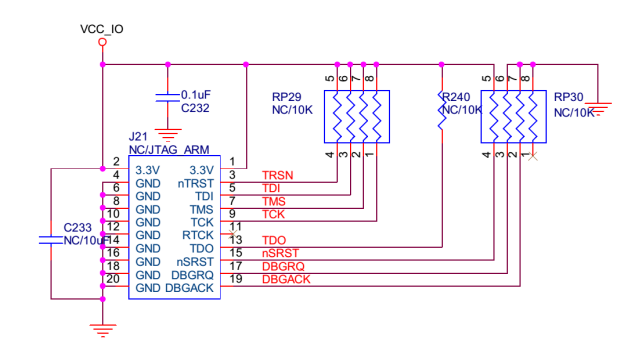
(Figure 1.2.2)
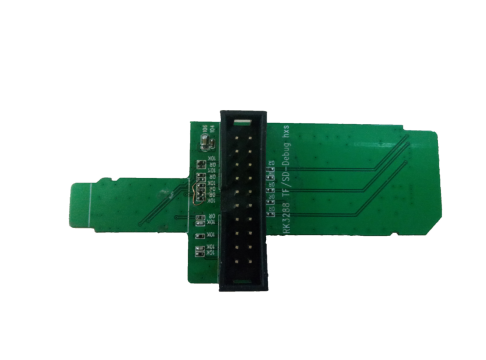
(Figure 1.2.3 TF Card Adapter Board)
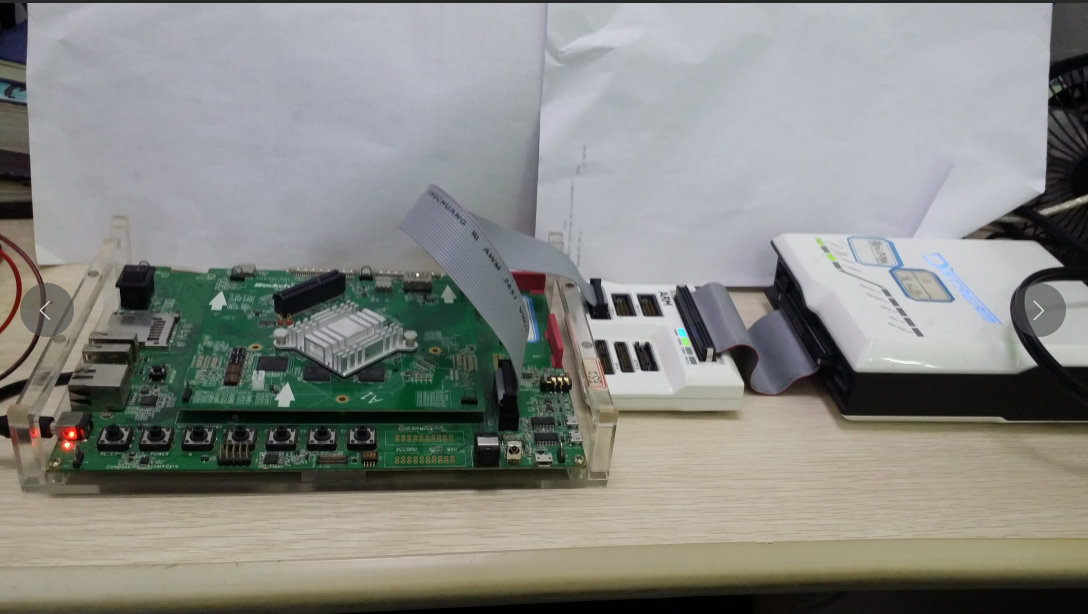
(Figure 1.2.4 DSTREAM and DEBUG Target Board)
JTAG/SWD Software Configuration
IOMUX Pin Multiplexing Function Switching
JTAG pins are multiplexed with other functional modules and need to be switched to JTAG pins.
Configure IOMUX Register
GRF_GPIO4B_IOMUX (0xFF77_0000 +0x0e024)
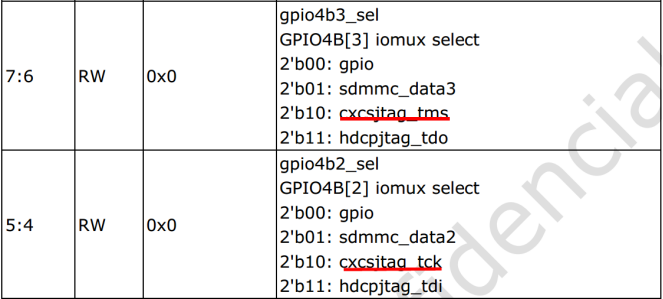
When force jtag bit is 1, hardware automatically switches, no need to configure IOMUX register
GRF_SOC_CON7(0xFF77_0000+0x0e21c)

Note: When this bit is set to 1, the SDMMC detect pin must be high for it to take effect; otherwise, the SDMMC IOMUX remains.
That is, the SD card cannot be inserted when using JTAG.
Debug Module and CPU Related CLK
Generally, no CLK switch configuration is needed.
DS-5 Software Tool Quick Start
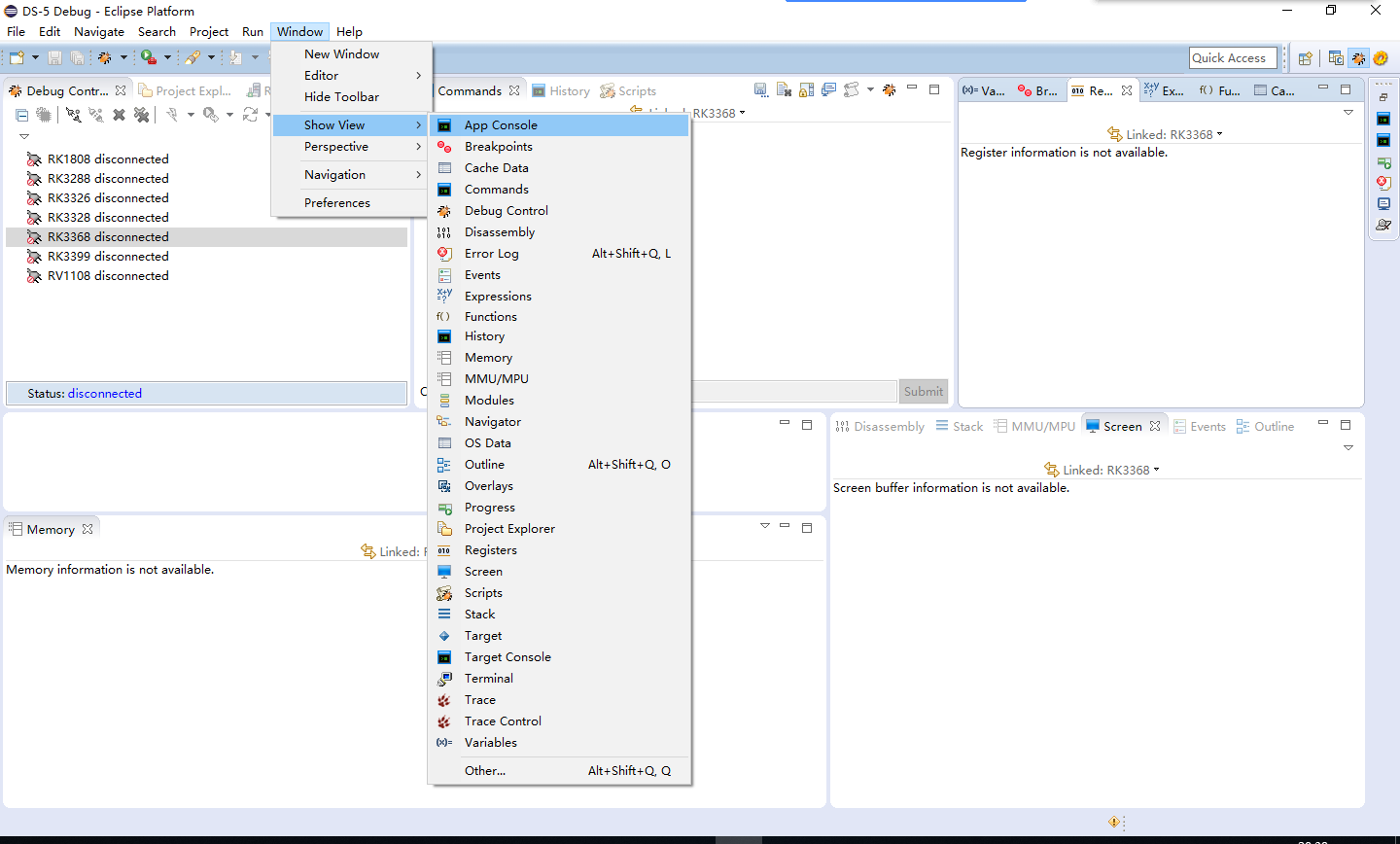
Familiar with DS-5 Software Main Menu
Create New Chip Platform Configuration
These configurations contain DEBUG system related configuration information, mainly telling DS-5 what DEBUG modules the SOC contains and their combinations. DS-5 uses this information to access the SOC. If SOC configuration already exists, skip to section 3.3.
Create Configuration Database: FILE->New->Other
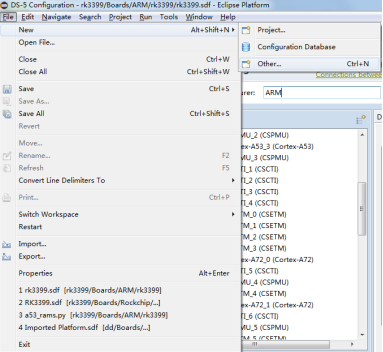
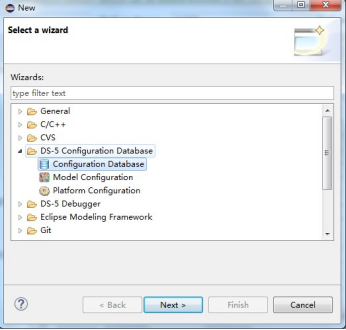
Select Configuration Database
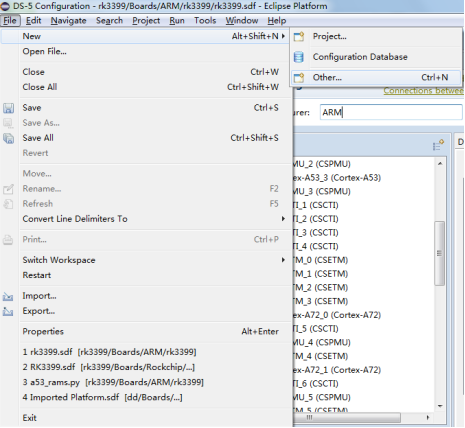
Create Platform Configuration: Click FILE->New->Other
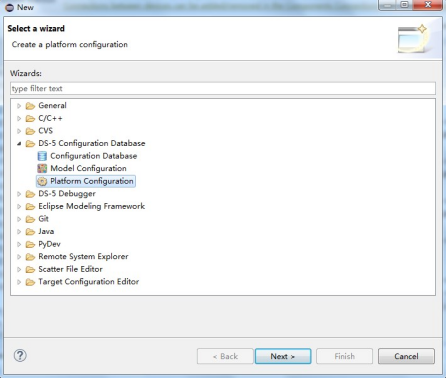
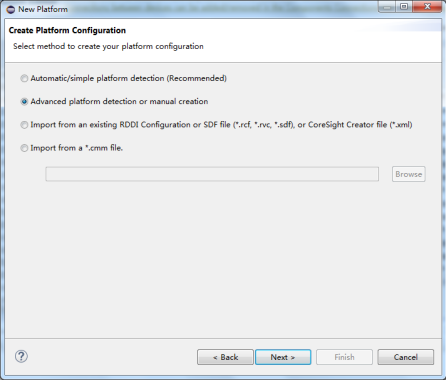
Select "Platform Configuration", click Next
If the hardware connection is 5-wire JTAG, select the first option: Automatic/simple platform detection.
If it is 2-wire SWD, select the second option: Advanced platform detection or manual creation.
Click Next
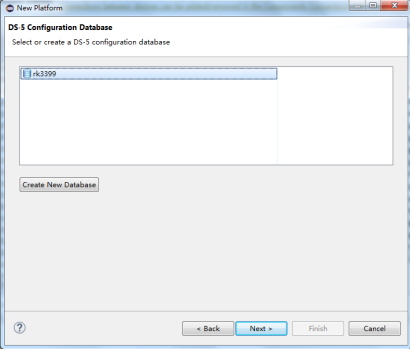
Select the previously created Database, then click Next (This means Configuration Database can contain multiple Platform Configurations)
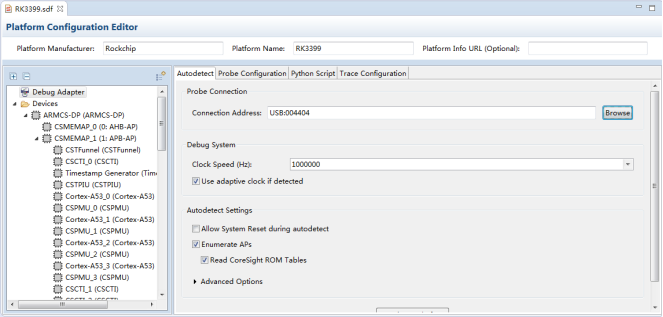
After successful creation, select the Dstream device in Connection Address: USB:004404
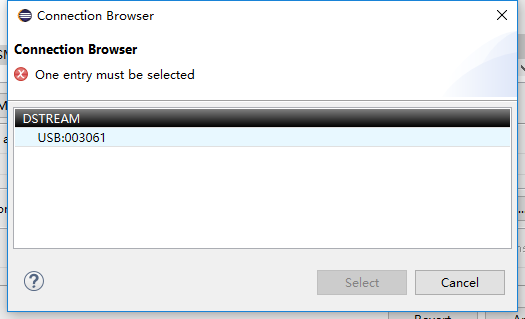
Select the DS-5 debugger already connected to the computer via USB or network
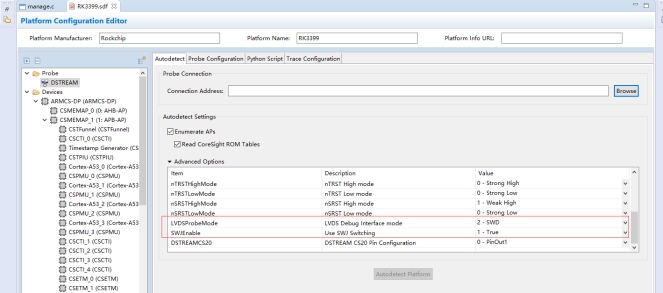
If the hardware connection is 5-wire JTAG, directly click Autodetect Platform. If it is 2-wire SWD, configure as shown in the red rectangle below, then click Autodetect Platform in the figure above. Note: Autodetect Platform must be performed in Maskrom mode, otherwise many modules may not be detected.
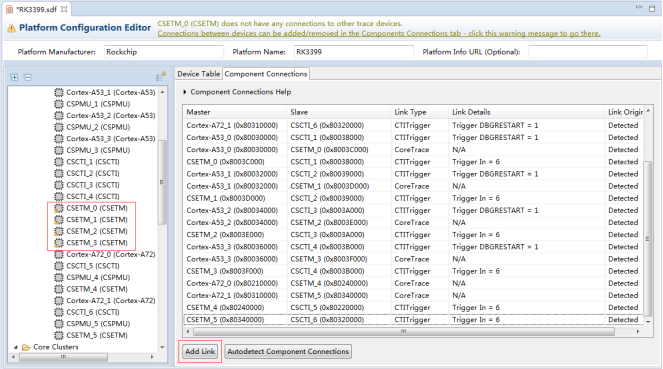
After scanning and detection, the following list expands in the left window. The software prompts that CSETM_0-3 are not connected and need to be added manually. If there is no such error, skip these steps and directly save the configuration.
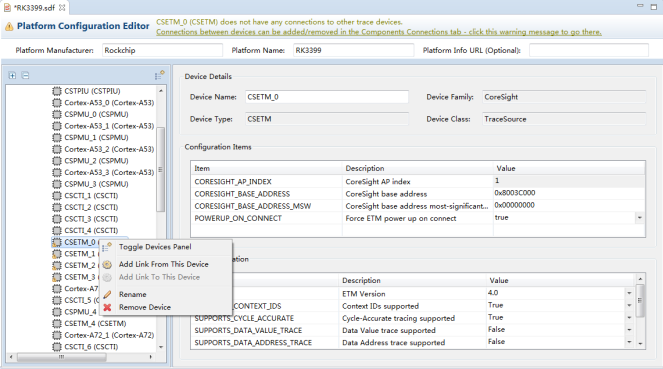
Right-click CSETM_0, click Add Link From This Device
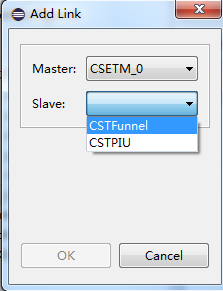
Select CSTFunnel, repeat for CSETM_0-3
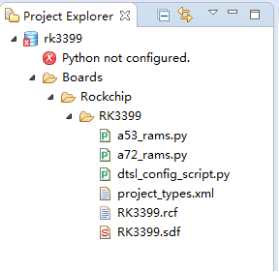
Ctrl+S to save the project. The project will generate the following files, indicating successful configuration creation.
The above self-generated configuration is quite tedious; ready-made configurations can also be used. Menu: Windows-> Preferences
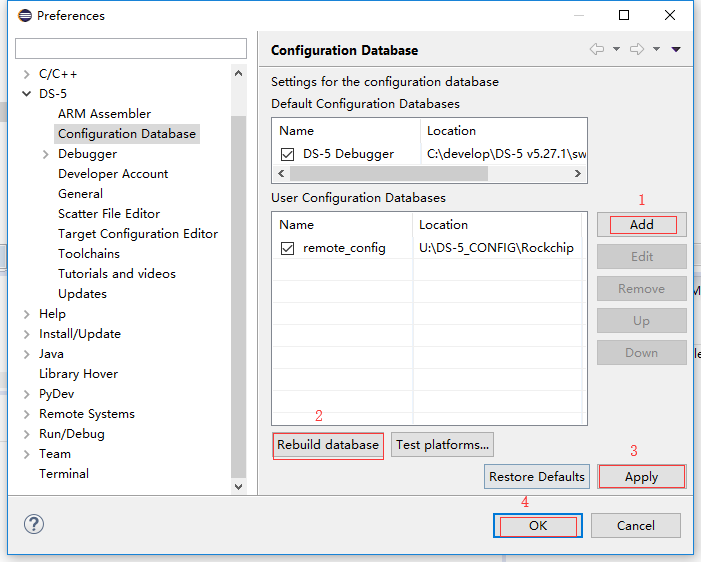
- Add configuration path

Create New Connection Configuration
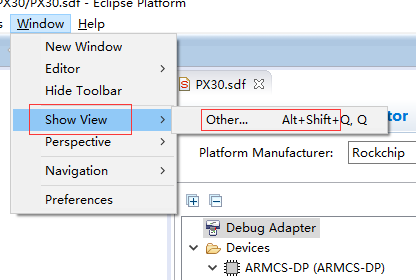
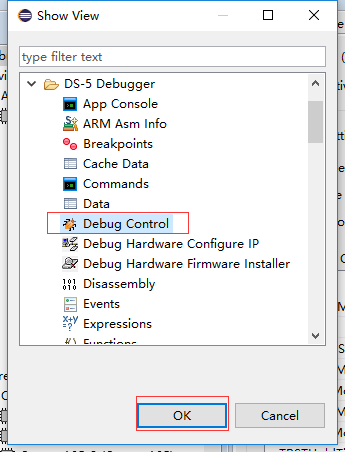
Open Window->Show view->Debug Control
Open Debug Configurations
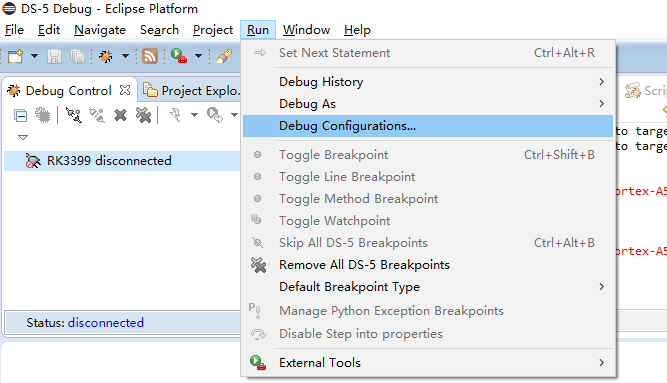
Right-click DS-5 Debugger and create a new Debugger
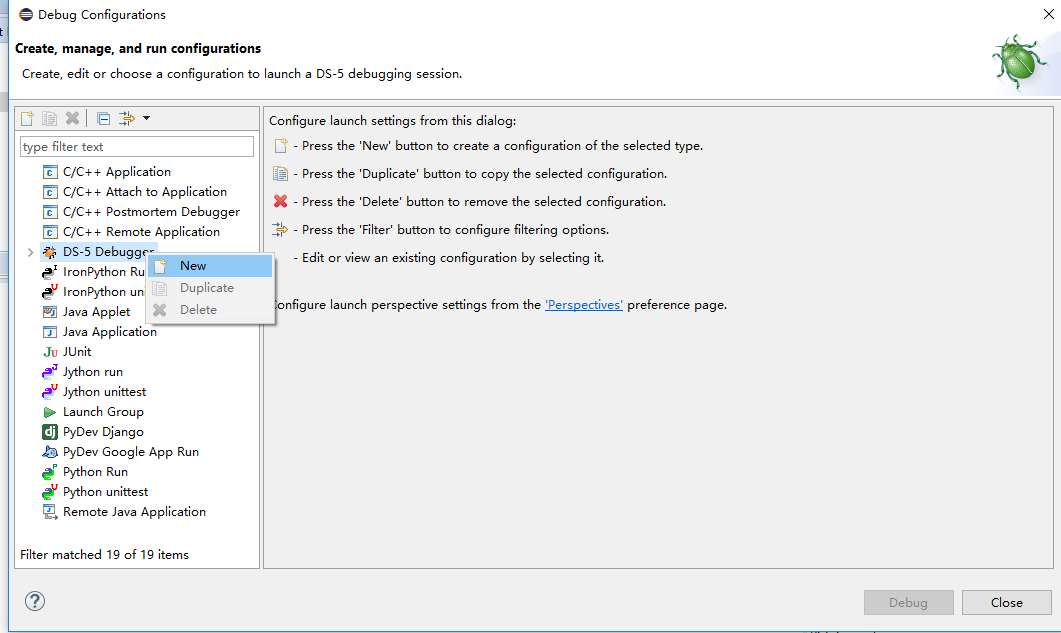
Enter the new connection name, select the corresponding SOC configuration. You can search by chip model in the second red box. Bare Metal Debug is for bare system debugging, Linux Kernel Debug is for linux kernel debugging, which better supports system debugging features.
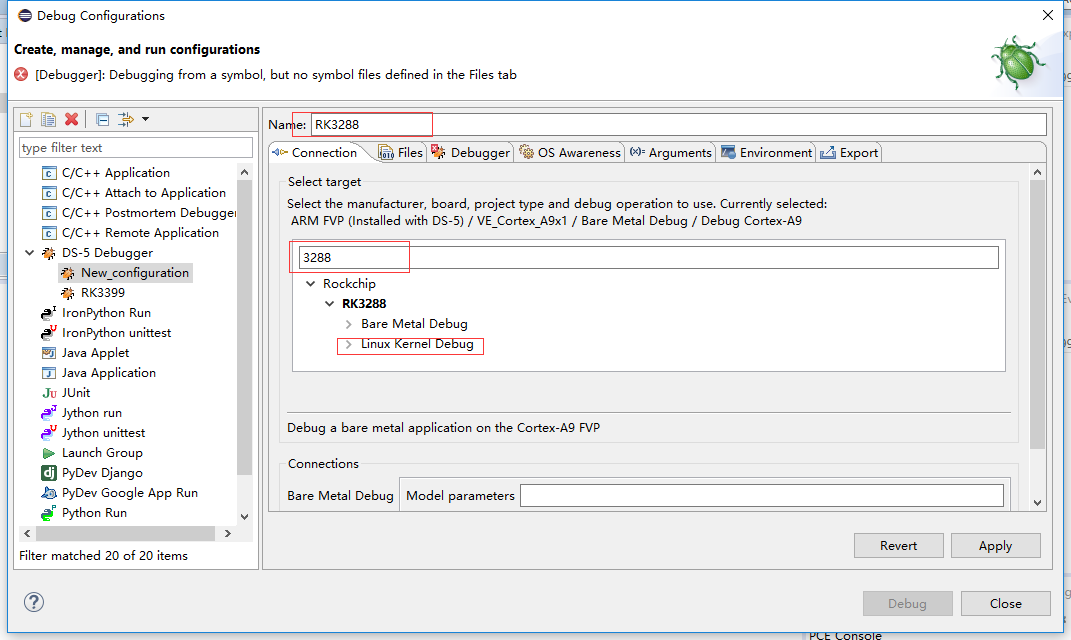
Select the CPU combination to connect: connect only one core, or all 4 cores
Select DS-5 connector
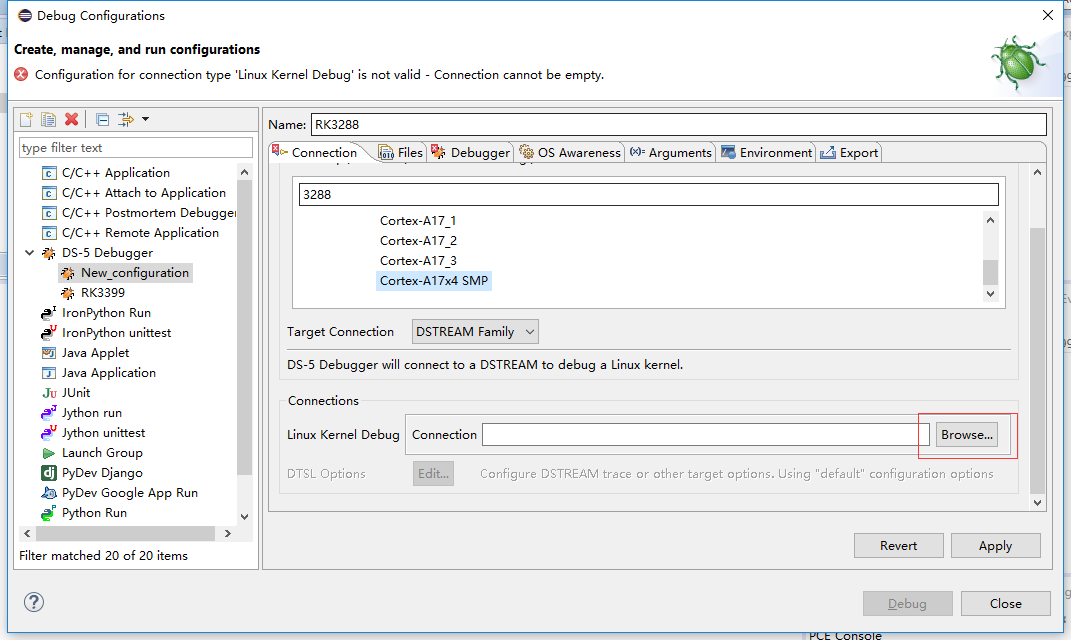
Select the DS-5 debugger already connected to the computer via USB or network
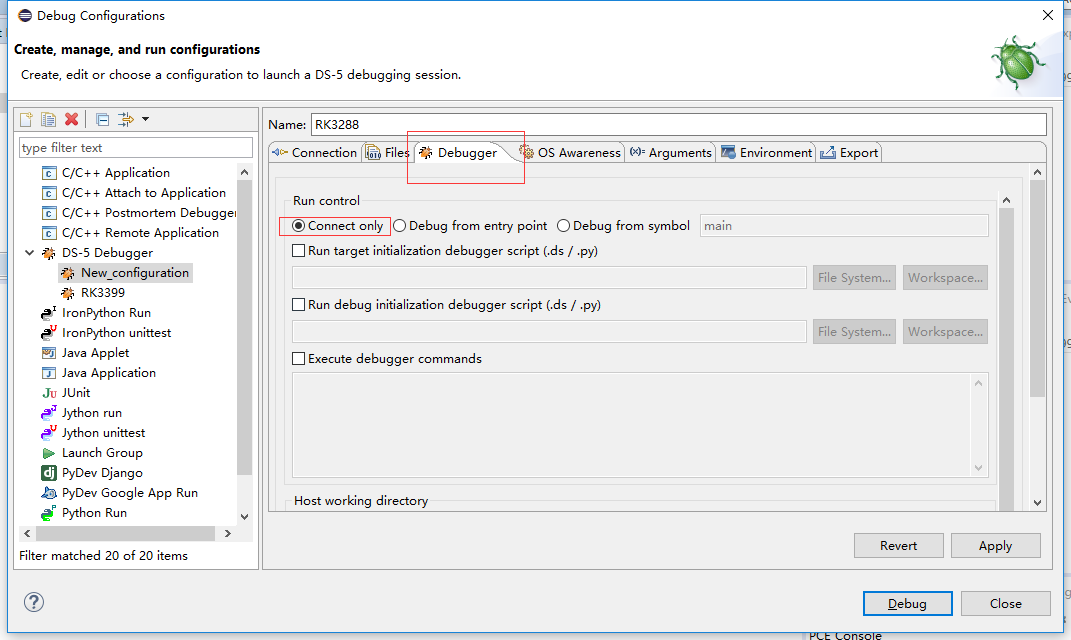
In the Debugger menu bar, select Connect only, click Apply at the bottom right to save the configuration, then click Debug to start connecting to the device
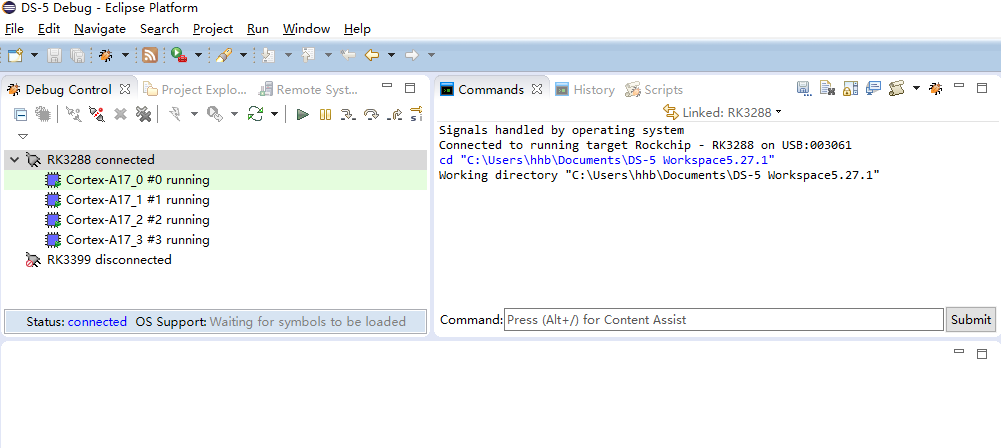
After connecting to the device, use the stop, run, single-step execution, etc. for debugging.
Troubleshooting
If connection fails, how to check?
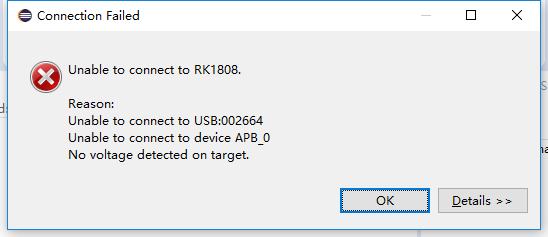
Check if the TARGET light on the DS5 is on. If not, JTAG is not powered. Need to turn on the SD card power.
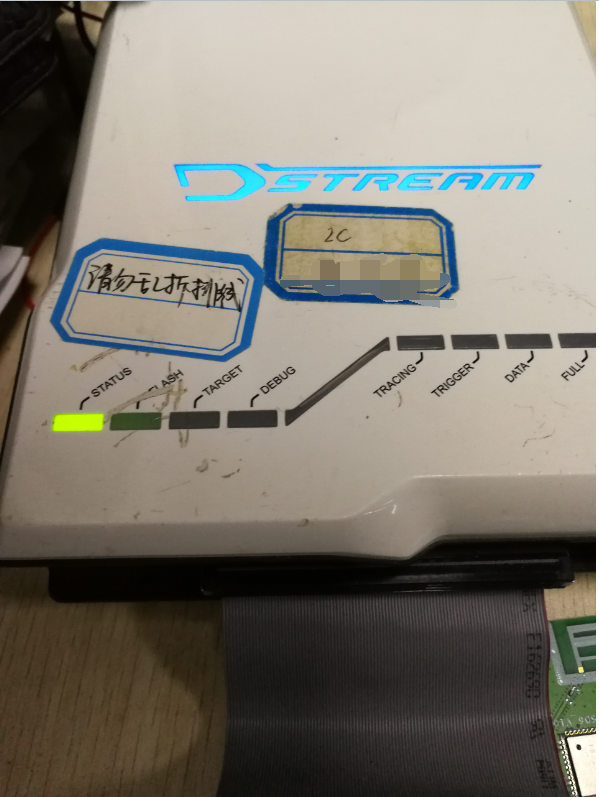
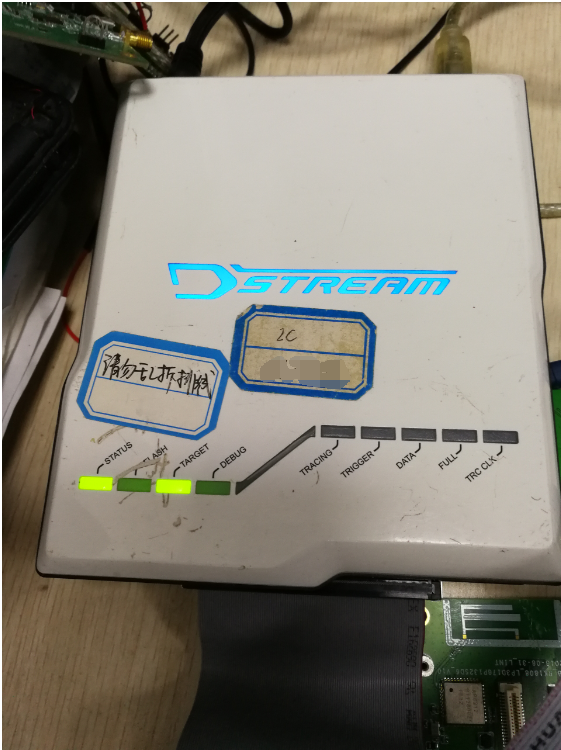
Also check whether the hardware connections of the TMS and TCK pins are normal.
If a DS-5 device behaves strangely and connections are frequently abnormal, the DS-5 software and DSTREAM device firmware versions may not match
Need to upgrade the DSTREAM firmware. Select windows-> show view -> other -> debug hardware firmware installer
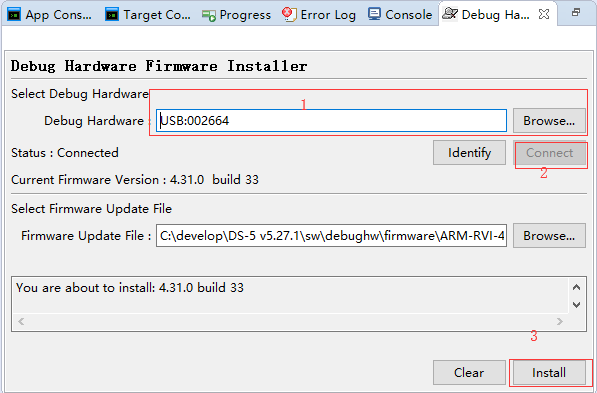
- Select DSTREAM device, 2. Connect the device - the software will automatically identify the version and prompt whether upgrade is needed, 3. Upgrade firmware
Basic Debug Steps
Viewable Information
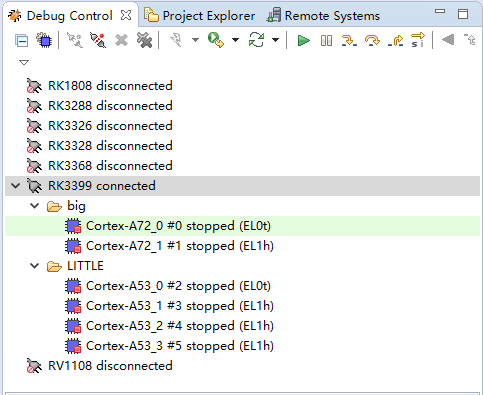
Connect to the target board
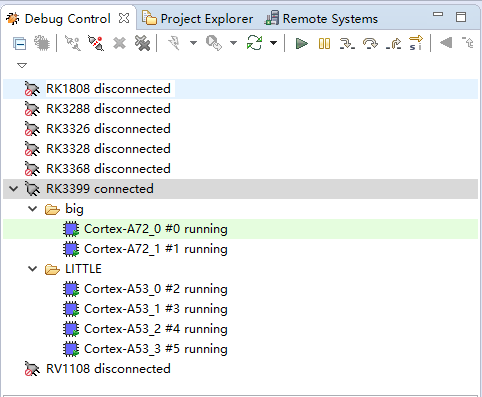
Click the stop button in the upper right corner
Enter add-symbol-file "W:\kernel\rk3399_linux4.4\vmlinux" in the Commands window to import the symbol table
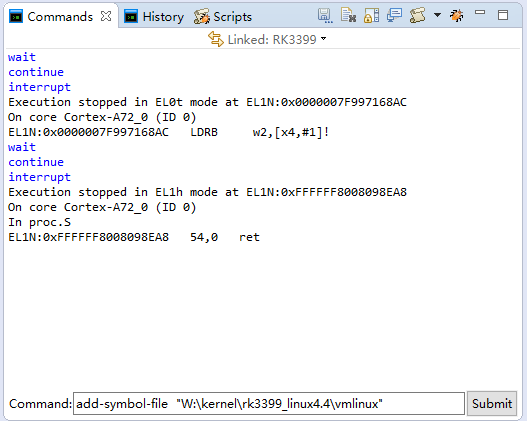
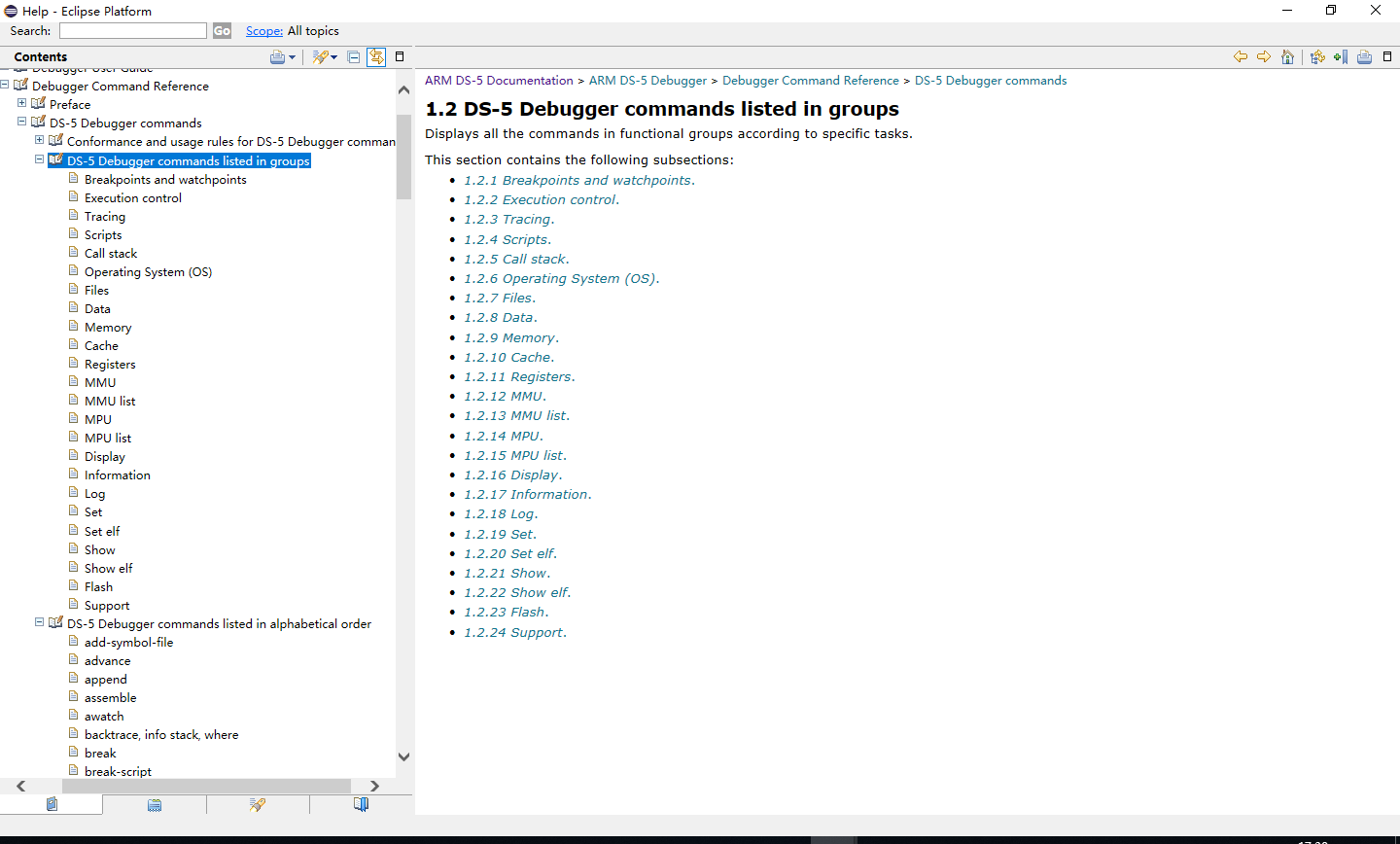
For other operating systems or symbol tables, refer to the help documentation on add-symbol-file usage:
add-symbol-file myFile.axf                    # Load symbols at entry point+0x0000
add-symbol-file myLib.so                      # Pends symbol file for shared library
add-symbol-file myModule.ko                   # Pends symbol file for OS module
add-symbol-file myFile.axf 0x2000             # Load symbols at entry point+0x2000
add-symbol-file relocate.o -s .text 0x1000 -s .data 0x2000
                                              # Load symbols from relocate.o with
                                              # section .text relocated to 0x1000 and
                                              # section .data relocated to 0x2000
add-symbol-file vmlinux N:0                   # Load symbols at the non-secure address 0x00
add-symbol-file vmlinux EL2:0x4080000000      # Load symbols for the non-secure address space EL2:0x4080000000
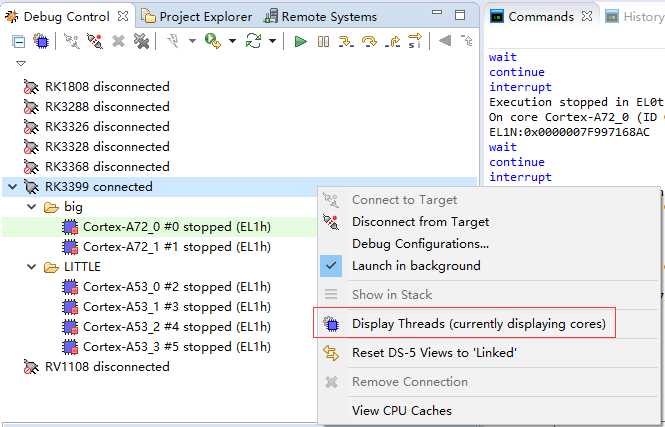
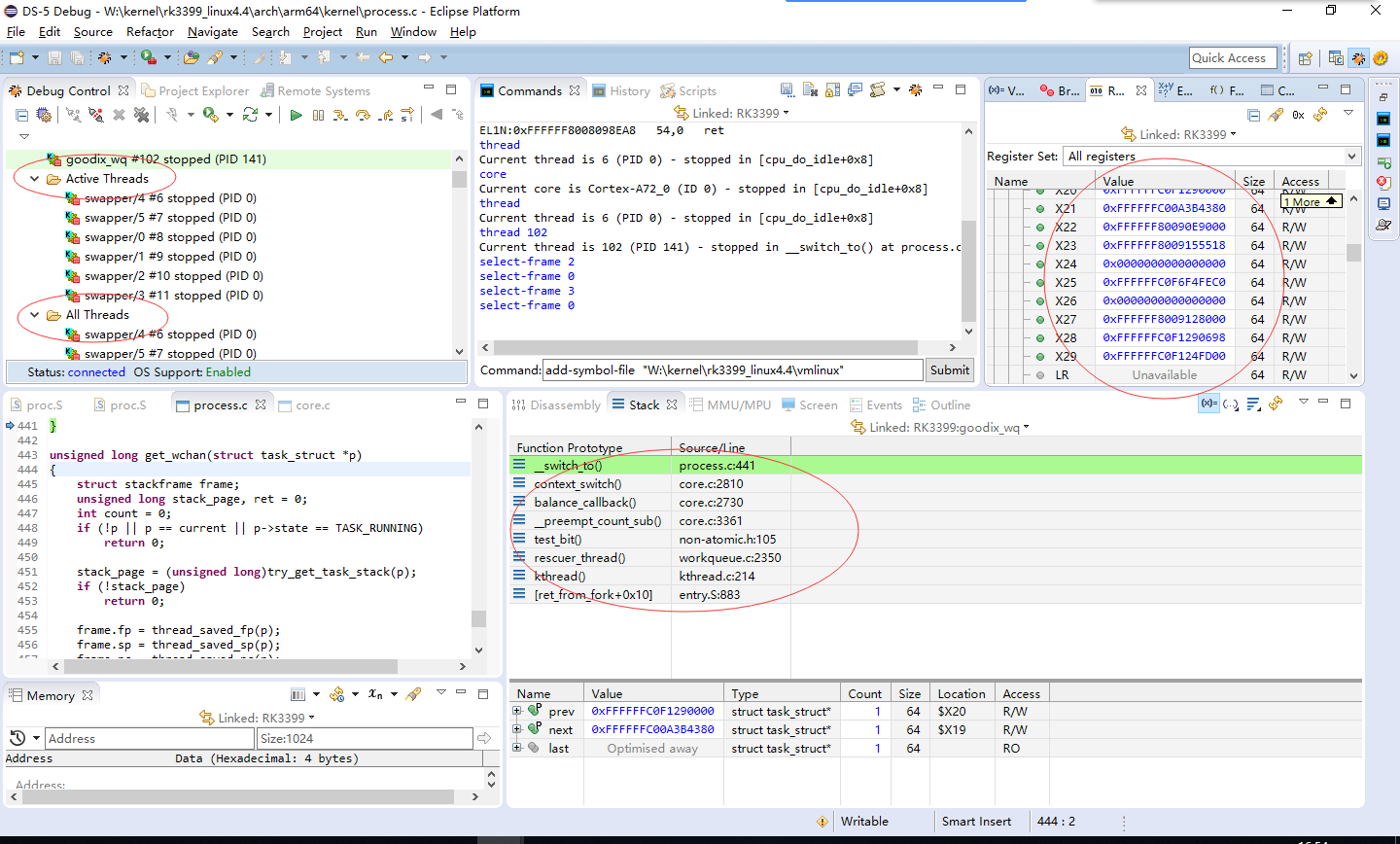
Right-click RK3399 connected and select Display Threads to view the call stacks of all linux threads.
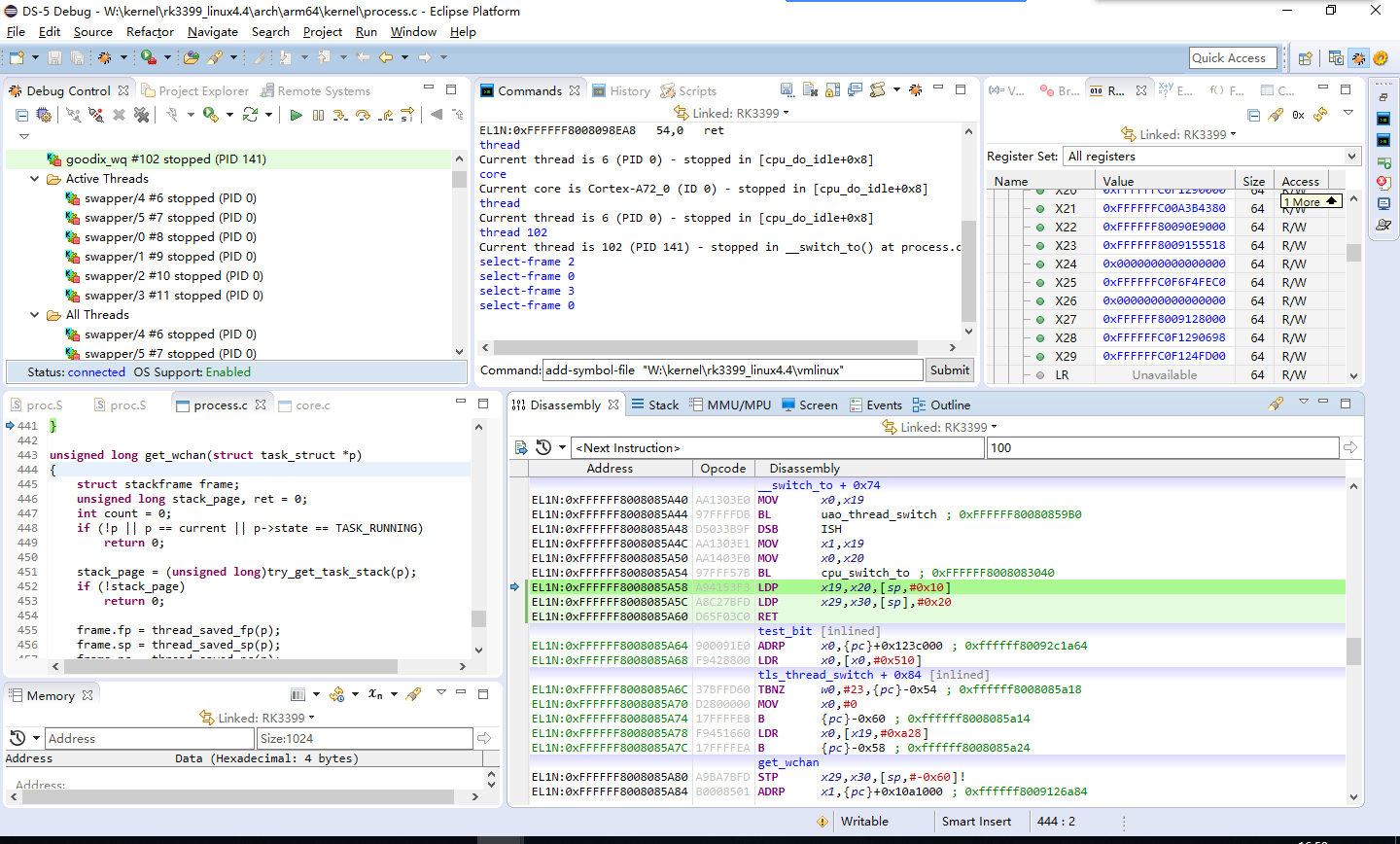
As shown, Active Threads are the threads currently executing on each core, All Threads are all threads. Clicking a thread shows the call stack of that thread. On the right side are CPU-related registers. This allows viewing the context of each CPU, which can help solve some problems.
View current PC pointer position
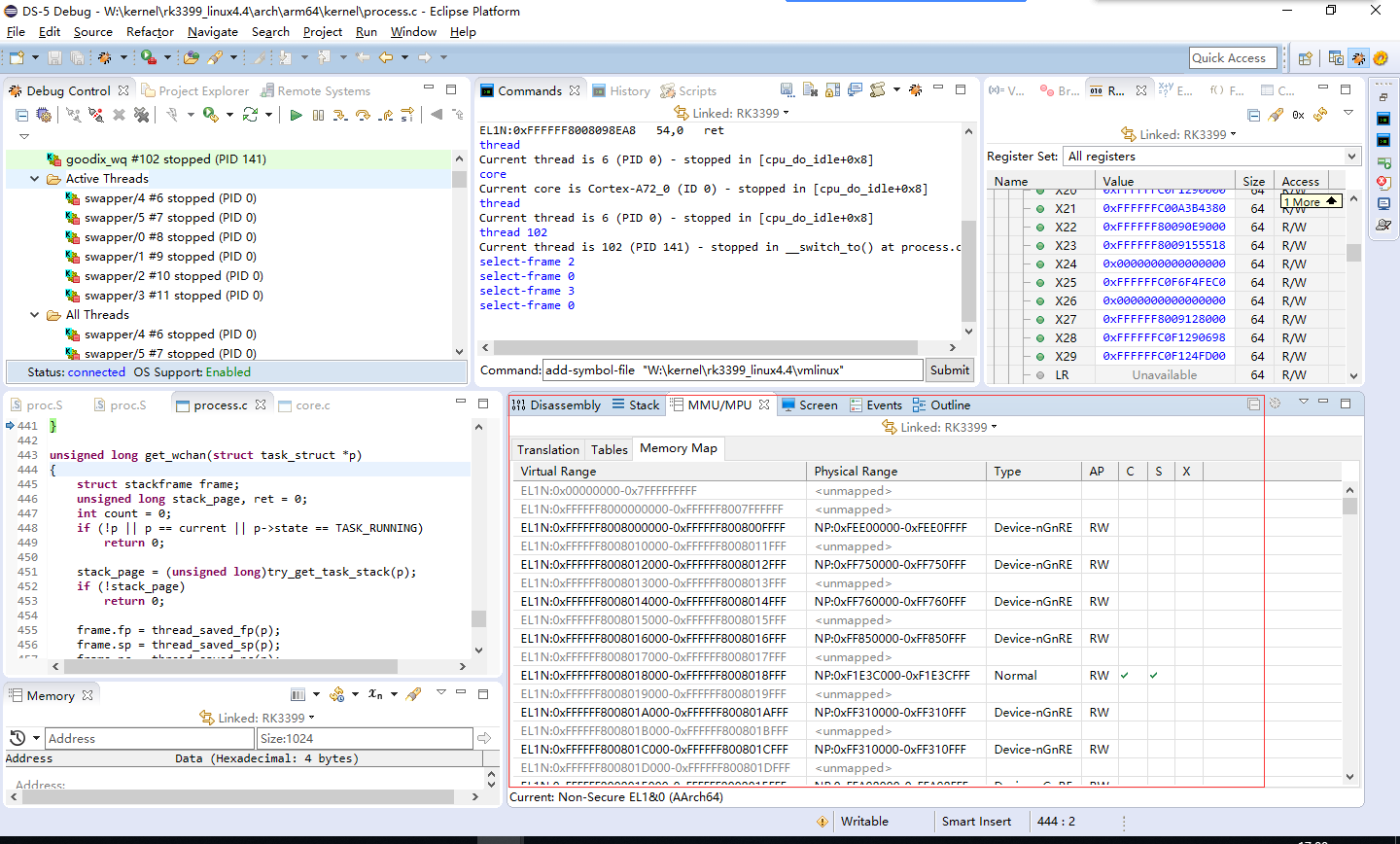
View mmu page table mapping
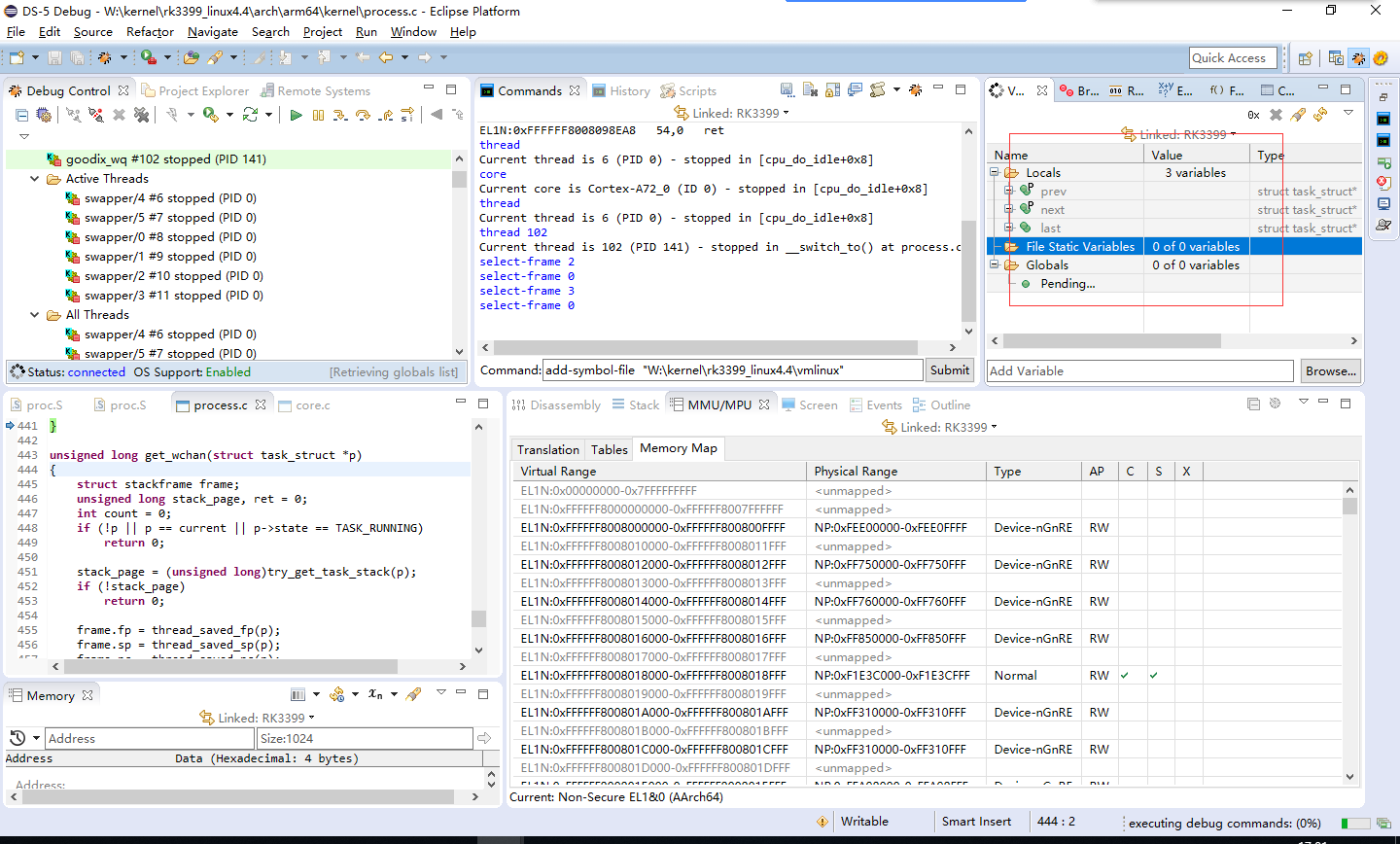
View local variables and global variables - can be added manually
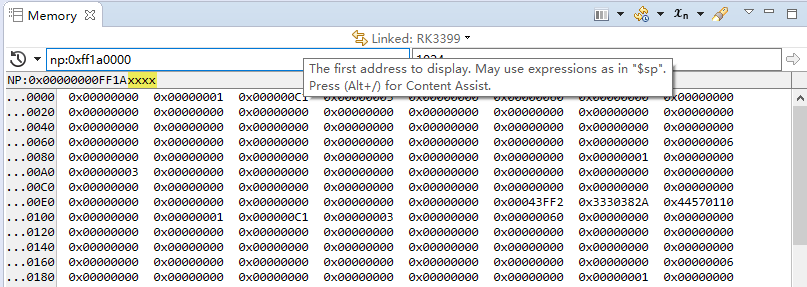
To view memory or peripheral registers, use the memory function. Enter info mem in the command window for the following print:
This shows the access method, range, attributes, and meaning of each address space.
For example: SP: 0x00000000abcdef00 refers to a secure physical address APB_0: 0xff550000 is peripheral register space accessed directly via the APB bus. When the CPU has crashed, this method can be used to access DDR memory or peripheral registers.
info mem
Num Enb Low Addr                High Addr               Attributes                         Description
1:  y   SP:0x0000000000000000   SP:0xFFFFFFFFFFFFFFFF   rw, nocache, verify                Memory accessed using secure world physical addresses
2:  y   S:0x00000000            S:0xFFFFFFFF            rw, nocache, verify                Memory accessed using secure world addresses
3:  y   NP:0x0000000000000000   NP:0xFFFFFFFFFFFFFFFF   rw, nocache, verify                Memory accessed using normal world physical addresses
4:  y   N:0x00000000            N:0xFFFFFFFF            rw, nocache, verify                Memory accessed using normal world addresses
5:  y   H:0x00000000            H:0xFFFFFFFF            rw, nocache, verify                Memory accessed via hypervisor address
6:  y   EL3:0x0000000000000000  EL3:0xFFFFFFFFFFFFFFFF  rw, nocache, verify                Memory accessed using EL3 addresses
7:  y   EL2:0x0000000000000000  EL2:0xFFFFFFFFFFFFFFFF  rw, nocache, verify                Memory accessed using EL2 addresses
8:  y   EL1S:0x0000000000000000 EL1S:0xFFFFFFFFFFFFFFFF rw, nocache, verify                Memory accessed using EL1 secure world addresses
9:  y   EL1N:0x0000000000000000 EL1N:0xFFFFFFFFFFFFFFFF rw, nocache, verify                Memory accessed using EL1 normal world addresses
10: y   APB_0:0x00000000        APB_0:0xFFFFFFFF        rw, nobp, nohbp, nocache, noverify APB bus accessed via AP 1 (CSMEMAP_1)
11: y   AHB_0:0x00000000        AHB_0:0xFFFFFFFF        rw, nobp, nohbp, nocache, noverify AHB bus accessed via AP 0 (CSMEMAP_0)
Common Commands
dump binary memory "E:\mem_ok.txt" sp:0x62000000 +0x200000    Save a memory segment to a local file

restore "E:\mem_ok.txt" binary sp:0x64000000    Restore file memory to a memory segment

memory fill <verify=0>:sp:0x60000000 +0x10 4 0x55555555    Fill specific value in a memory segment

set *0xff690000=0x33   Set memory at a specific address, can be DDR memory, peripheral registers, or CPU registers
This is the DS-5 command usage help. When you encounter a DS-5 requirement during debugging, check here first to see if the command you need is available.