Android User Guide
Debug Console
Connect to the UART0 debug port at 115200 8N1 with hardware and software flow control disabled. The serial console provides boot logs and a shell after Android starts.

Common ADB commands:
adb devices
adb shell
adb push local-file /data/local/tmp/
adb pull /data/local/tmp/remote-file .
Audio Playback
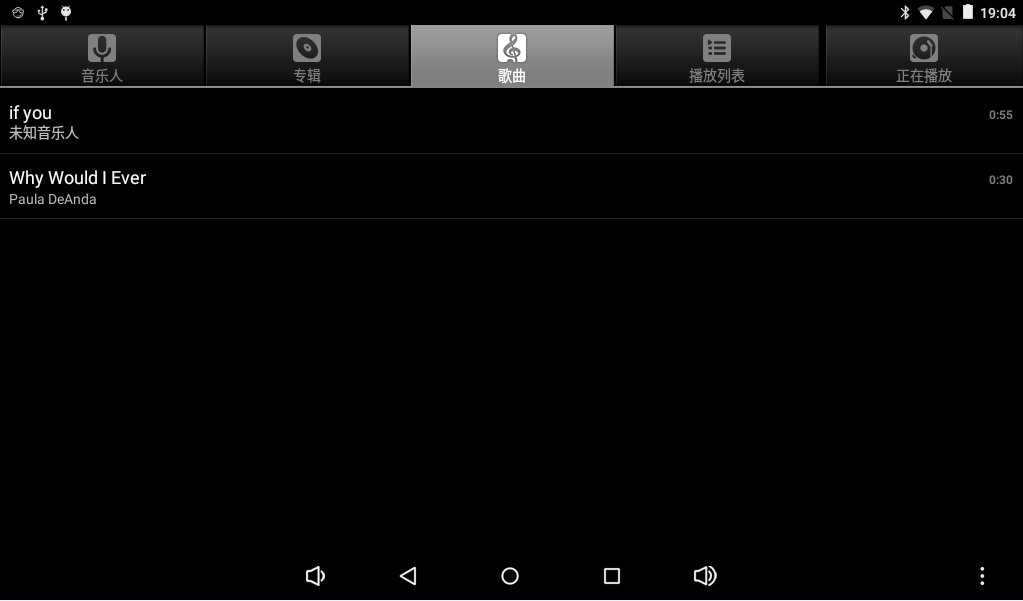
Place audio files on a TF card or USB drive. After media scanning completes, play them from the music application.
Video Playback
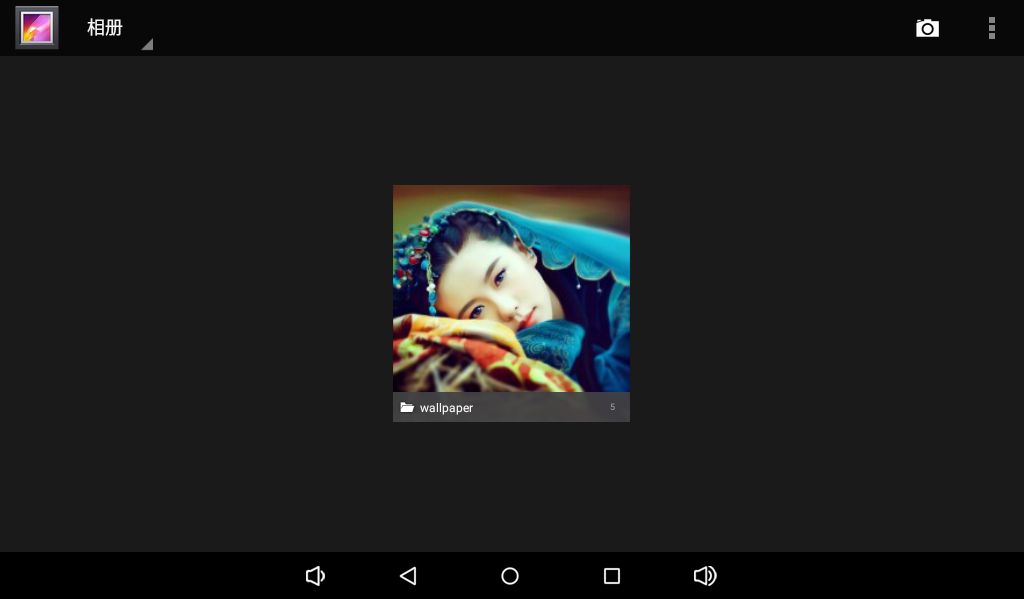
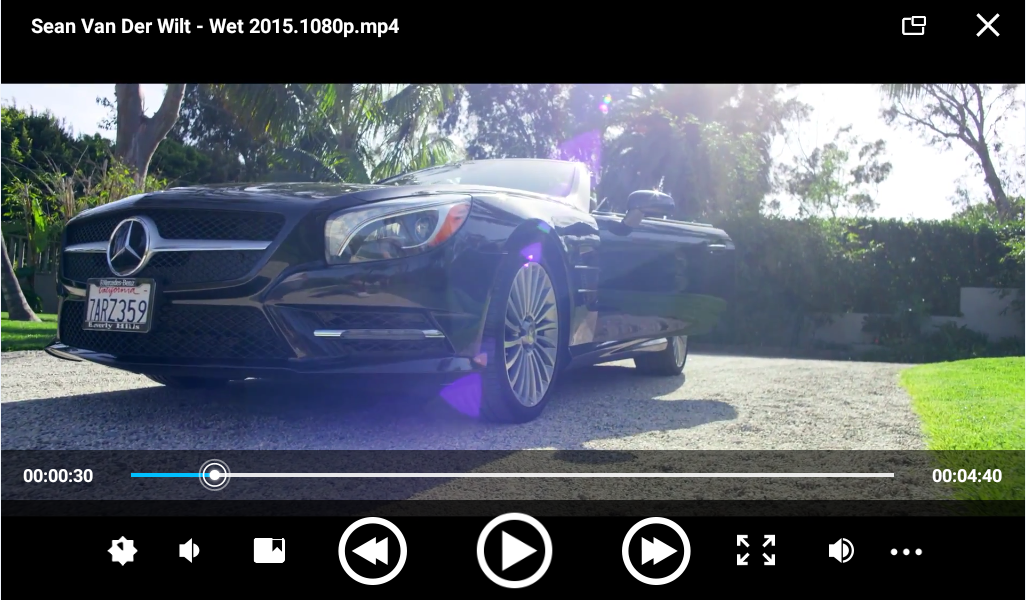
The gallery application scans external storage for videos and images.
Wi-Fi
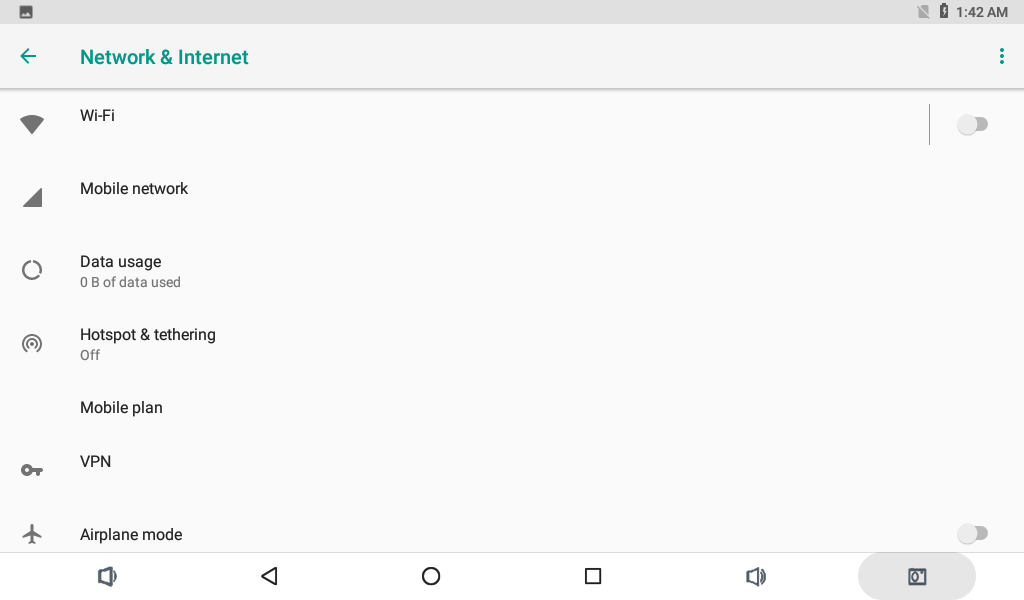
Open Settings, Network and Internet, then Wi-Fi. Enable Wi-Fi, select the SSID, and enter the password.
Bluetooth
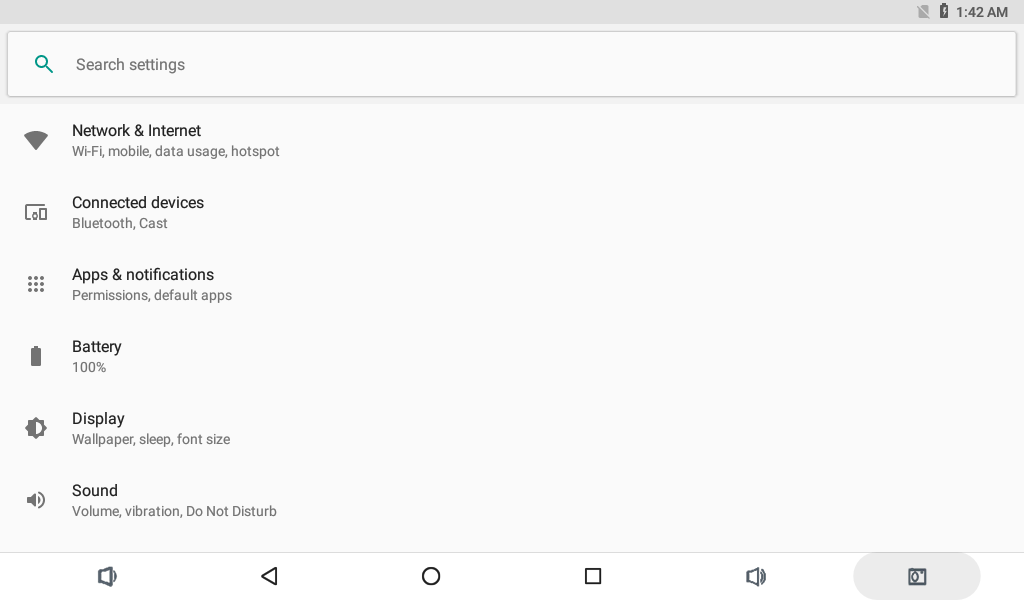
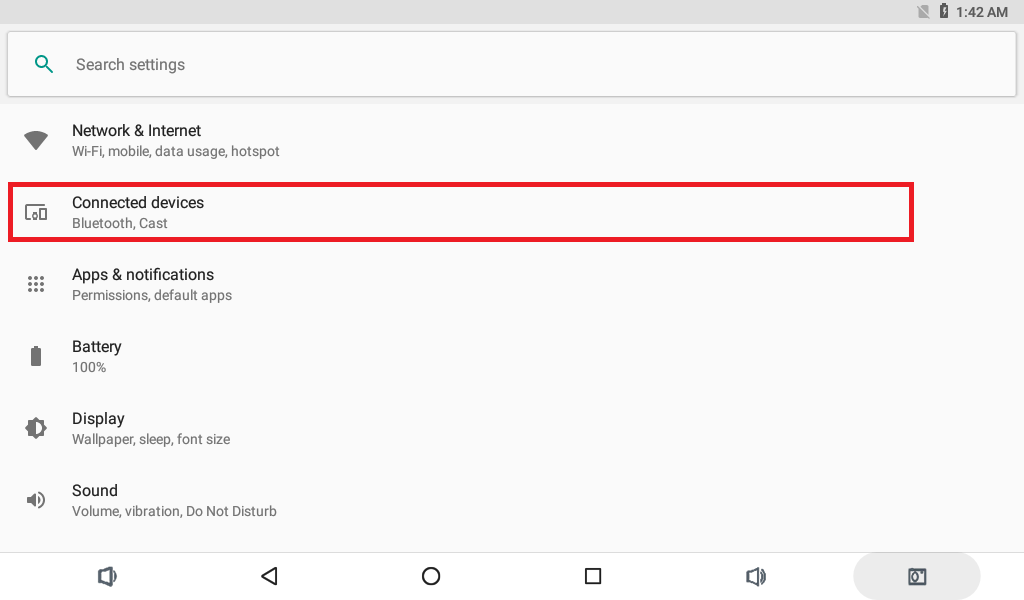
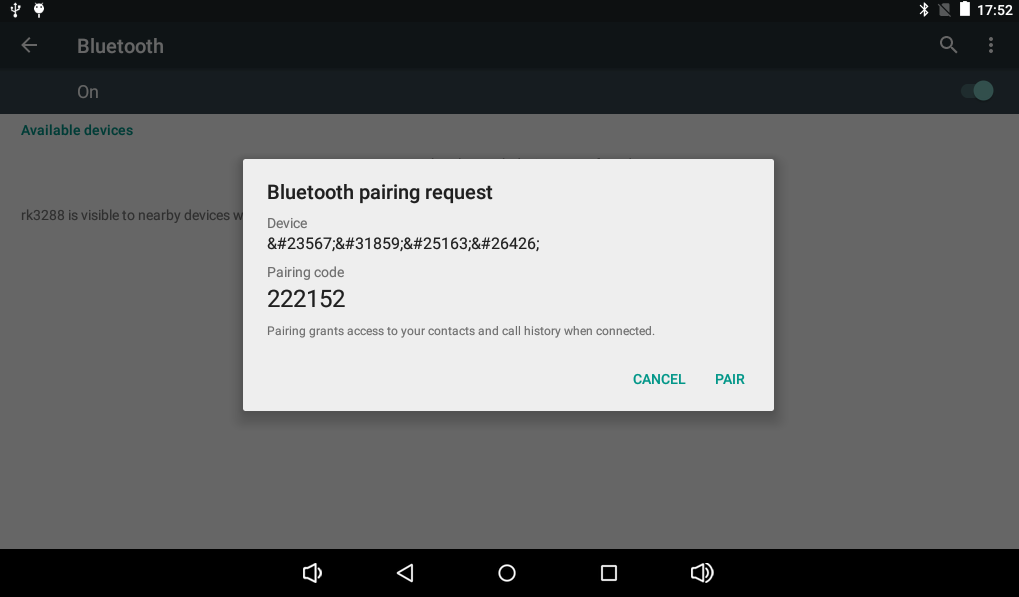
Open Settings, Connected devices, then Bluetooth. Search for and pair a phone, speaker, or another device.
USB Mouse and Keyboard
Connect a USB mouse, keyboard, or wireless receiver to a USB Host port. Android automatically detects standard HID devices.
TF Card and USB Drive
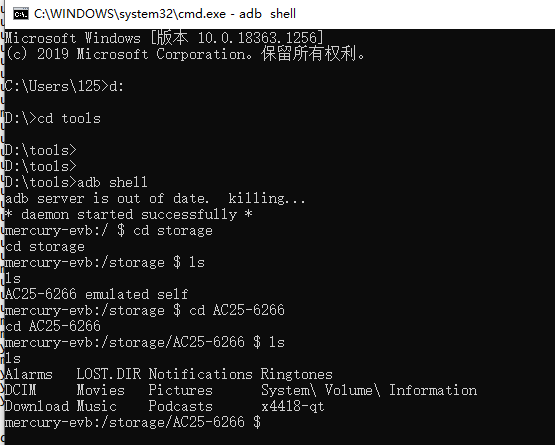
Android normally mounts removable storage below /storage/. Check it with:
adb shell ls -l /storage
adb shell df -h
Screen Rotation
The on-board gravity sensor reports orientation changes. Rotation also depends on the system setting and whether the application allows rotation.
Camera
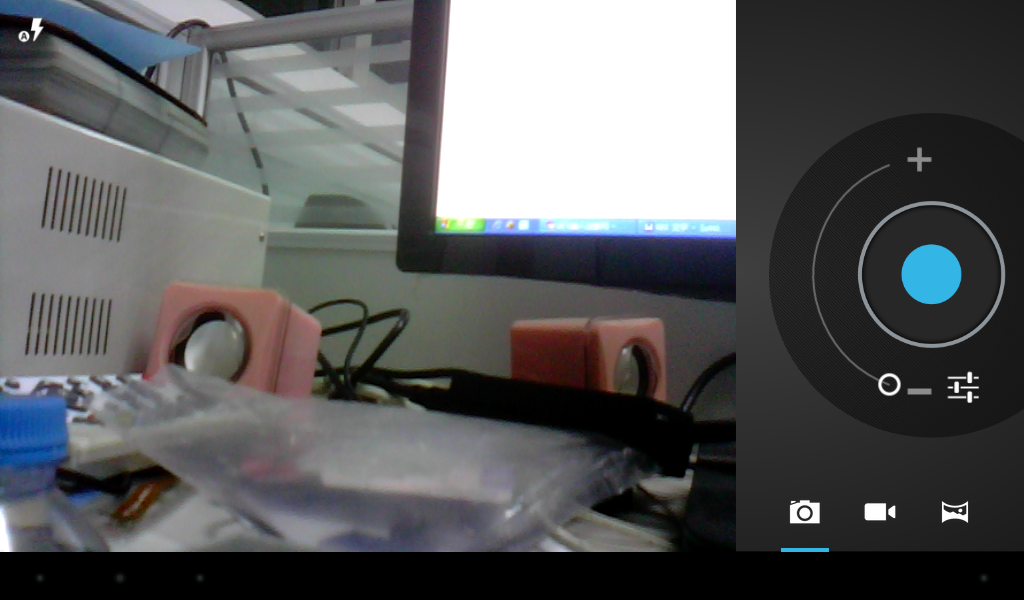
Open the camera application for preview, still capture, and video recording. The camera module must match the active device tree, driver, supply, and timing configuration.
Wired Ethernet
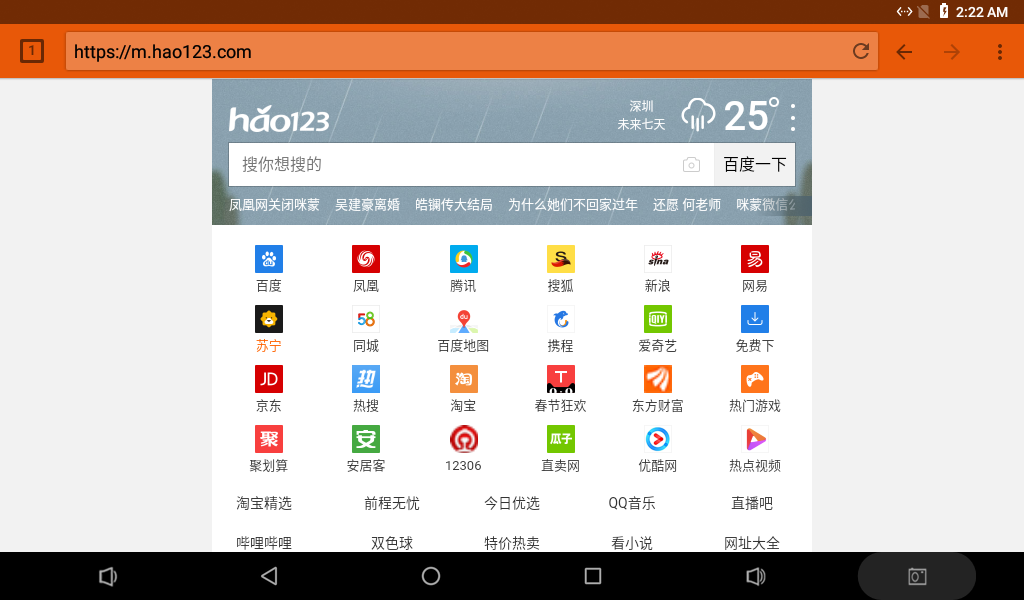
After a live cable is connected, Android normally obtains an address through DHCP. Useful checks are:
adb shell ip addr show eth0
adb shell ip route
adb shell ping -c 4 8.8.8.8
HDMI Output
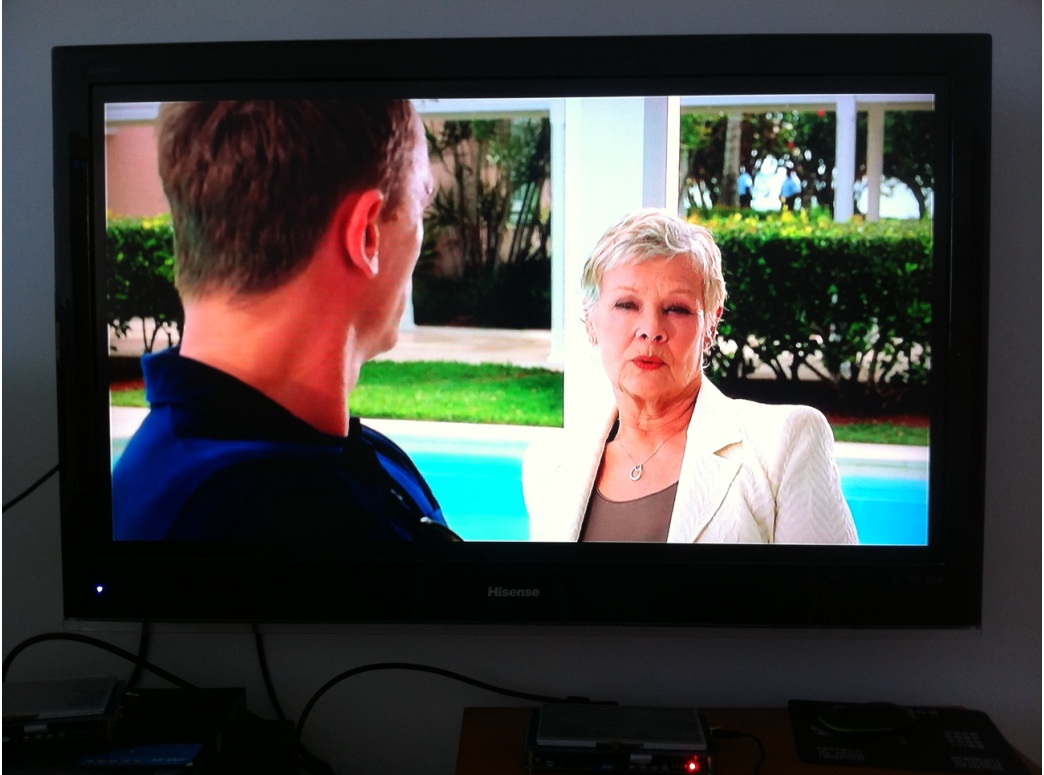
HDMI carries video and audio. The actual modes depend on the firmware, monitor EDID, and display driver.
Power and Suspend
- Depending on the PMIC configuration, the board starts automatically when 12V is applied or starts through the Power key.
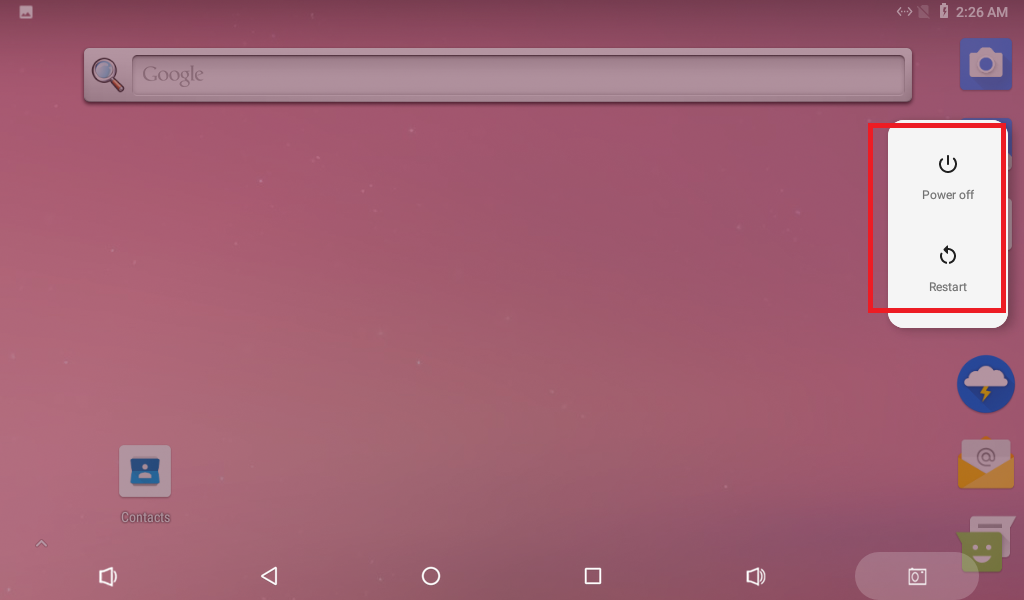
- Hold the Power key to open the shutdown menu.
- Press the Power key briefly to suspend and press it again to resume.