Test Program
The X3128 Android system includes a test program for production tests and hardware verification. Open the Android Test application from the app list. Swipe left or right on the touch screen, or use a mouse, to switch test items.
LCD Test
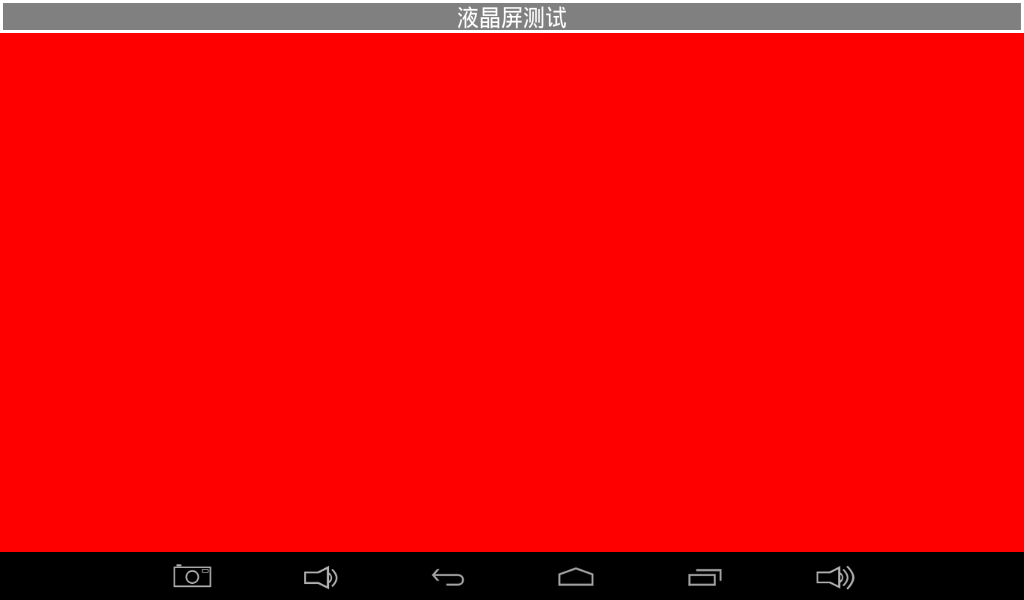
Tap the solid-color area in the center of the screen to switch colors and check whether the LCD has missing colors or dead pixels.
Touch Panel Test
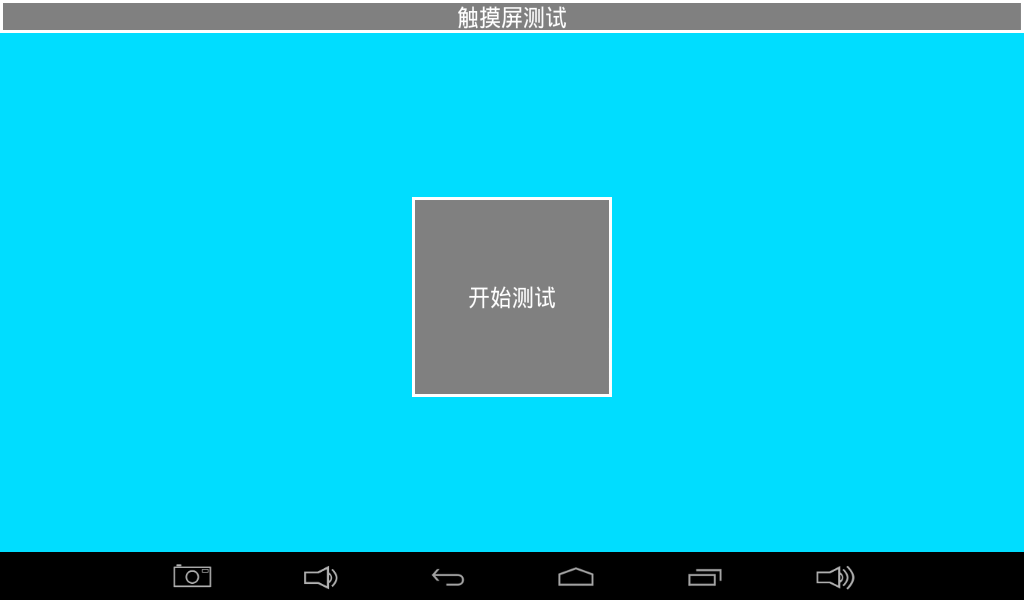
Tap Start Test and draw on the screen. In mass production, diagonal-line drawing is commonly used to verify the touch circuit.
LED Test
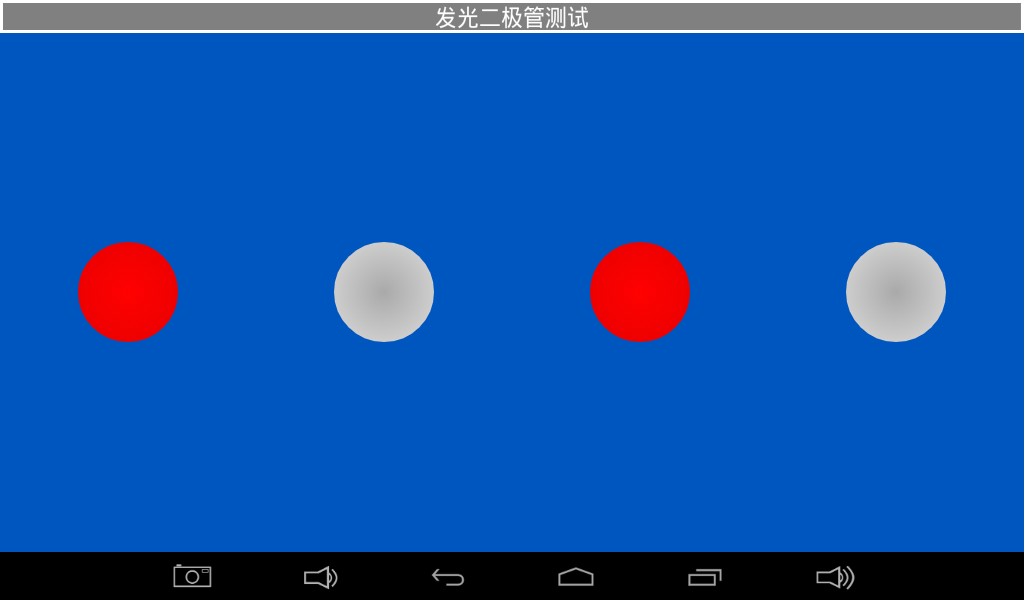
Tap a lamp icon in the UI. When it turns red, the corresponding LED on the board turns on. When it is gray, the LED turns off.
Buzzer, Backlight, and Key Tests
- Buzzer test: press and hold Start Test to make the buzzer sound; release it to stop.
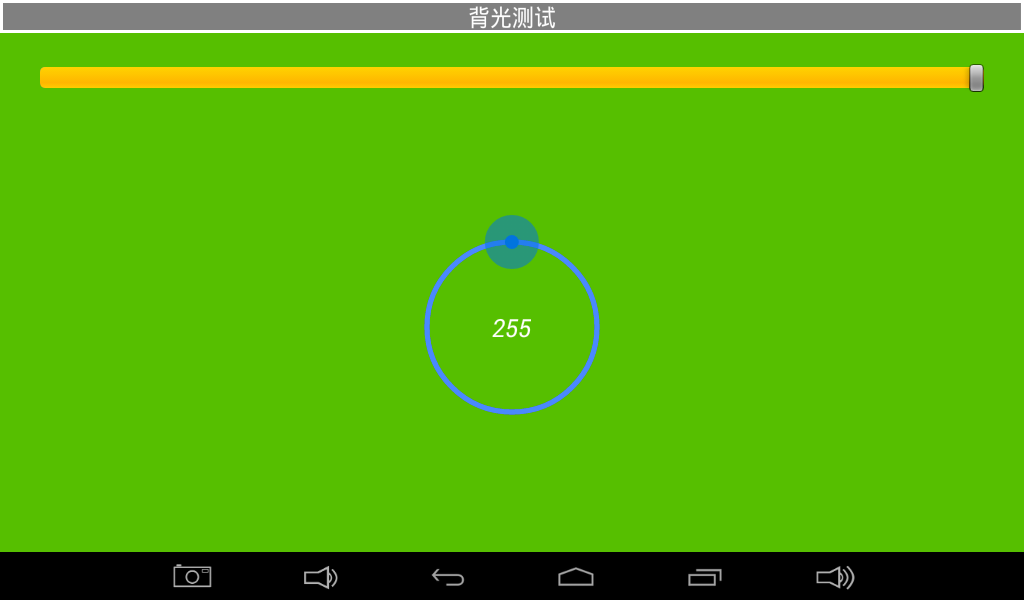
- Backlight test: drag the slider or circle to adjust backlight brightness.
- Key test: press or release the independent keys on the board and observe the state shown in the UI.
Battery, ADC, and G-sensor Tests
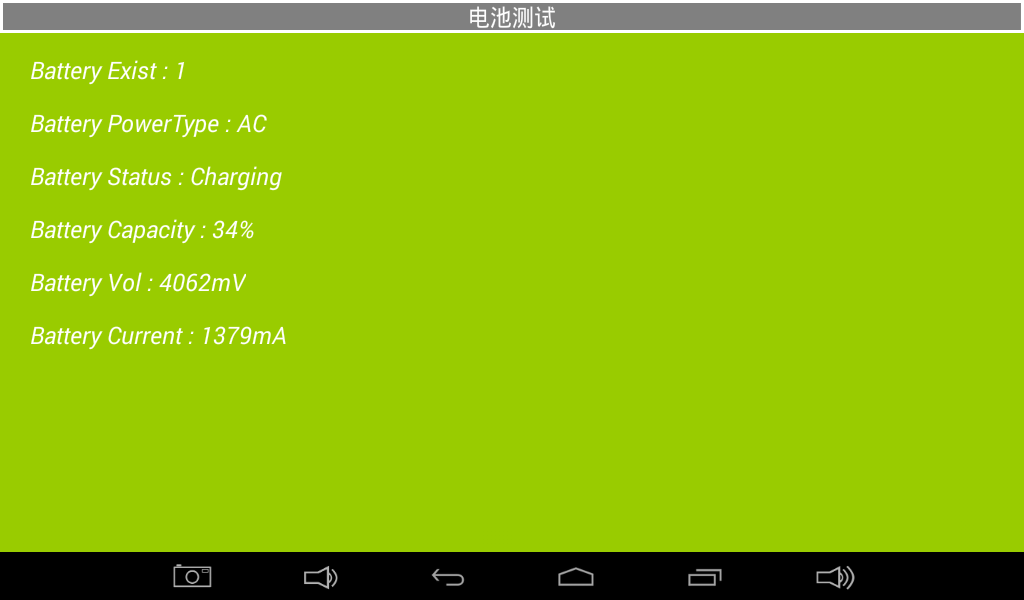
- Battery test: shows battery information after a battery is connected.
- ADC test: monitors four ADC voltages.
- G-sensor test: X, Y, and Z values change when the board is rotated.
Audio and Camera Tests
- Audio test: tap Start Test to play a test sound.
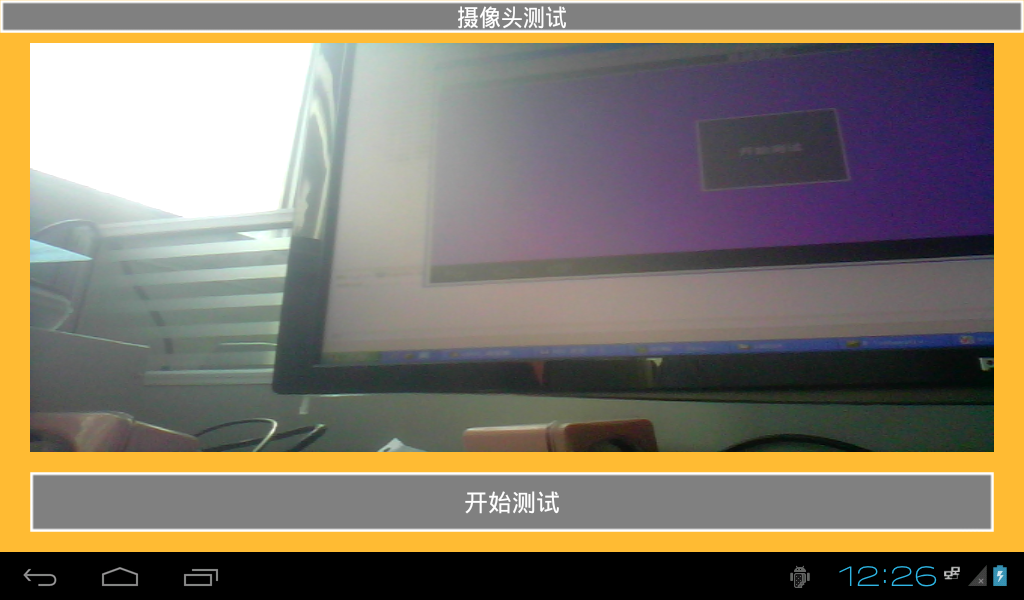
- Camera test: after a camera is connected, tap Start Test to view the camera preview.
Network and UART Tests
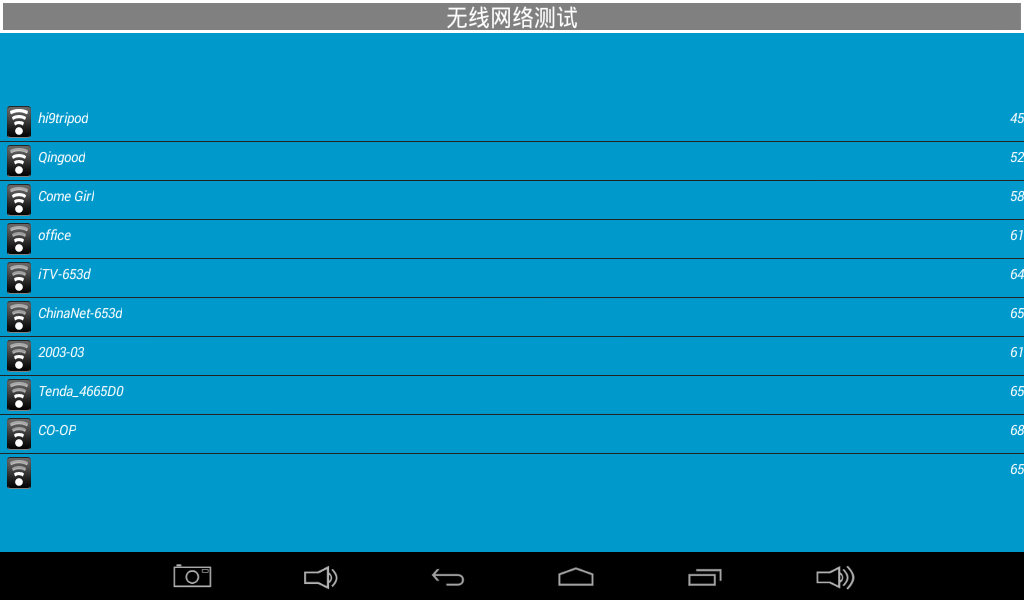
- Wireless network test: after Wi-Fi is connected, nearby networks are listed.
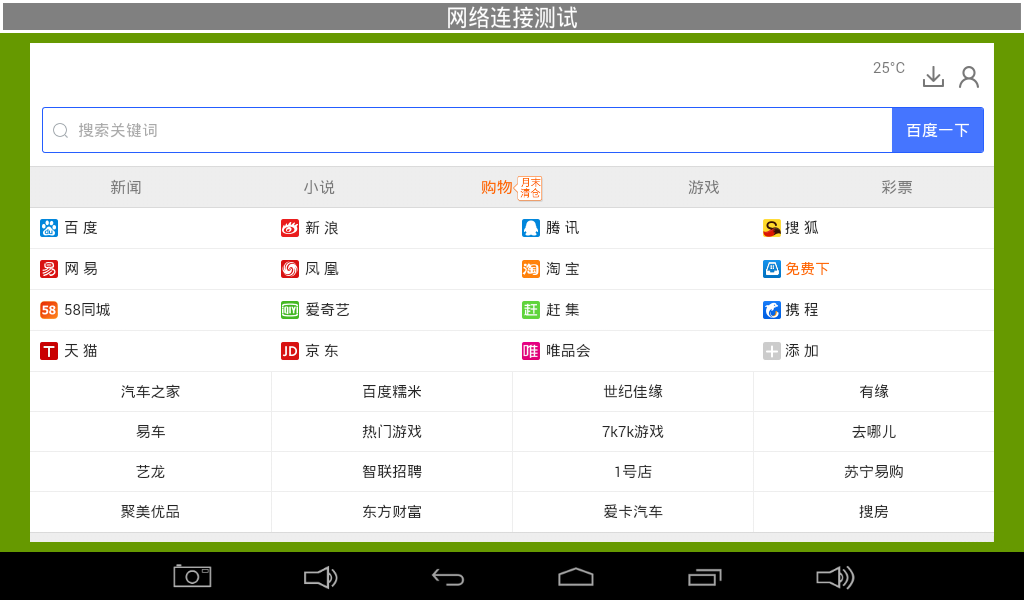
- Network connection test: when wired or wireless network is working, the test page can browse a web page.
- UART test: connect TXD and RXD of the UART under test to verify transmit and receive functions.