Android Build and Flashing
Install Source Dependencies
The original manual uses Ubuntu 14.04 64-bit. Update the package list before installing dependencies:
sudo apt-get update
sudo apt-get install git-core gnupg openjdk-7-jdk flex bison gperf libsdl-dev libwxgtk2.8-dev build-essential zip curl libncurses5-dev zlib1g-dev genromfs u-boot-tools libxml2-utils texinfo mercurial subversion whois
sudo apt-get install lsb-core libc6-dev-i386 g++-multilib lib32z1-dev lib32ncurses5-dev
The cross-compiler is already integrated in the source package:
Sourcetree/prebuilts/gcc/Linux-x86/arm/arm-eabi-4.8
If the system GCC is too new, switch to GCC 4.8:
sudo apt-get install gcc-4.8 g++-4.8 g++-4.8-multilib

cd /usr/bin
sudo mv gcc gcc.bk
sudo ln -s gcc-4.8 gcc
sudo mv g++ g++.bk
sudo ln -s g++-4.8 g++
Install Android Source Package
The source package name depends on the actual release. The original manual uses x3128_marshmallow.tar.bz2 as an example:
cp yourcdromdir/source/x3128_marshmallow.tar.bz2 ~/
cd
tar xvf x3128_marshmallow.tar.bz2
cd x3128_marshmallow
git checkout .
Build Commands
Build as a normal user. Do not use root.
./mk.sh -u    # Build U-Boot
./mk.sh -k    # Build Android kernel
./mk.sh -s    # Build Android file system
./mk.sh -U    # Generate unified update image
./mk.sh -h    # Show help
The output is usually generated under out/release. Common files include:
RK3128MiniLoaderAll_V2.31.bin: loader / U-Boot related image. The actual name may vary by release.kernel.img: kernel image.resource.img: resource image, including boot logo and device tree information.boot.img: Android boot image.system.img: Android system partition image.recovery.img: recovery image.misc.img: partition used for boot-mode switching and recovery parameters.update-Android.img: unified update firmware.
Flash update.img on Windows
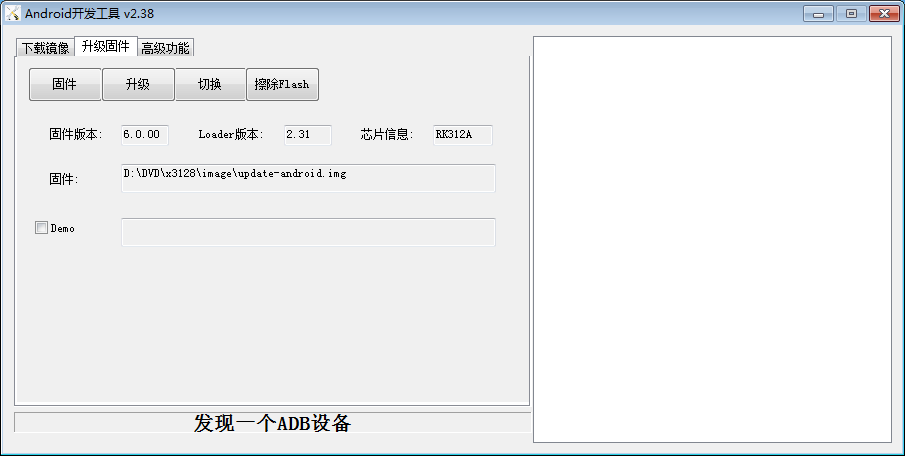
After installing the Rockchip driver, open AndroidTool, choose the upgrade firmware tab, and load update-Android.img. Hold the Recovery key, connect USB OTG and 12V DC power, and click Upgrade after a LOADER device is detected.
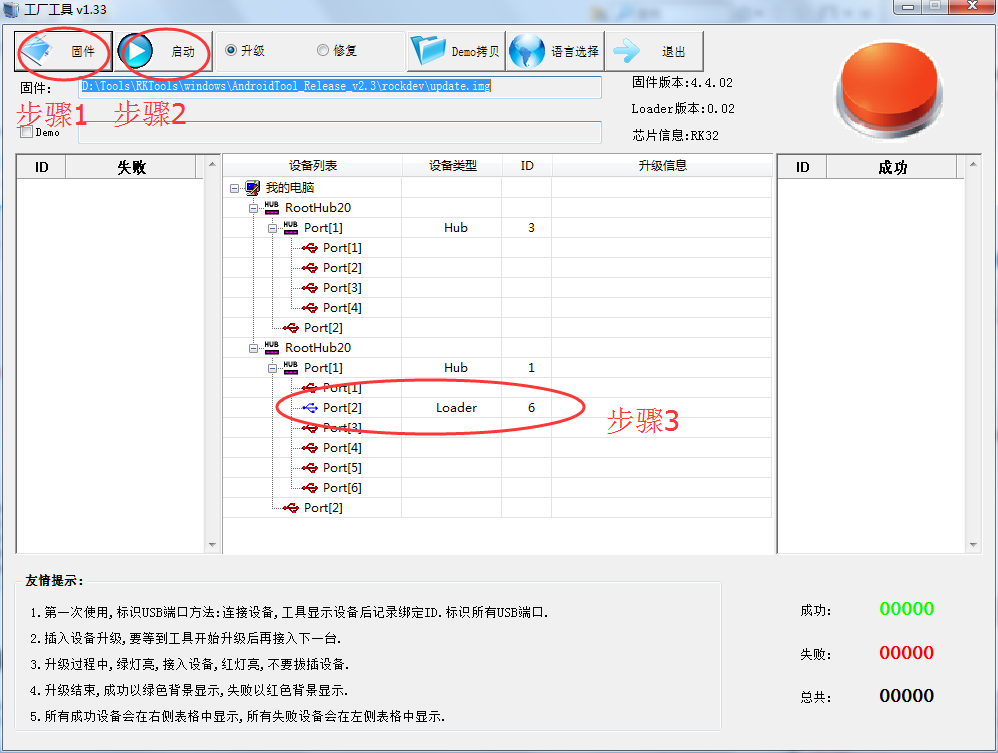
For batch flashing, use FactoryTool. Select the firmware, enable Upgrade, click Start, and connect devices one by one.
Flashing with upgrade_tool on Linux
Example tool path:
RKTools/Linux/Linux_Upgrade_Tool_v1.2
Copy update-Android.img to the same directory as upgrade_tool, then run:
sudo ./upgrade_tool
Common commands:
CD                    Select device
SD                    Switch to rockusb upgrade mode
UF update-Android.img Upgrade full firmware
UL loader.bin         Upgrade loader
DI -k kernel.img      Flash kernel.img
DI -s system.img      Flash system.img
DI resource resource.img
DI -r recovery.img
EF                    Erase flash
You can also run from out/release:
sudo upgrade_tool di -k kernel.img
sudo upgrade_tool di -s system.img
sudo upgrade_tool di resource resource.img
sudo upgrade_tool di -r recovery.img
sudo upgrade_tool ul RK3128MiniLoaderAll_V2.31.bin
sudo upgrade_tool uf update-Android.img
Rkflashkit
Rkflashkit provides both GUI and command-line modes for flashing, backup, erase, and reboot operations:
sudo apt-get install build-essential fakeroot
git clone https://github.com/Linuxerwang/rkflashkit
cd rkflashkit
./waf debian
sudo apt-get install python-gtk2
sudo dpkg -i rkflashkit_0.1.4_all.deb
sudo rkflashkit
Command-line example:
sudo rkflashkit flash @boot boot.img @kernel.img kernel.img reboot