Ubuntu Development Tools
Select a Package Mirror
Ubuntu package downloads may be slow on some networks. Use “Software & Updates” to select a suitable mirror.
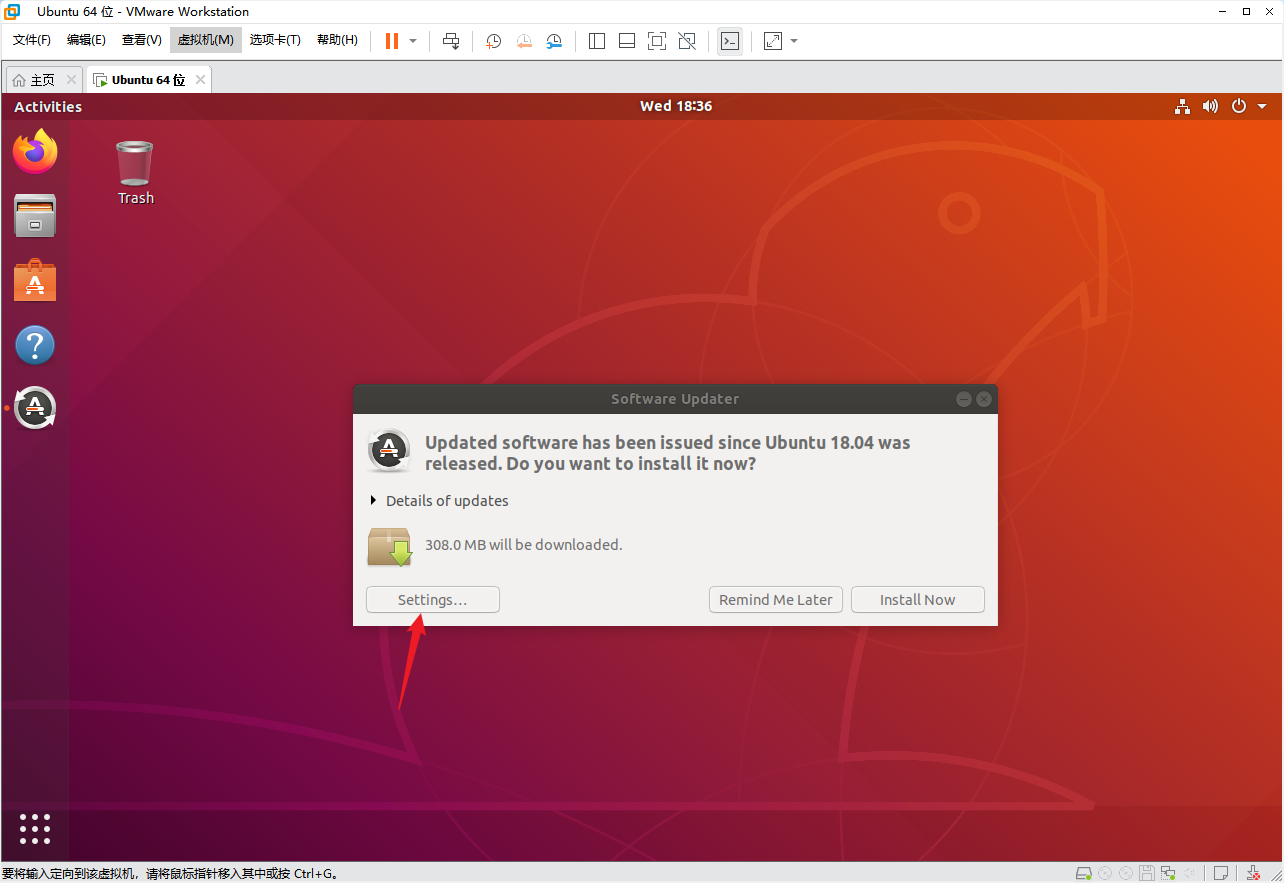
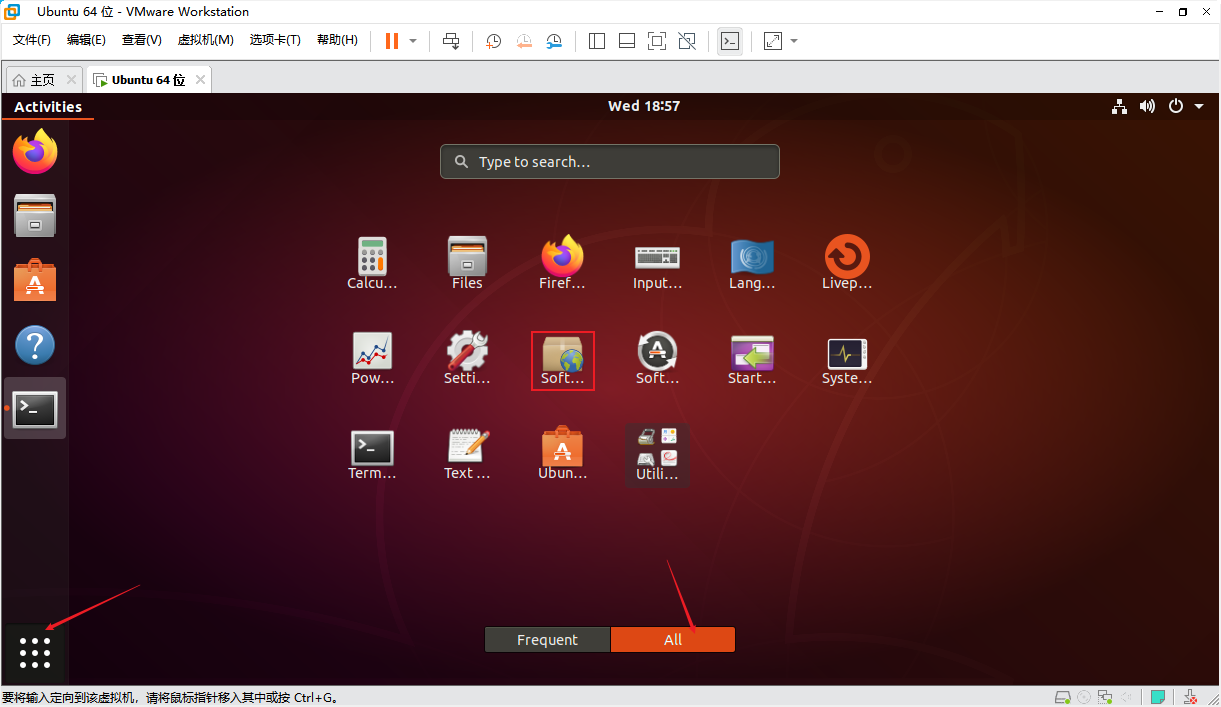
Open the download-server selector from the Ubuntu Software page.
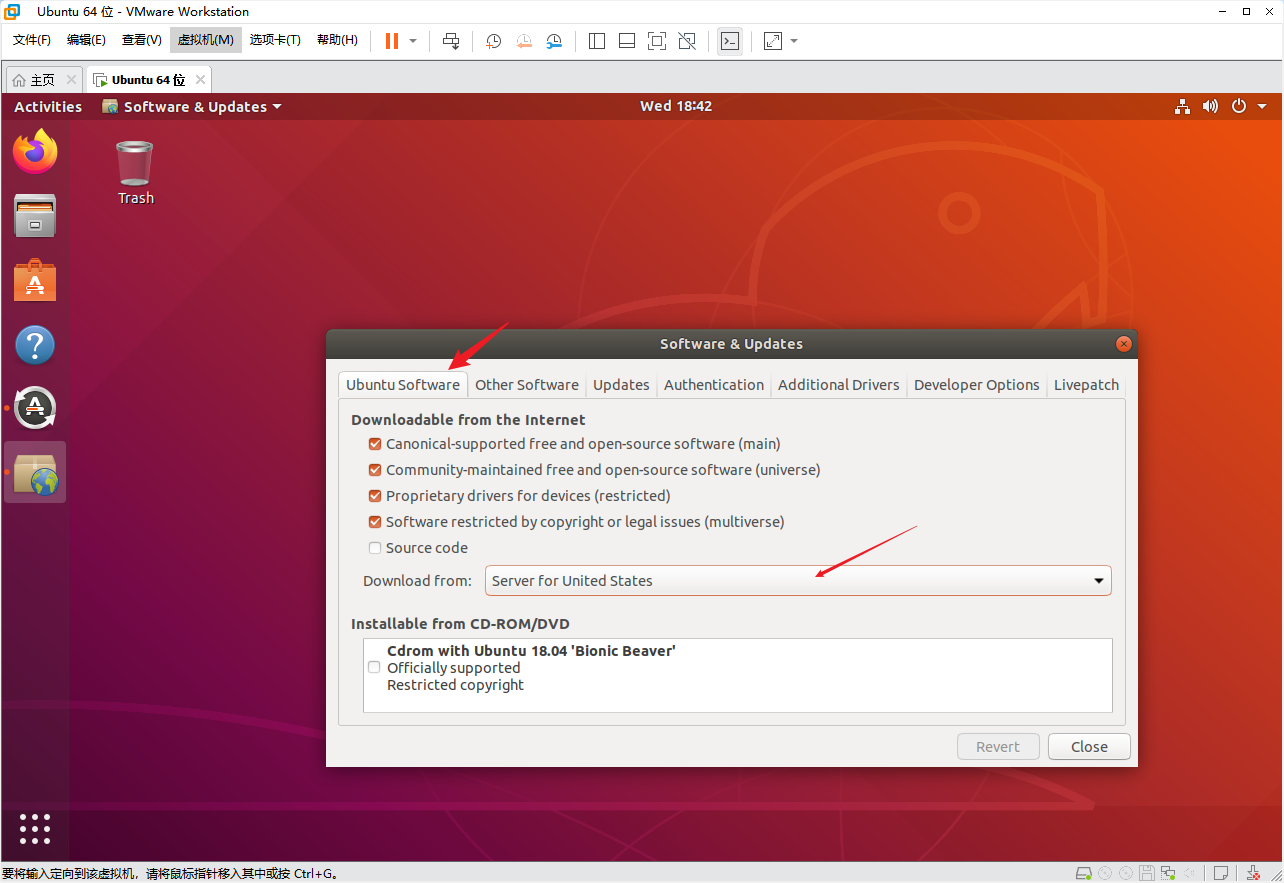
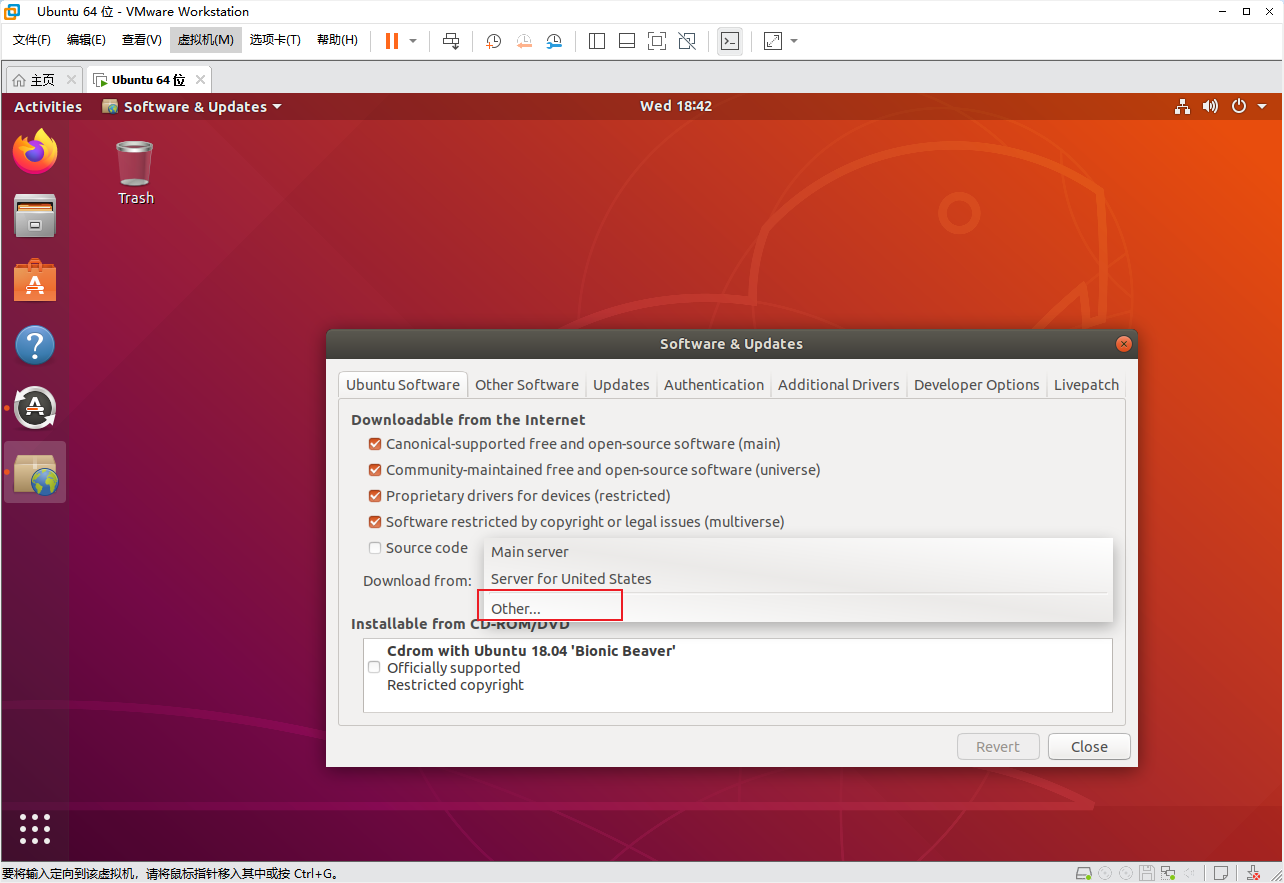
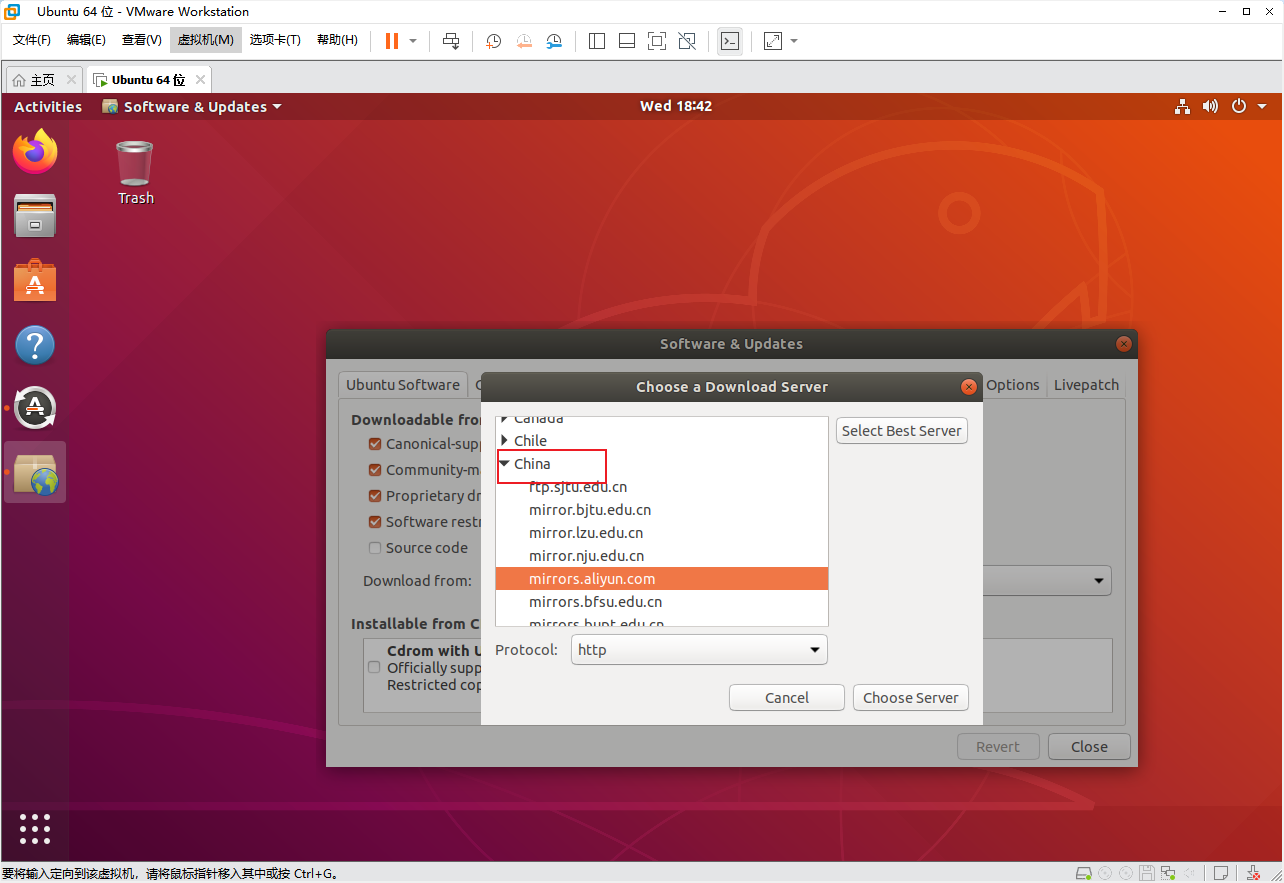
Select a stable mirror under China and confirm.
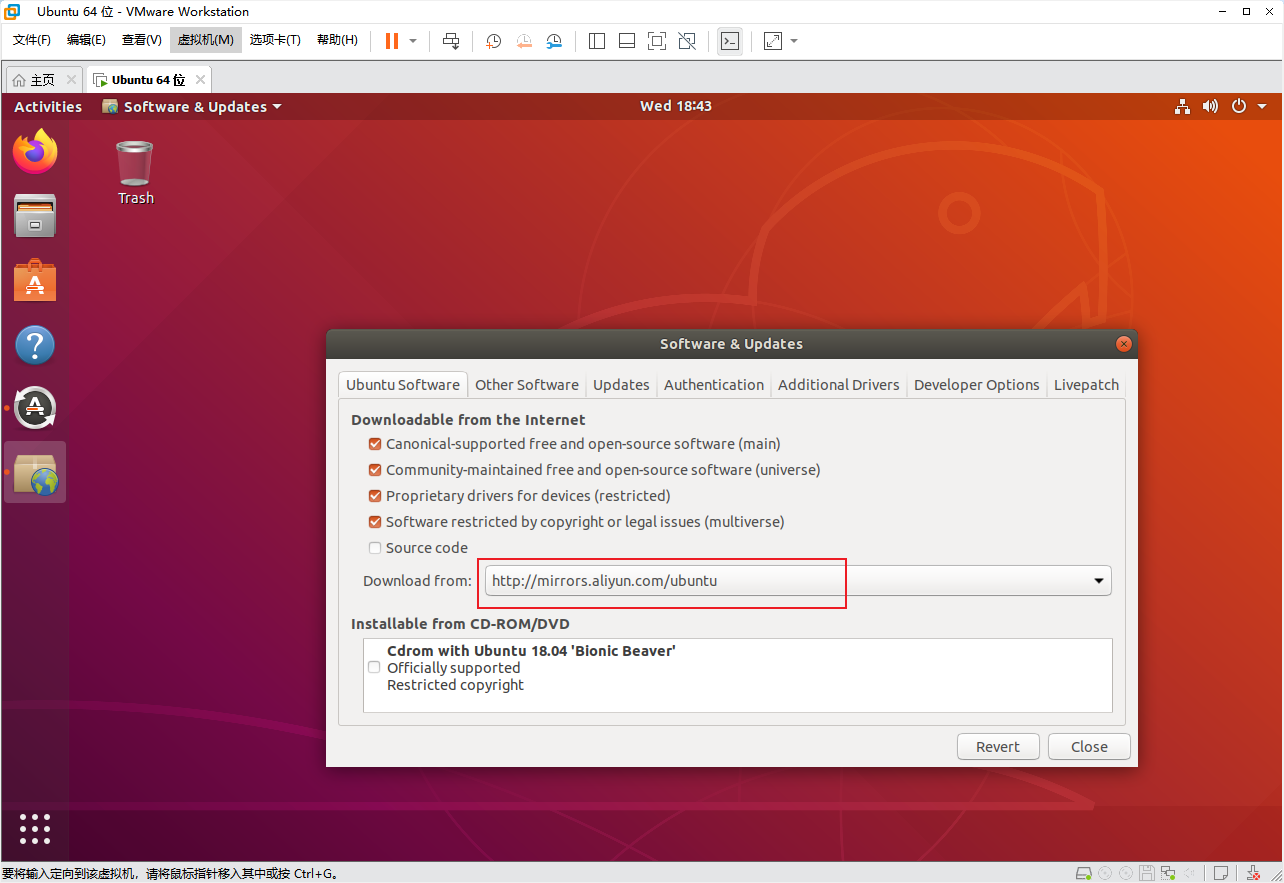
Refresh the package index:
sudo apt-get update
A full system upgrade is not required just to prepare an SDK build environment. Run it only when appropriate:
sudo apt-get upgrade
Repair dependencies when needed:
sudo apt-get -f install
Normal User and Root
Perform daily builds as a normal user and use sudo for administrative actions. Enabling root login is normally unnecessary.
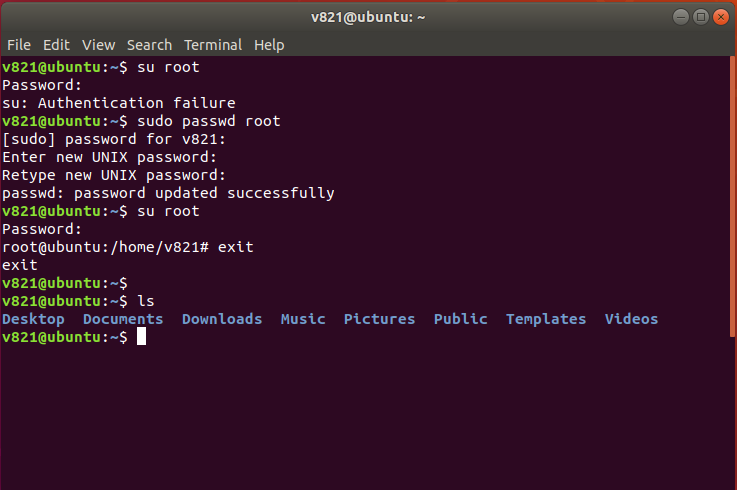
To set a root password explicitly:
sudo passwd root
Basic Utilities
Install ifconfig:
sudo apt-get install -y net-tools
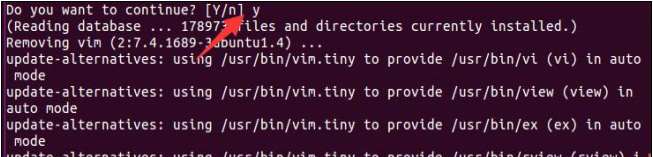
Install Vim:
sudo apt-get install -y vim
File Transfer Between Windows and Ubuntu
Install the SSH Server
sudo apt-get install -y openssh-server
sudo systemctl enable --now ssh
sudo systemctl status ssh
Use the normal Ubuntu account for SFTP. Root SSH login should remain disabled:
PermitRootLogin no
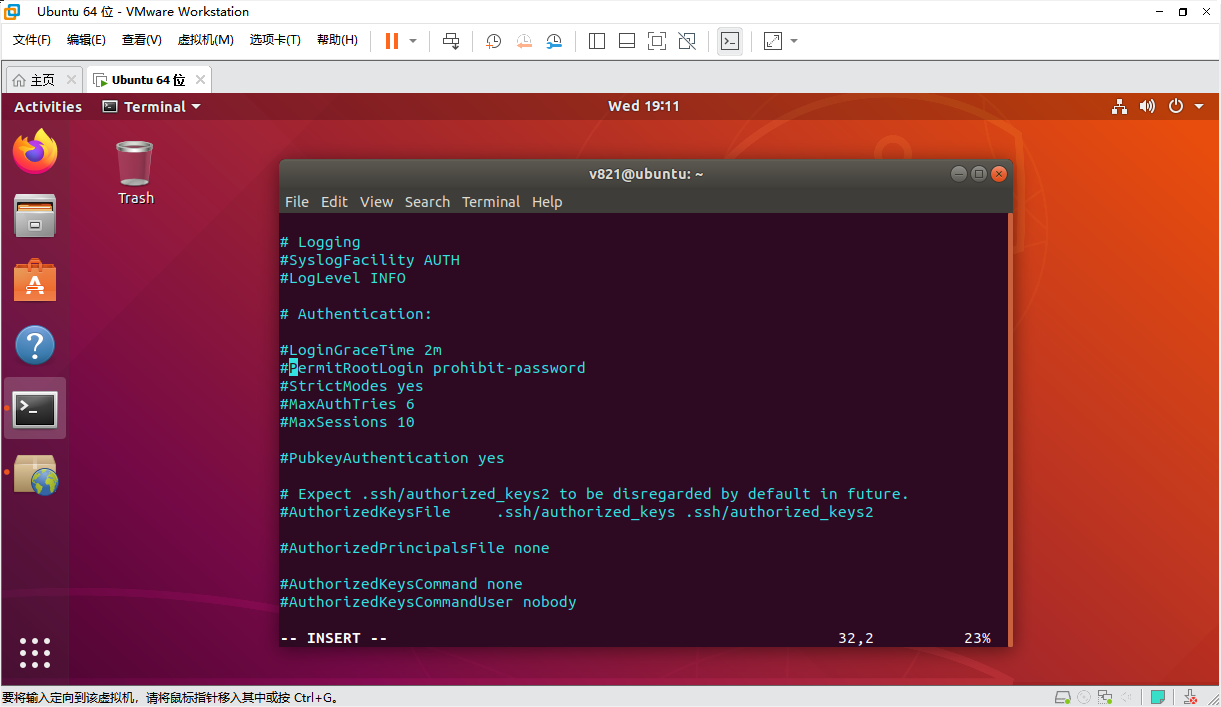
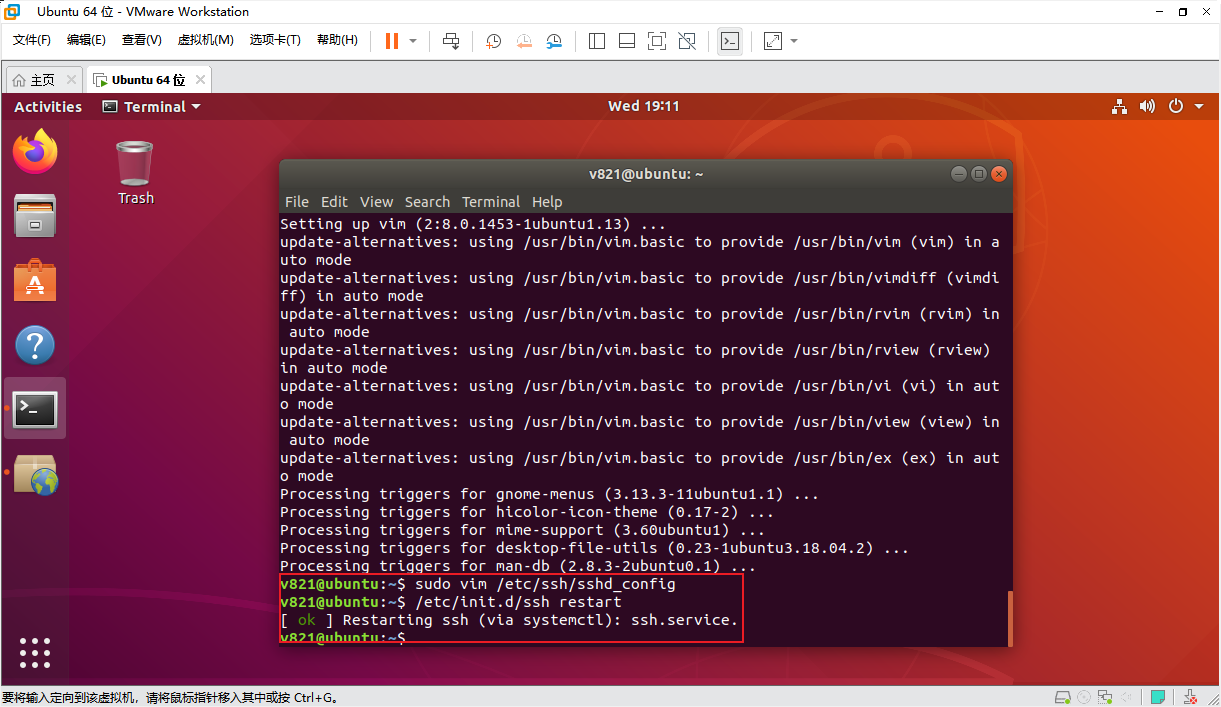
Restart SSH when required:
sudo service ssh restart
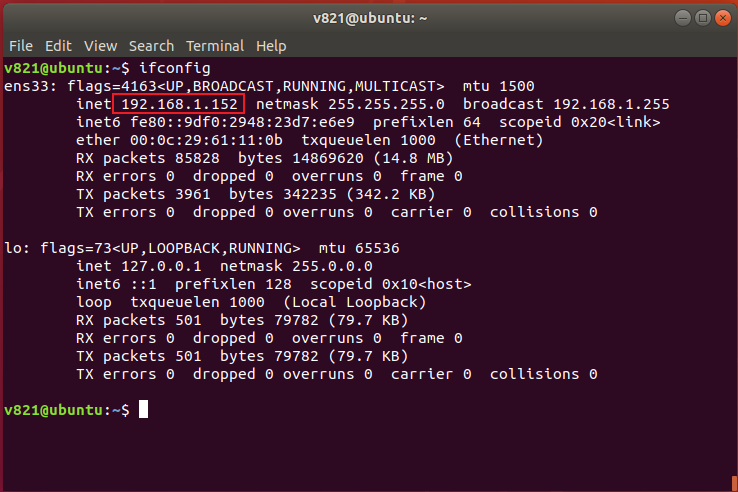
Display the VM IPv4 address:
ip -4 addr
After installing net-tools, ifconfig may also be used.
Use FileZilla
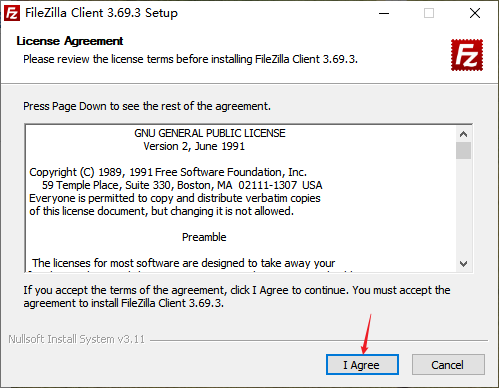
Install FileZilla Client on Windows.
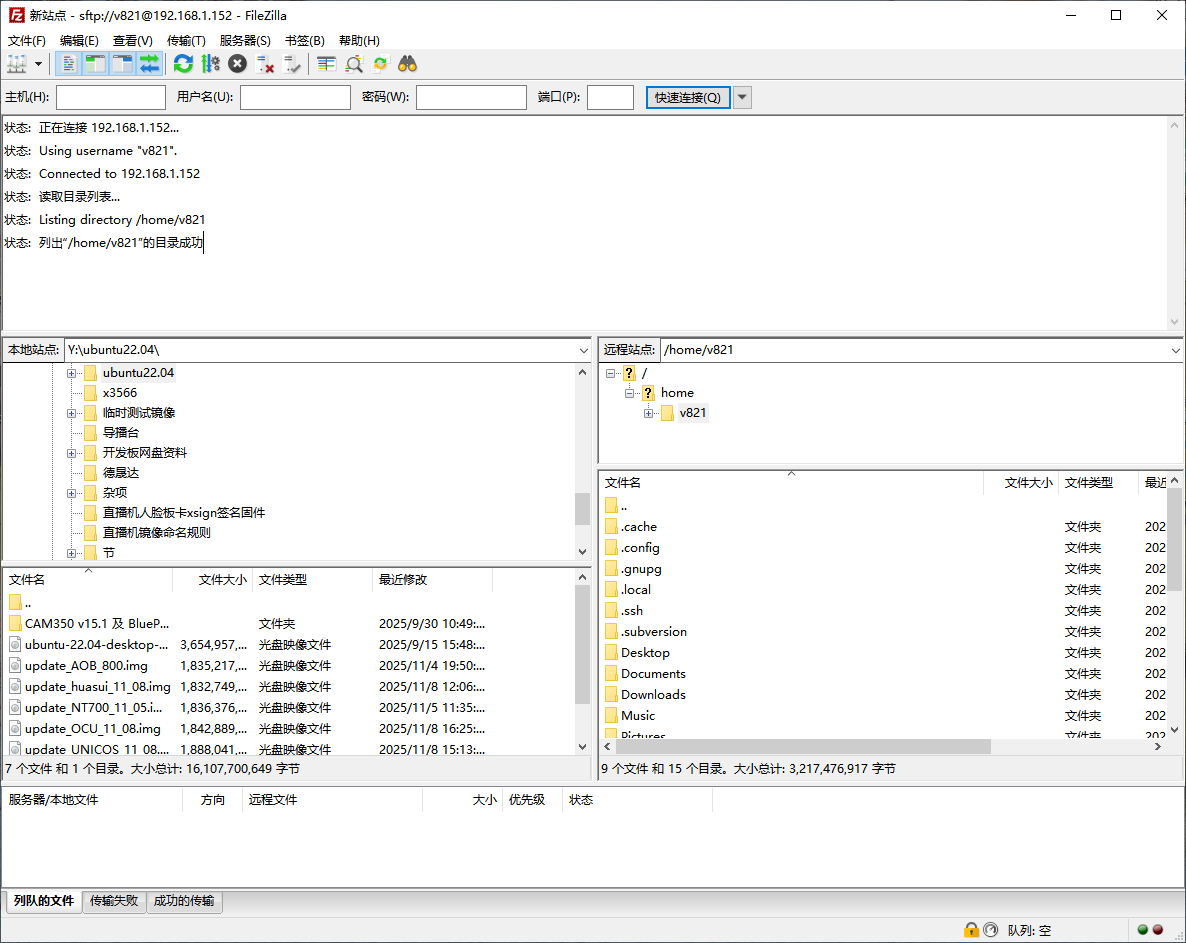
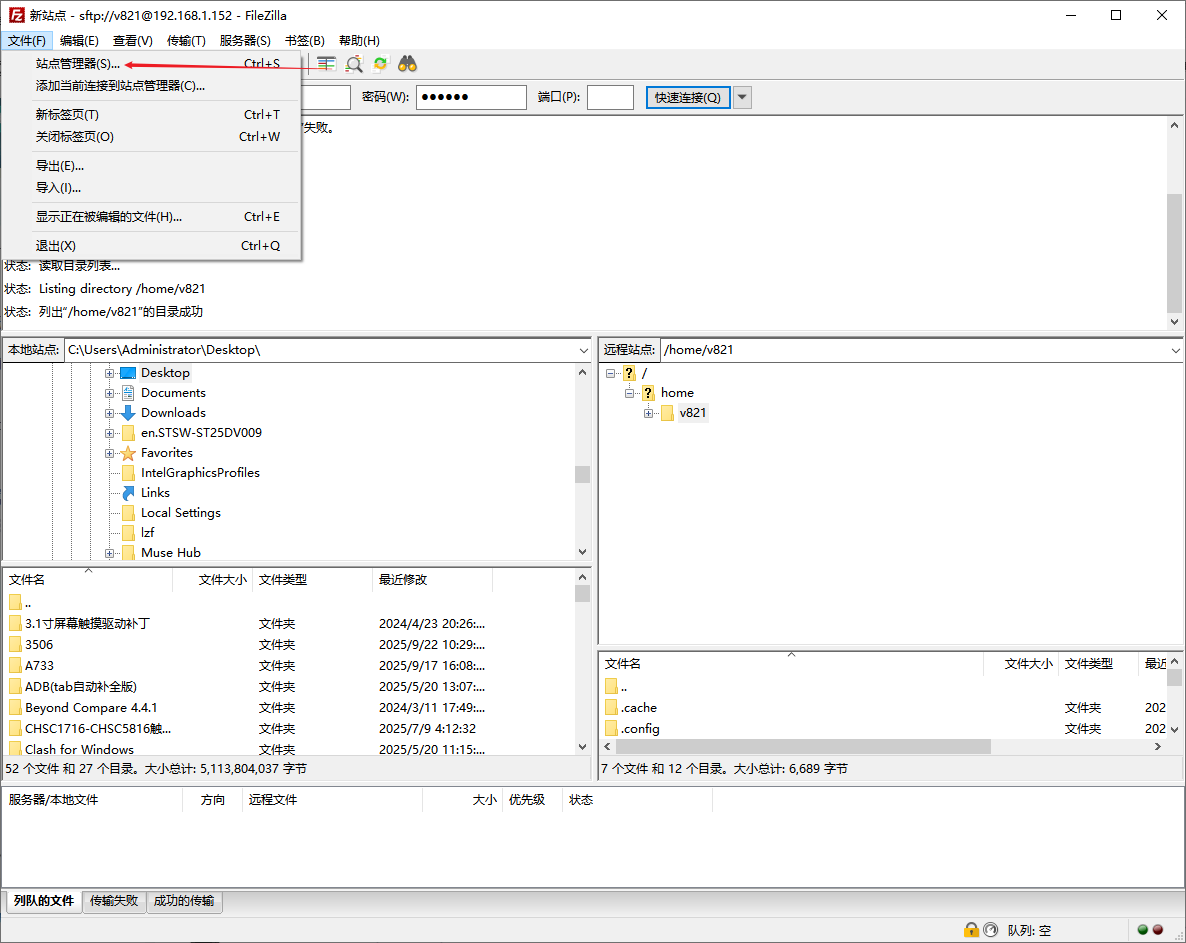
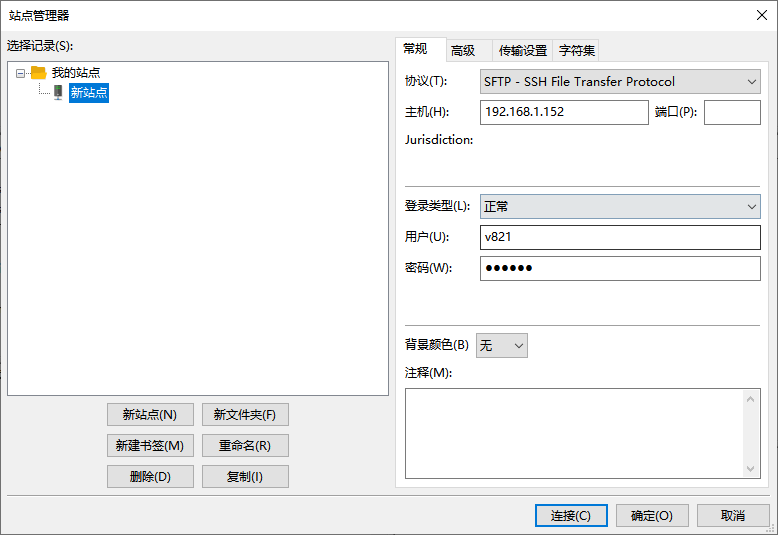
Create an SFTP site:
| Item | Value |
|---|---|
| Protocol | SFTP - SSH File Transfer Protocol |
| Host | Ubuntu VM IP address |
| Port | 22 |
| Logon type | Normal |
| User | Normal Ubuntu user |
| Password | Password for that user |
After connecting, transfer files by dragging or double-clicking.